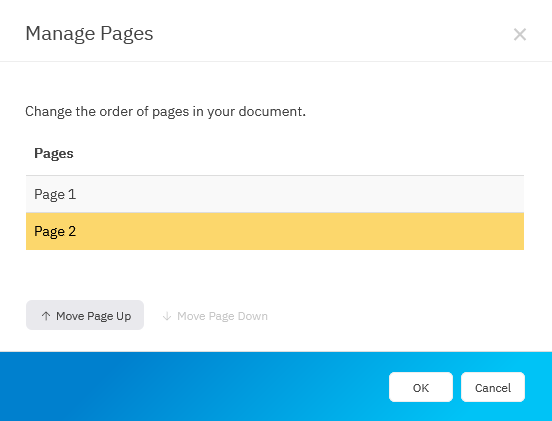
Pages allow you to create a collection of related diagrams all in one document.
Read this article to learn how to add multiple pages to a single diagram.
Once you added pages, you can rename pages, delete pages, reorganize the order of pages, and so on.
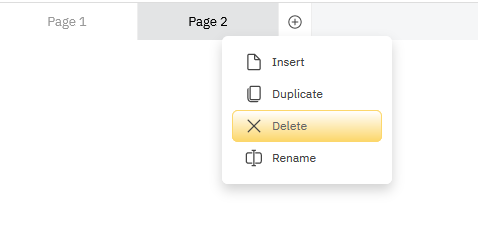
Delete a Page
To delete an existing page in a multi-page document, right click on a page at the top of workspace and select Delete.
Rename a Page
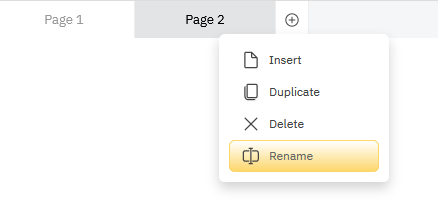
By default, pages will simply be numbered and named Page 1, Page 2, Page 3. If you want to give your pages more recognizable names to make navigation easy, right-click on a page and select Rename.
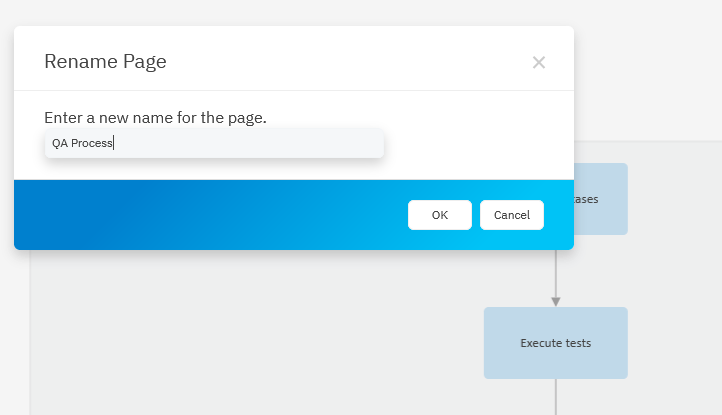
You'll be asked to enter a new name for the page and hit OK to save.
Re-Order Pages
You can re-order pages, by choosing Manage Pages from the plus sign drop-down menu.
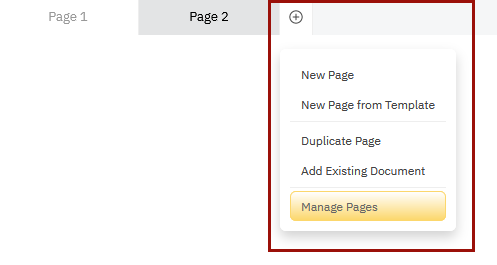
You'll be able to reorganize and move pages up as desired.