
You can use SmartDraw’s AI integration to generate a timeline using natural language prompts. You can provide a list of project milestones or ask for a list of historical events or known dates.
Step 1: Switch the SmartPanel to SmartDraw AI
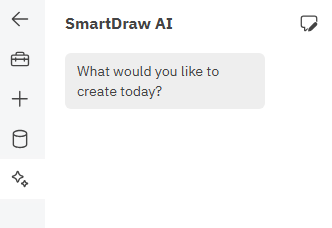
Start by clicking on the star or sparkle icon in the left bar to switch the SmartPanel to the SmartDraw AI view.
Step 2: Enter a Prompt
Type in your prompt and hit the send icon in the lower right corner to send your prompt to the LLM.
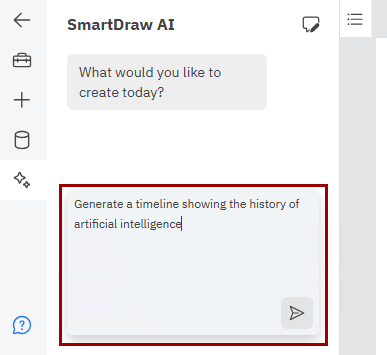
For example, you can try the following prompt to get a timeline based on publicly available information:
After the timeline is generated, a chat message will notify you, and the mind map will appear inside a frame in the drawing area on the right.
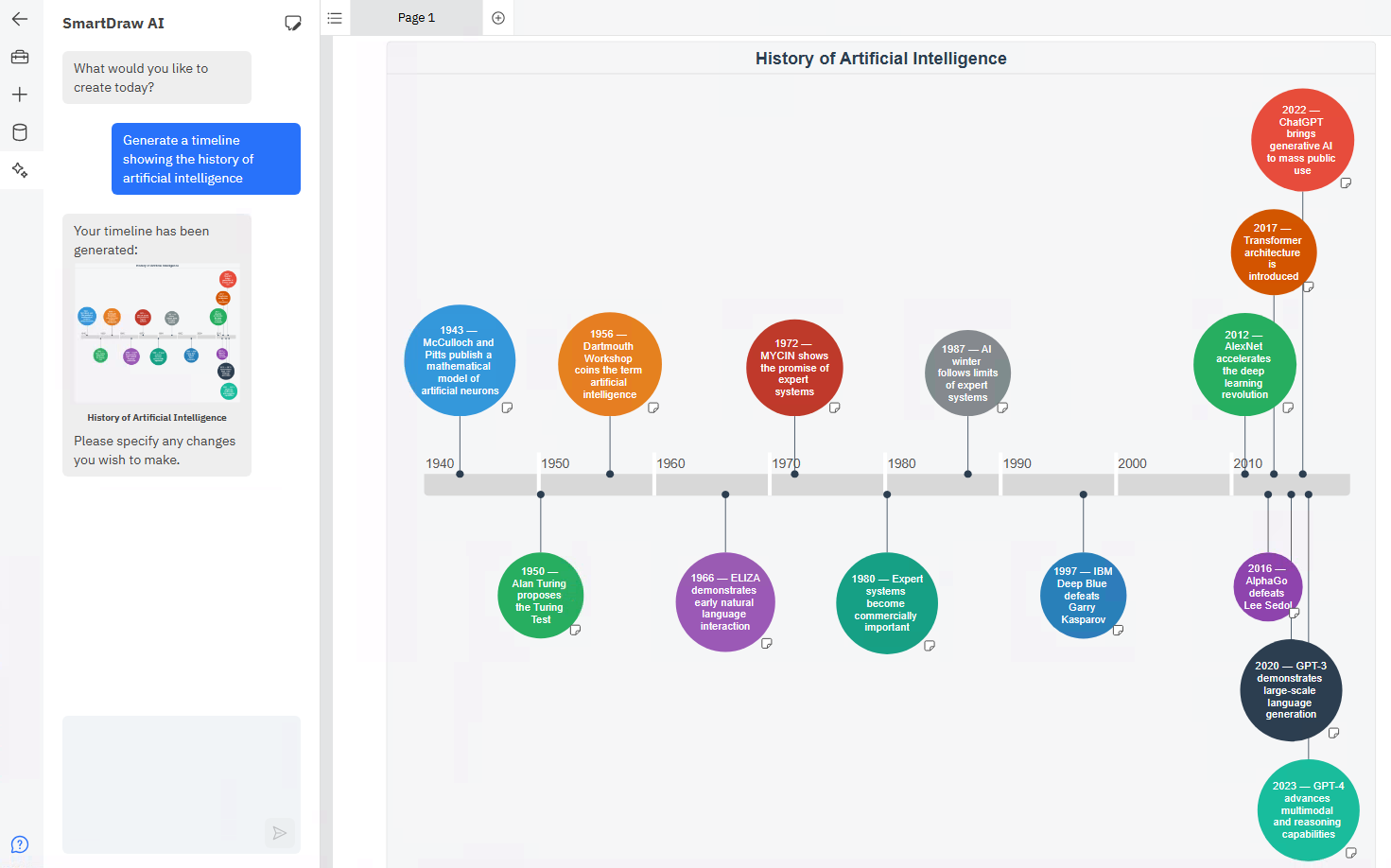
You can continue to modify the generated timeline using AI. Ask to remove items or add more detail.
Step 3: Edit Your Generated Timeline in SmartDraw
You can also modify the generated timeline with SmartDraw’s built-in tools. Modify colors, add milestones and events, and more.
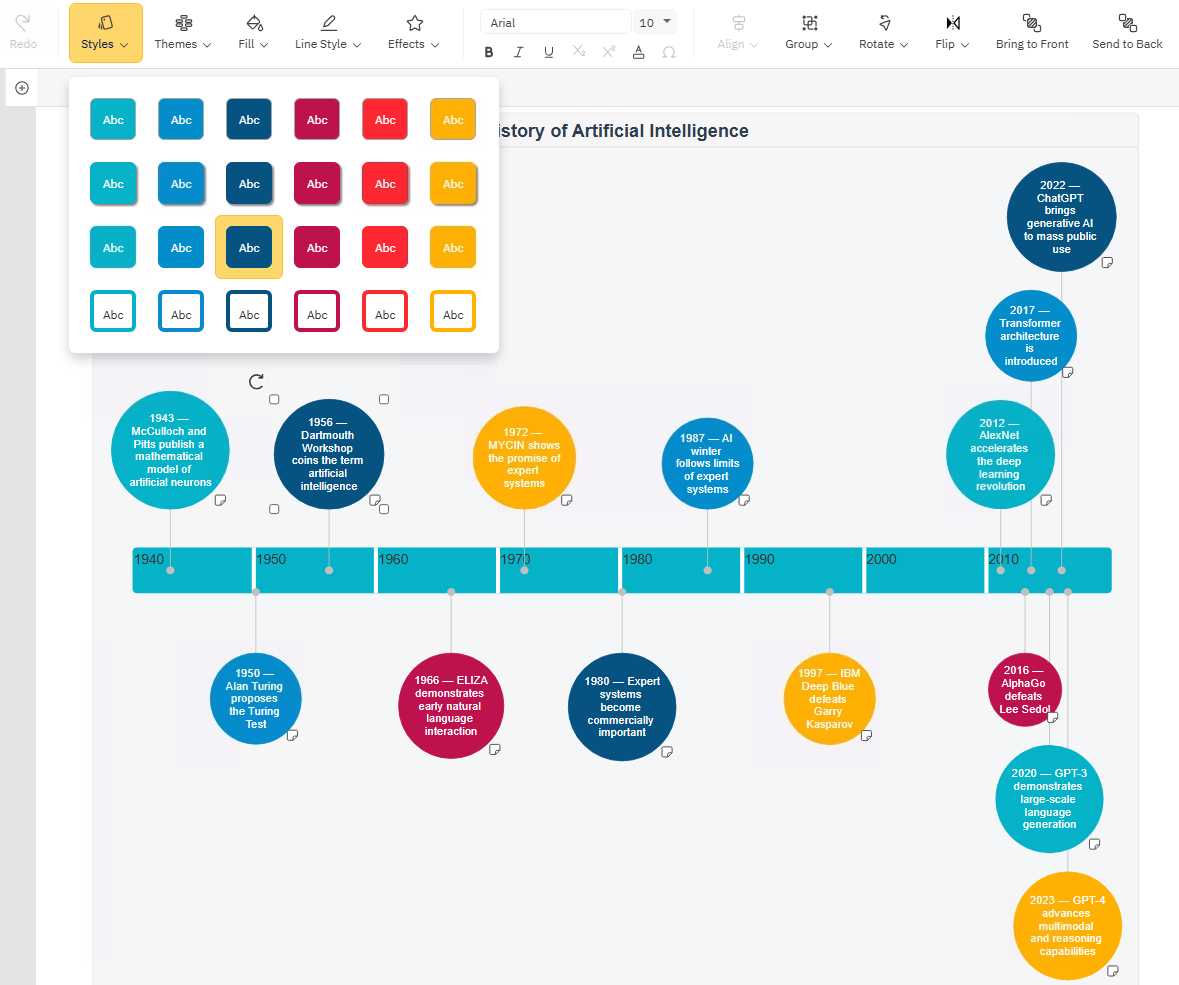
If you want to see the chat history that generated the timeline, just select the frame around the timeline. It will automatically switch your view of the SmartPanel back to SmartDraw AI and your chat history.