There are three types of hyperlinks that may be inserted into a SmartDraw file. They are:
- A hyperlink to a website
- A hyperlink to a separate SmartDraw File
- A hyperlink to another page within a multi-page SmartDraw file
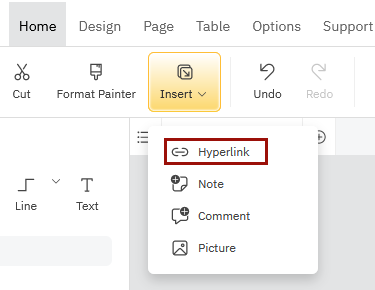
To add a hyperlink, you'll select a shape or text and click on Hyperlink under the Insert options on the Home tab.
This dialog will look different if you have a multi-page SmartDraw document or if you're just dealing with a single page diagram.
Linking to a File or Website of a Single Page Diagram
If you click on Hyperlink from a single page diagram, your dialog will look like this.
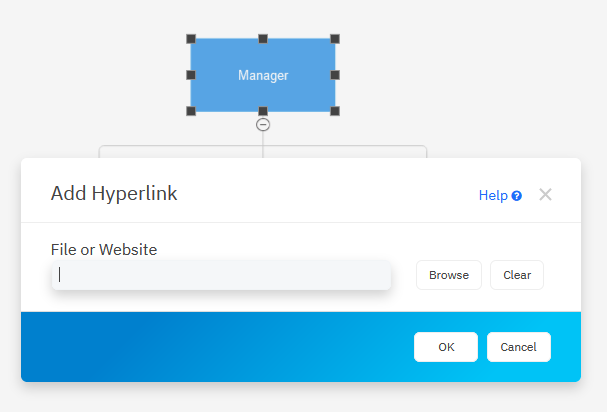
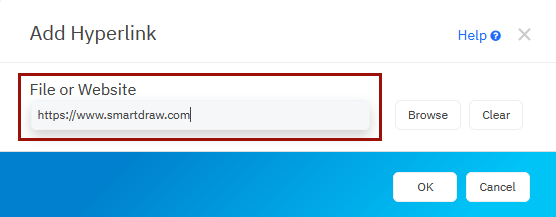
To add a hyperlink to a website, type or copy-paste the URL of the web page.
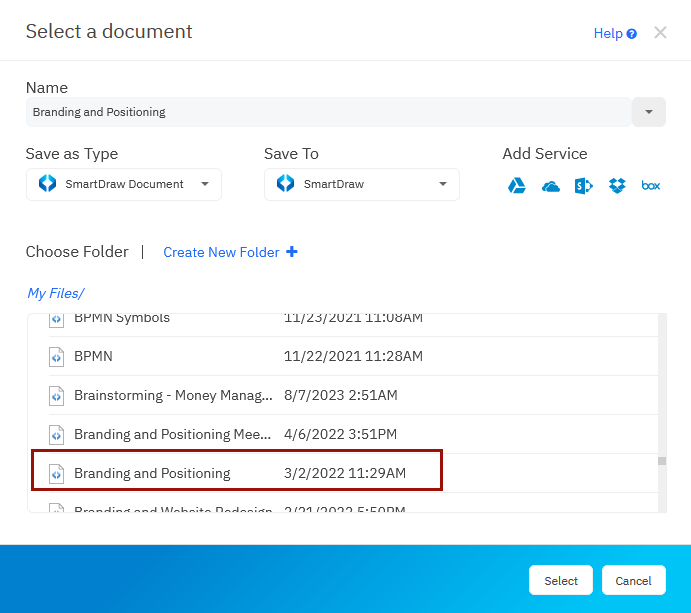
To add a hyperlink to a file, click on "Browse" and find a SmartDraw file from your list of saved diagrams.
Use the scroll bar in the My Files section to scroll through and then select your desired file. Click Select.
Hyperlinking to Another Page in a Multi-Page Diagram
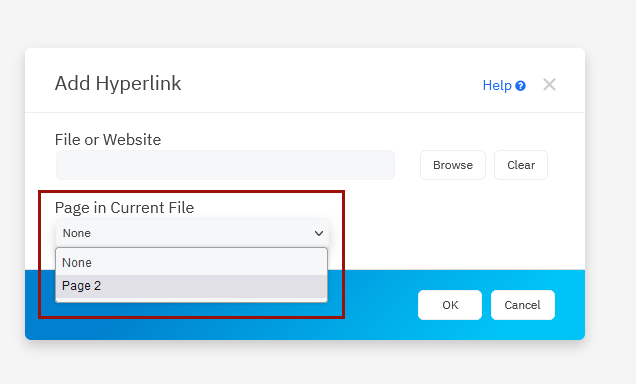
When you have a multi-page document and you choose to Insert a Hyperlink, there will be an additional option on the dialog to link to the other page or pages in your document.
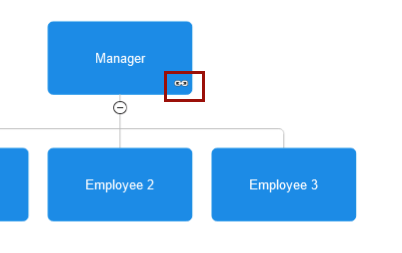
Once a hyperlink is inserted, it will show up as a small link icon at the bottom right of the linked shape.