SmartDraw is fully compatible many 3rd party storage providers such as Google Drive™, OneDrive®, SharePoint®, Dropbox®, or Box®.
There are a few ways to add a third party storage service:
- From the Save As modal
- From the Documents section of the Dashboard
- From the Integrations section of the Dashboard
Read more about each service:
- Connect to Microsoft OneDrive
- Connect to Google Drive
- Connect to SharePoint
- Connect to Box
- Connect to Dropbox
You'll be prompted to login to that service provider with your credentials. For example, if you select Google Drive™, you will have to login with your Google Account. Login using your credentials and follow any additional prompts to allow the two services to connect.
Save As/Save a Copy Modal
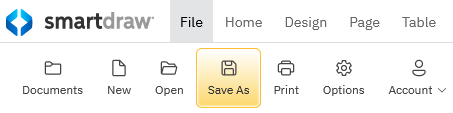
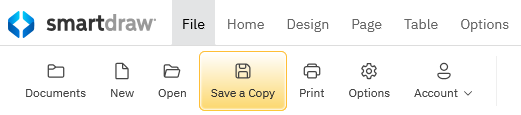
To save your file to the newly connected third party service, click Save As/Save a Copy from the File tab.
You'll see Save As when working with templates that have never been saved before.
You'll see Save a Copy when working with previously saved documents.
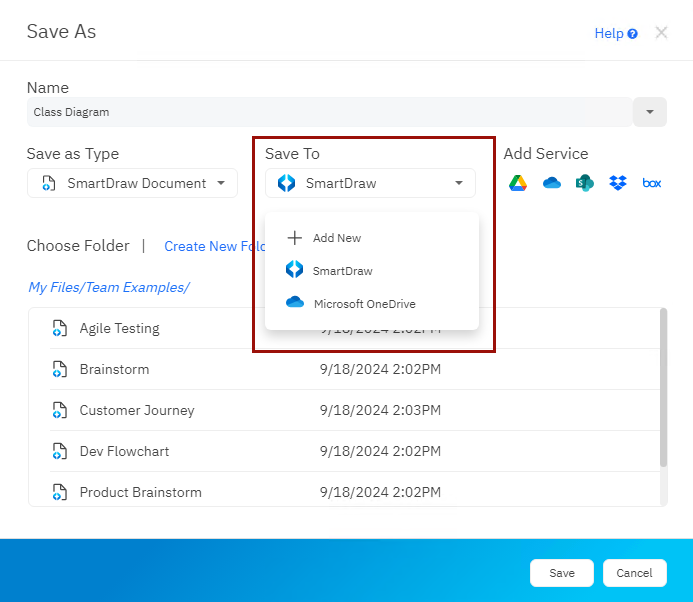
You can connect to a 3rd party service directly from within the Save As/Save a Copy dialog. Simply select Add New from the Save To drop down menu. You can also click on the logo of the service under Add Service in the same dialog. Follow the prompts from your third party service to log in and connect. Now click Save. 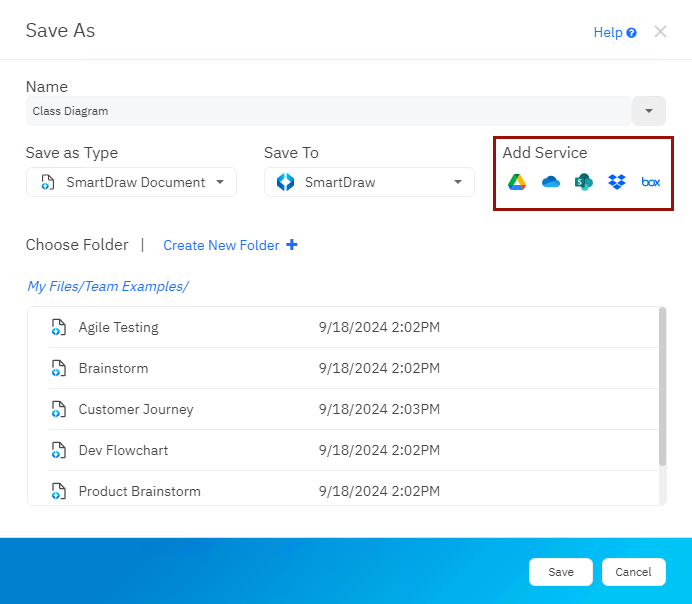
Once a 3rd party storage service is connected. You'll be able to save diagrams to it in the Save As/Save a Copy modal. In the drop-down for Save To, you'll see all your connected storage options.
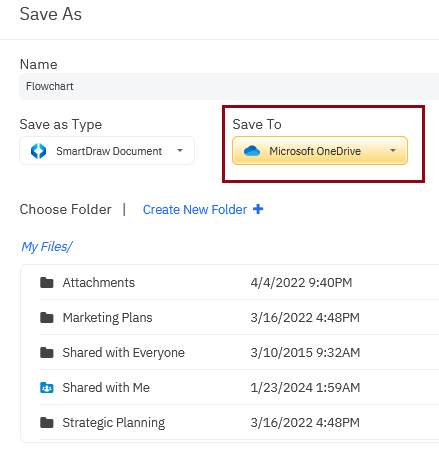
Once a service is selected, you'll see a list of files and folders below. You'll have the option to save to an existing folder to create a new folder.
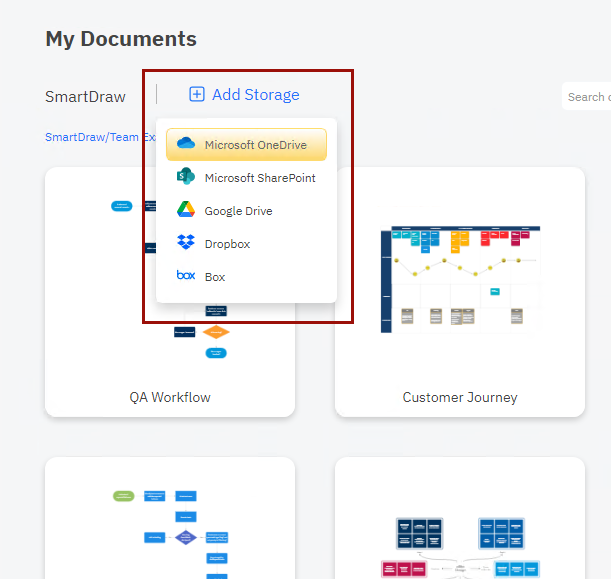
Adding a Service from the Documents View
You can 3rd party storage options from the Documents view of the Dashboard. Just choose an option from the drop-down from Add Storage.
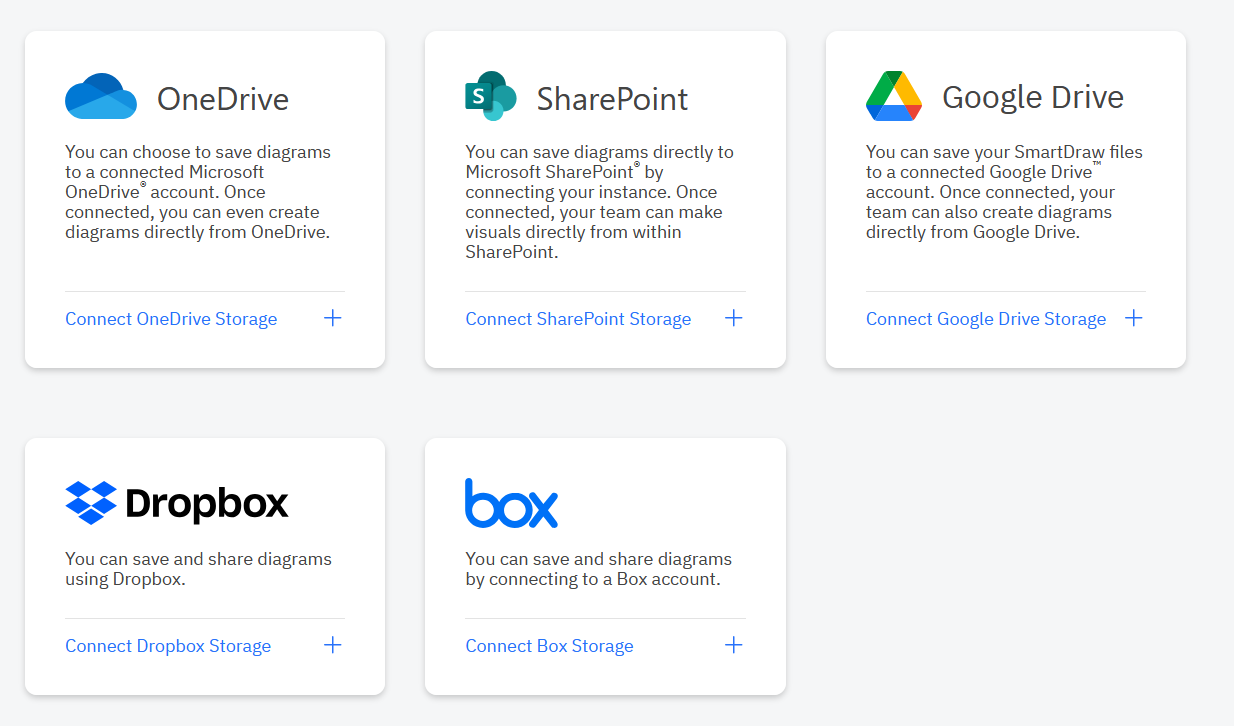
Adding a Service from the Integrations View
You can 3rd party storage options from the Integrations view of the Dashboard. First, click on Integrations and then scroll to the Storage section where you can click and connect to your preferred provider.
Finding Files Stored on 3rd Party Storage Providers
Any diagram saved to a 3rd party storage service will be organized into a separate view under Documents.
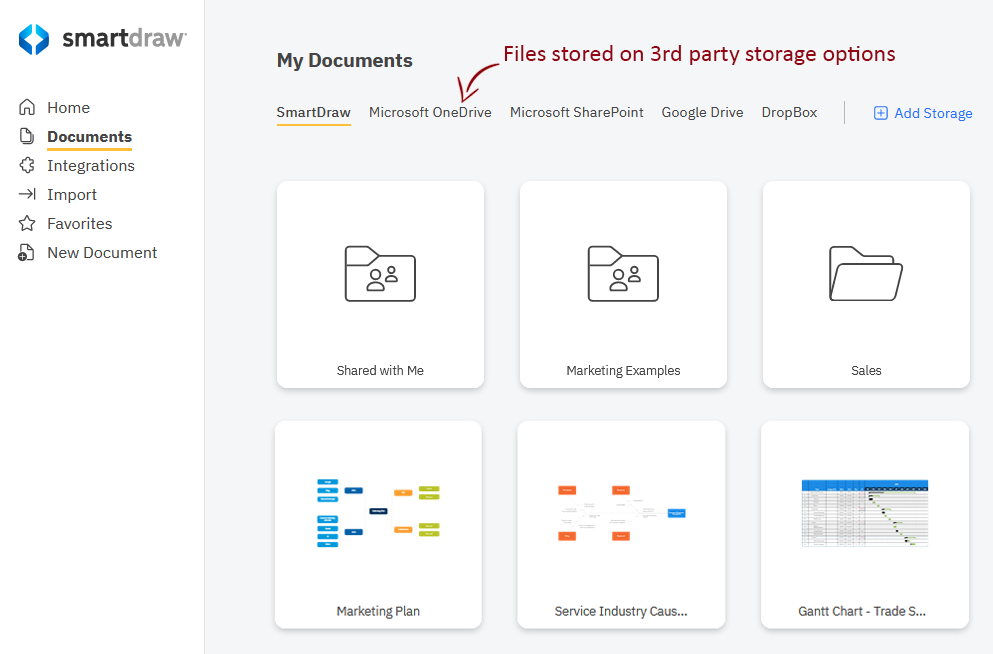
You'll also have access to any already existing folders on the connected service.
Shared folders will be marked to make it clear that any files saved there will be shared using whatever permission that folder has been set up with.
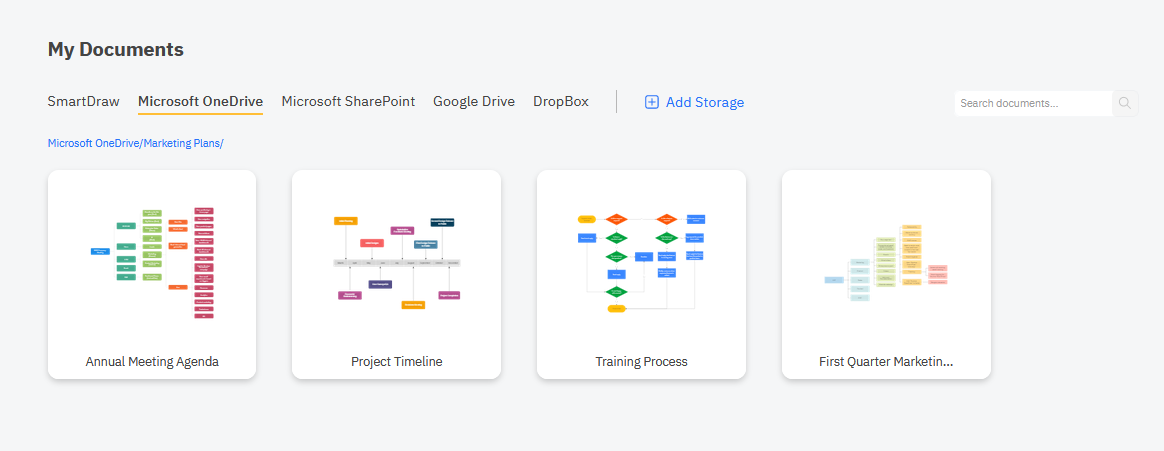
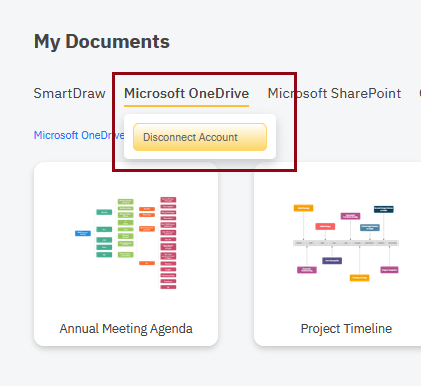
To disconnect a 3rd party storage provider, return to the Dashboard, right-click on the 3rd Party Provider in your Documents view and choose Disconnect Account.