---
title: Tips for Printing on One Page
description: What to do when scaling a large diagram to one page makes the text too small to read.
---
[Skip to content](https://support.smartdraw.com/tips-for-printing-on-one-page#main-content)
English - United States
Show submenu for translations
[Submit a Request](https://support.smartdraw.com/kb-tickets/new?hsLang=en-us)

Open main navigation
Close main navigation
- English - United States
Show submenu for translations
- [Submit a Request](https://support.smartdraw.com/kb-tickets/new)
How can we help you?
- There are no suggestions because the search field is empty.
1. [SmartDraw Knowledge Base](https://support.smartdraw.com/?hsLang=en-us)
2. [Printing](https://support.smartdraw.com/printing?hsLang=en-us)
3. [Printing](https://support.smartdraw.com/printing?hsLang=en-us#printing)
# Tips for Printing on One Page
SmartDraw lets you create as big of a diagram as you need to display the information you want.
While SmartDraw has pages that can be added, these pages are meant to divide the diagram into distinct sections and are not the same as a printed page.
So while the diagram you create is technically on one page, when it comes to printing it may take several pages to show your diagram at full scale.
Here's a partial view of big org chart showing how many 8.5"x11" pages in landscape format it would take to print at actual size:
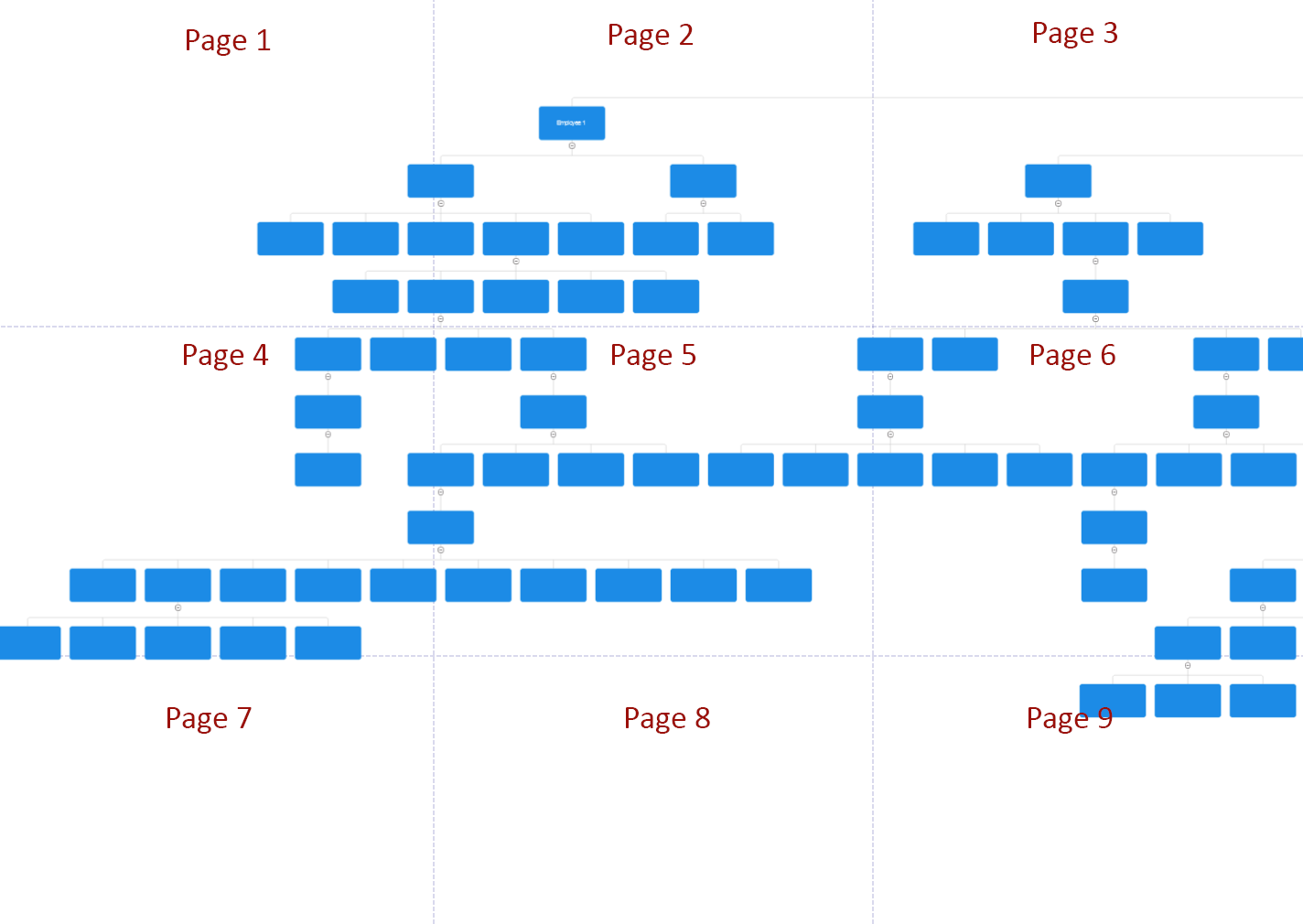
To see what your diagram will look like once printed, use our print preview. Go to the **File** tab and click on **Print**.

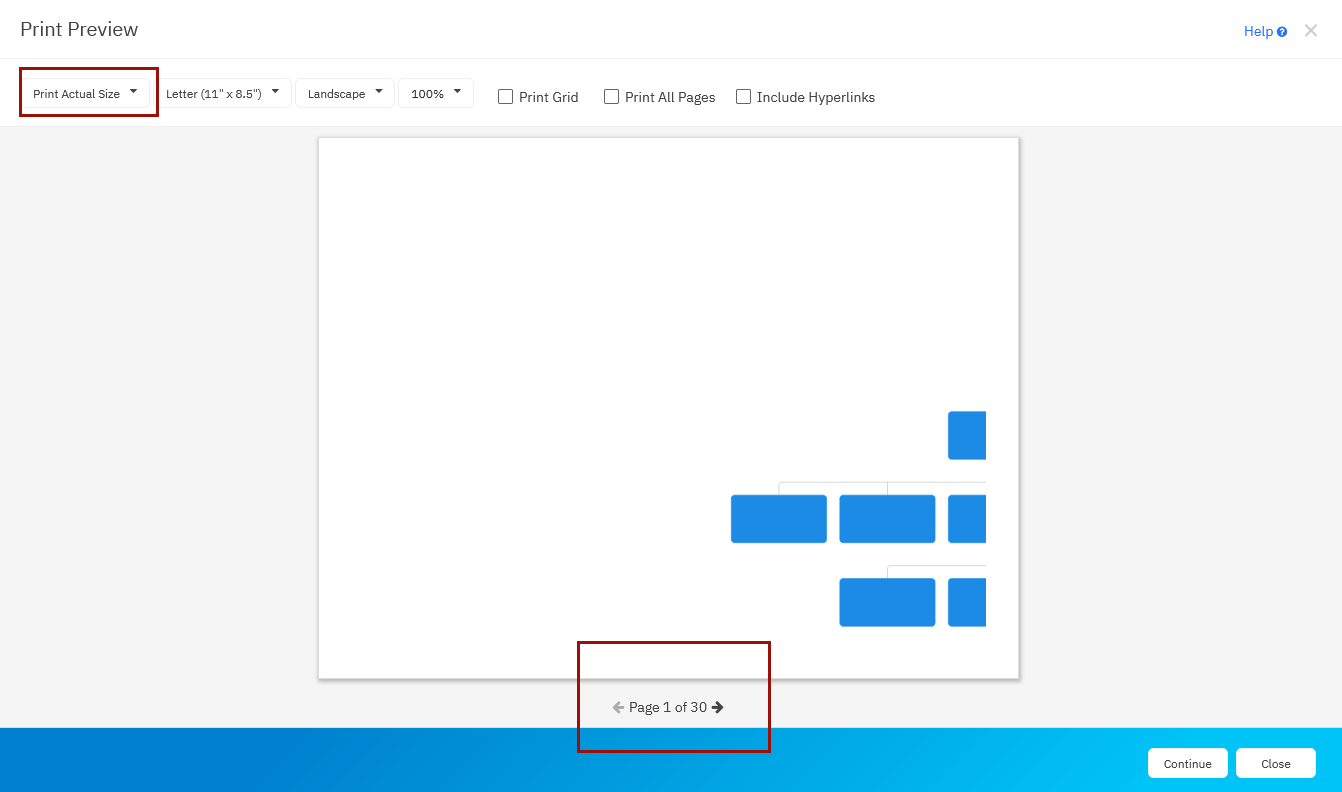
The **Print Preview** dialog will give you an idea of what your visual will look like on the printed page. By default, the **Print Actual Size** option will be selected. This means that with a big diagram, you may see only a partial view of your diagram and you'll see the page count at the bottom of the preview dialog. In the example below, the org chart would take 30 pages to print at full scale.
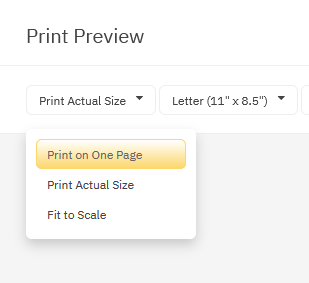
You can choose **Print on One Page** to make your diagram, no matter how large, fit on a single page. However, the scaling needed to reduce your diagram to a single page may make your text too small to read.
There are a few things that you can try to reduce the size of your diagram to make it fit better.
### See Print Page Dividers in Your Work Area
To help illustrate how big your diagram is compared to the area available on a printed page, you may find it helpful to see the page dividers in your work area as you work.
First, click on **Print** to see the "*Print Preview*" dialog and choose **Print Actual Size** instead of **Print on One Page**.
Next, make sure the option for **Page Dividers** is checked on the **Page** tab.

You'll now see a faint purple dashed line appear on your diagram showing you the size of your printed page.
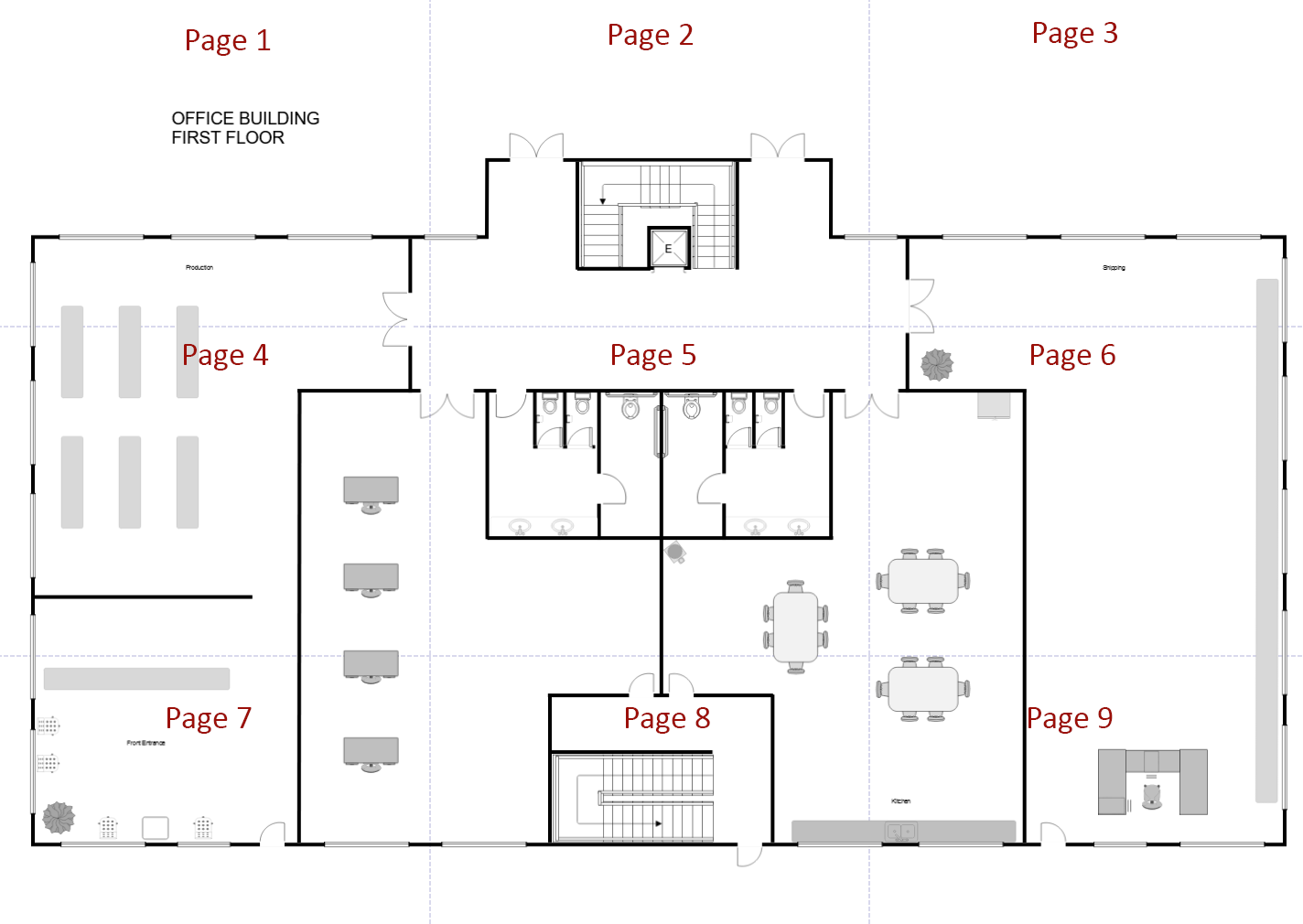
You can use these dividers as your guide to help you reduce the size of your diagram.
### Make Your Diagram Smaller to Reduce Scaling
To make your diagram fit better on one page, you'll have to make it smaller. In our example above, it looks like we used a 24 point font and lots of space between shapes. So step 1 would be to reduce the font size to something smaller but still legible like 10 point and make all the shapes smaller too.
If you're working with an organizational chart, you can use some tricks to reduce the space between branches by using a staggered branch style to allow for better spacing. You can also try alternating branches that have shapes go to the left and to the right instead of always going in one direction.
You can also use the adjustment handles on the automatic connectors (the line between shapes) to reduce the space between branches and shapes. [Learn more about adjusting spacing on automatic connectors like those used in organizational charts.](https://support.smartdraw.com/connector-spacing-for-org-charts-and-more?hsLang=en-us)
The goal with every step is to make your diagram take up less space.
Here is a list of things to try:
- Make your font smaller
- Reduce the size of your shapes
- Turn on compact formatting for organizational charts and mind maps
- For organizational charts, experiment combining branch styles that take up the less physical space. Try staggered and alternating left and right facing branches.
- Use adjustment handles on automatic connectors to reduce space between shapes
After all the steps above, we took our organizational chart that originally took up 80 printed pages to just 6.
That is a significant reduction with a few tricks.
Now, if your diagram is still not legible when you select "Print on One Page", you should either break it apart into smaller diagrams or share it using a link instead of printing.
### Break Your Diagram Into More Manageable Chunks
You may also want to consider breaking your diagram into more manageable parts and placing smaller sections onto different pages within the same document.
### Create Sub Charts if Available
If you're working with flowcharts and org charts, SmartDraw makes it easy to create a sub-chart or sub-process easily with just a click of a button. Select a shape on your diagram and click **Create Sub-Chart** or **Create Sub-Process** in the SmartPanel to the left of your workspace. This will automatically create a new page in your document linked to the selected shape. You can continue working on your diagram in this new page or copy-paste from your existing document into this new page.

### Alternatively: Add New Pages Manually
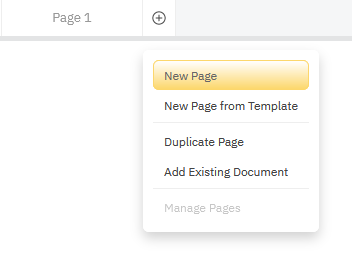
Click the plus icon next to "Page 1" above the drawing area to add more pages to your document then simply cut and paste any section onto the new pages.
### Cut and Paste Parts of Your Diagram On the New Pages
Move parts of your diagram onto different pages.
You can then link to the new page from the original, by creating a **Hyperlink** the **Insert** option on the **Home** tab**. **
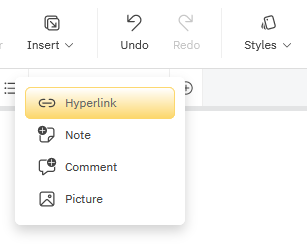
You can point a link from one object to another page in your current document.
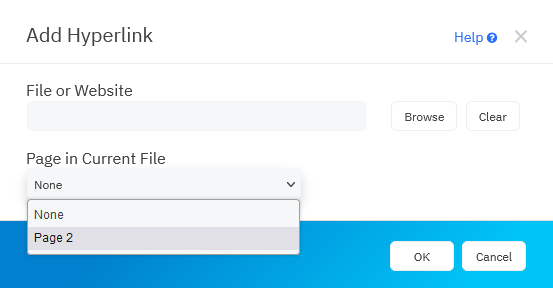
If you used the sub-chart or sub-process commands, all this is done automatically for you.
Keep creating pages until the page dividers on your page show that each page of your diagram fits on one page.
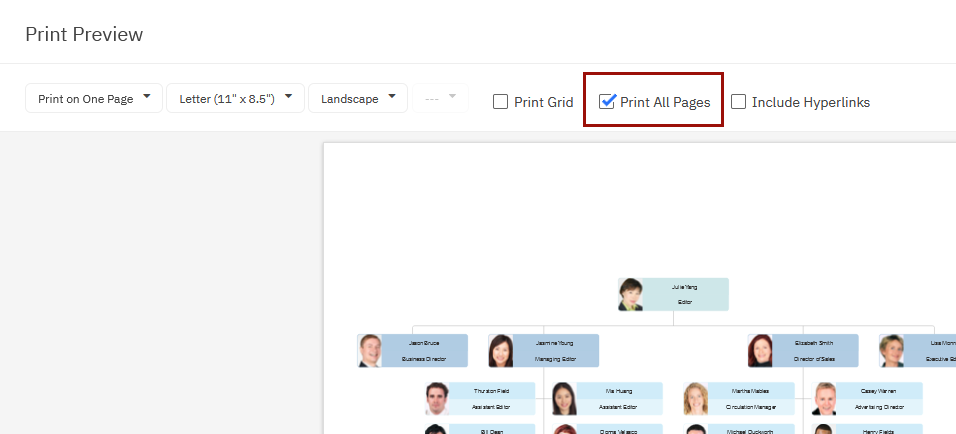
Now, when you go **Print**, make sure you check the **Print All Pages** box and you will get each page of your diagram as a separate printed page.
Note: **Print All Pages** doesn't actually refer to the the pages that your diagram is broken into to fit on a physical sheet of paper. Those will all be printed no matter what that setting shows. The **Print All Pages** option refers to **page tabs** we just created in SmartDraw to make our document more manageable. Checking the box to **Print all Pages** will include those pages in your PDF.
### Consider Sharing Your Diagram By Emailing People a Link Instead of Printing
A better way to share a large diagram may be via emailing all the relevant parties a link to your document. The best part is, they won't have to create an account or login to view your shared diagram.
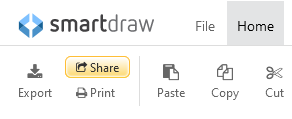
You can find the **Share** link in the upper right corner of the app or on the **Home** tab.
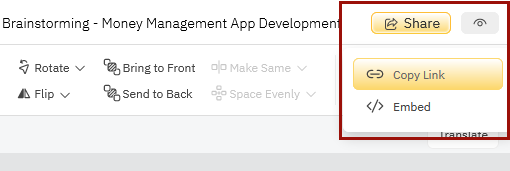
To send someone a link, choose **Copy Link**.
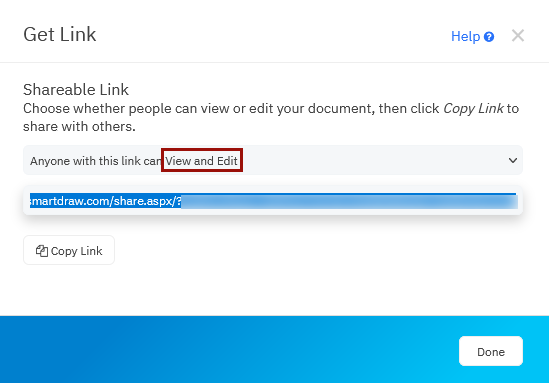
Select edit privileges from the drop down and choose **Copy Link** to grab a link you can email or share in a chat app. [Learn more about sharing your SmartDraw diagram.](https://support.smartdraw.com/share-your-diagram-with-a-link?hsLang=en-us)
- [The Basics](https://support.smartdraw.com/the-basics?hsLang=en-us#main-content)
- [Getting Started](https://support.smartdraw.com/the-basics?hsLang=en-us#getting-started)
- [Selection](https://support.smartdraw.com/the-basics?hsLang=en-us#selection)
- [Moving & Sizing](https://support.smartdraw.com/the-basics?hsLang=en-us#moving-sizing)
- [Text Entry](https://support.smartdraw.com/the-basics?hsLang=en-us#text-entry)
- [File Saving](https://support.smartdraw.com/the-basics?hsLang=en-us#file-saving)
- [How to Draw Anything](https://support.smartdraw.com/how-to-draw-anything?hsLang=en-us#main-content)
- [Getting Started](https://support.smartdraw.com/how-to-draw-anything?hsLang=en-us#getting-started)
- [Popular Diagrams](https://support.smartdraw.com/how-to-draw-anything?hsLang=en-us#popular-diagrams)
- [Other Diagrams](https://support.smartdraw.com/how-to-draw-anything?hsLang=en-us#other-diagrams)
- [FAQ](https://support.smartdraw.com/faq?hsLang=en-us#main-content)
- [Ordering Questions](https://support.smartdraw.com/faq?hsLang=en-us#ordering-questions)
- [Trials](https://support.smartdraw.com/faq?hsLang=en-us#trials)
- [Subscriptions](https://support.smartdraw.com/faq?hsLang=en-us#subscriptions)
- [Printing](https://support.smartdraw.com/faq?hsLang=en-us#printing)
- [My Account](https://support.smartdraw.com/my-account?hsLang=en-us#main-content)
- [All Users](https://support.smartdraw.com/my-account?hsLang=en-us#all-users)
- [Multi-Seat and Enterprise](https://support.smartdraw.com/my-account?hsLang=en-us#multi-seat-and-enterprise)
- [Enterprise](https://support.smartdraw.com/my-account?hsLang=en-us#enterprise)
- [Templates & Documents](https://support.smartdraw.com/templates-documents?hsLang=en-us#main-content)
- [Templates](https://support.smartdraw.com/templates-documents?hsLang=en-us#templates)
- [My Documents](https://support.smartdraw.com/templates-documents?hsLang=en-us#my-documents)
- [File Storage](https://support.smartdraw.com/templates-documents?hsLang=en-us#file-storage)
- [Videos](https://support.smartdraw.com/videos?hsLang=en-us#main-content)
- [Diagramming Basics and Tips](https://support.smartdraw.com/videos?hsLang=en-us#diagramming-basics-and-tips)
- [How to Draw Every Type of Diagram](https://support.smartdraw.com/videos?hsLang=en-us#how-to-draw-every-type-of-diagram)
- [Advanced Diagramming with Data](https://support.smartdraw.com/videos?hsLang=en-us#advanced-diagramming-with-data)
- [Sharing and Integrations](https://support.smartdraw.com/videos?hsLang=en-us#sharing-and-integrations)
- [Managing Your License, Users, and Account](https://support.smartdraw.com/videos?hsLang=en-us#managing-your-license-users-and-account)
- [SmartDraw AI](https://support.smartdraw.com/smartdraw-ai?hsLang=en-us#main-content)
- [AI Diagramming](https://support.smartdraw.com/smartdraw-ai?hsLang=en-us#ai-diagramming)
- [MCP Server](https://support.smartdraw.com/smartdraw-ai?hsLang=en-us#mcp-server)
- [Managing AI Access](https://support.smartdraw.com/smartdraw-ai?hsLang=en-us#managing-ai-access)
- [Collaboration](https://support.smartdraw.com/collaboration?hsLang=en-us#main-content)
- [Collaboration](https://support.smartdraw.com/collaboration?hsLang=en-us#collaboration)
- [Export](https://support.smartdraw.com/collaboration?hsLang=en-us#export)
- [Whiteboarding](https://support.smartdraw.com/collaboration?hsLang=en-us#whiteboarding)
- [Integrations](https://support.smartdraw.com/integrations?hsLang=en-us#main-content)
- [Storage](https://support.smartdraw.com/integrations?hsLang=en-us#storage)
- [Apps](https://support.smartdraw.com/integrations?hsLang=en-us#apps)
- [Visualizers](https://support.smartdraw.com/integrations?hsLang=en-us#visualizers)
- [Diagrams from Data](https://support.smartdraw.com/diagrams-from-data?hsLang=en-us#main-content)
- [Data Visualizers](https://support.smartdraw.com/diagrams-from-data?hsLang=en-us#data-visualizers)
- [Charts, Graphs, and Gauges](https://support.smartdraw.com/diagrams-from-data?hsLang=en-us#charts-graphs-and-gauges)
- [Shape Data](https://support.smartdraw.com/diagrams-from-data?hsLang=en-us#shape-data)
- [Custom Visualization](https://support.smartdraw.com/diagrams-from-data?hsLang=en-us#custom-visualization)
- [Reference](https://support.smartdraw.com/reference?hsLang=en-us#main-content)
- [Symbols](https://support.smartdraw.com/reference?hsLang=en-us#symbols)
- [Connectors](https://support.smartdraw.com/reference?hsLang=en-us#connectors)
- [Lines](https://support.smartdraw.com/reference?hsLang=en-us#lines)
- [Arranging Shapes](https://support.smartdraw.com/reference?hsLang=en-us#arranging-shapes)
- [Colors & Styles](https://support.smartdraw.com/reference?hsLang=en-us#colors-styles)
- [Dimensions](https://support.smartdraw.com/reference?hsLang=en-us#dimensions)
- [Floor Planning Tips](https://support.smartdraw.com/reference?hsLang=en-us#floor-planning-tips)
- [Enhancing Shapes](https://support.smartdraw.com/reference?hsLang=en-us#enhancing-shapes)
- [Workspace](https://support.smartdraw.com/reference?hsLang=en-us#workspace)
- [Layers](https://support.smartdraw.com/reference?hsLang=en-us#layers)
- [Grouping](https://support.smartdraw.com/reference?hsLang=en-us#grouping)
- [Tables](https://support.smartdraw.com/reference?hsLang=en-us#tables)
- [Containers](https://support.smartdraw.com/reference?hsLang=en-us#containers)
- [Printing](https://support.smartdraw.com/printing?hsLang=en-us#main-content)
- [Printing](https://support.smartdraw.com/printing?hsLang=en-us#printing)
[](https://www.smartdraw.com/)
Copyright © 1994-2026 SmartDraw, LLC