---
title: "Select Tool: Selecting Shapes and Lines"
description: Select one shape, several, all shapes, all lines, or a whole section of a diagram using the Select tool.
---
[Skip to content](https://support.smartdraw.com/select-tool-selecting-shapes-and-lines#main-content)
English - United States
Show submenu for translations
[Submit a Request](https://support.smartdraw.com/kb-tickets/new?hsLang=en-us)

Open main navigation
Close main navigation
- English - United States
Show submenu for translations
- [Submit a Request](https://support.smartdraw.com/kb-tickets/new)
How can we help you?
- There are no suggestions because the search field is empty.
1. [SmartDraw Knowledge Base](https://support.smartdraw.com/?hsLang=en-us)
2. [The Basics](https://support.smartdraw.com/the-basics?hsLang=en-us)
3. [Selection](https://support.smartdraw.com/the-basics?hsLang=en-us#selection)
# Select Tool: Selecting Shapes and Lines
The **Select** tool is found at the top of the SmartPanel to the left of your workspace along with other commonly used tools.
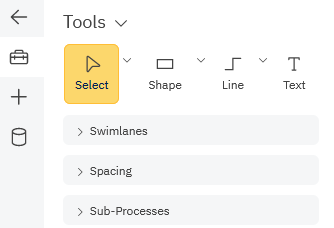
The **Select button** is always highlighted yellow unless one of the other tools is chosen.
The Select tool allows you to select one object at a time, but gives you options for other types of selections.
To select multiple objects within your workspace at once, choose **Select Multiple** from the **Select **drop-down menu.
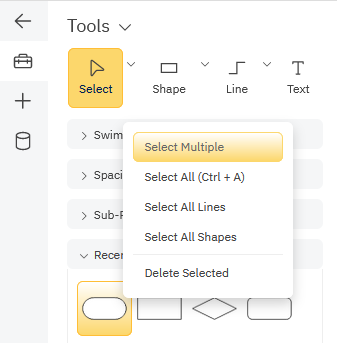
This activates the selection tool and allows for more than one object to be selected. **Click on the multiple objects** within your workspace that you wish to be selected.
*Tip: When using the normal selection tool, you can hold down the Shift or CTRL key on your keyboard to turn on Select Multiple Mode.*
To select all objects in your workspace, choose **Select All**.
To select all lines in your workspace, choose **Select All Lines**.
To select all shapes in your workspace, choose **Select All Shapes**.
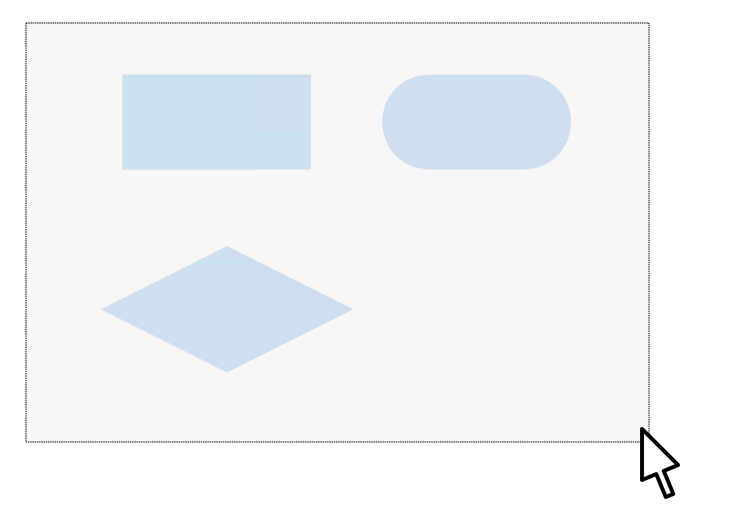
Using your mouse you can trace an imaginary “box” around the group of objects you want to select. Click in an empty area of the page, hold the mouse button down, and drag the mouse until the dotted box encloses the objects you want to select:
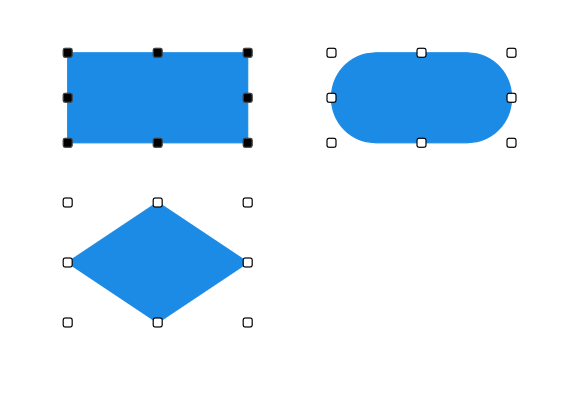
Then release. All of the objects inside the box will be selected:
To delete a shape from your workspace, first, click on the desired shape, then choose to **Delete Selected **from the **Select **drop-down menu. You can also use the **Delete** or **Backspace** key to delete the shape.
### Selecting Entire Sections of a Diagram
In diagrams drawn using SmartDraw's line draw tool like flowcharts, electrical circuit diagrams, software diagrams, and network designs, you can choose to click on a line and select shapes to the left or right of your selection.
This makes it easier to move entire sections of your diagram in one swoop to make room to insert new shapes without too much manual repositioning.
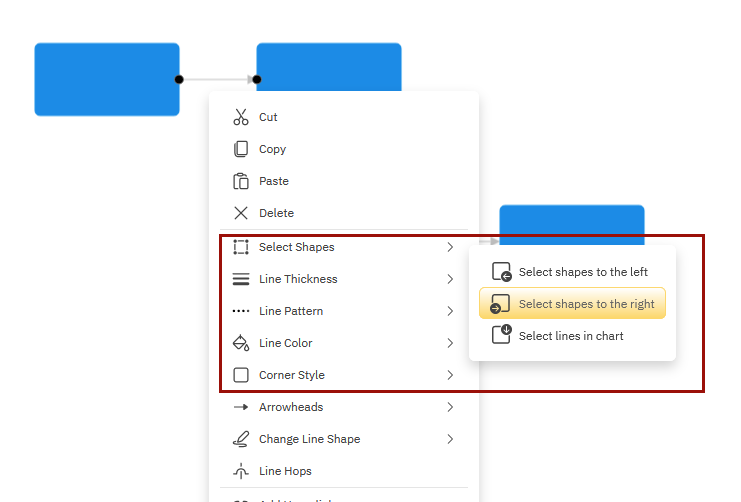
Right-click on a line and under **Select Shapes** choose **Select shapes to the left** or **Select shapes to the right**.
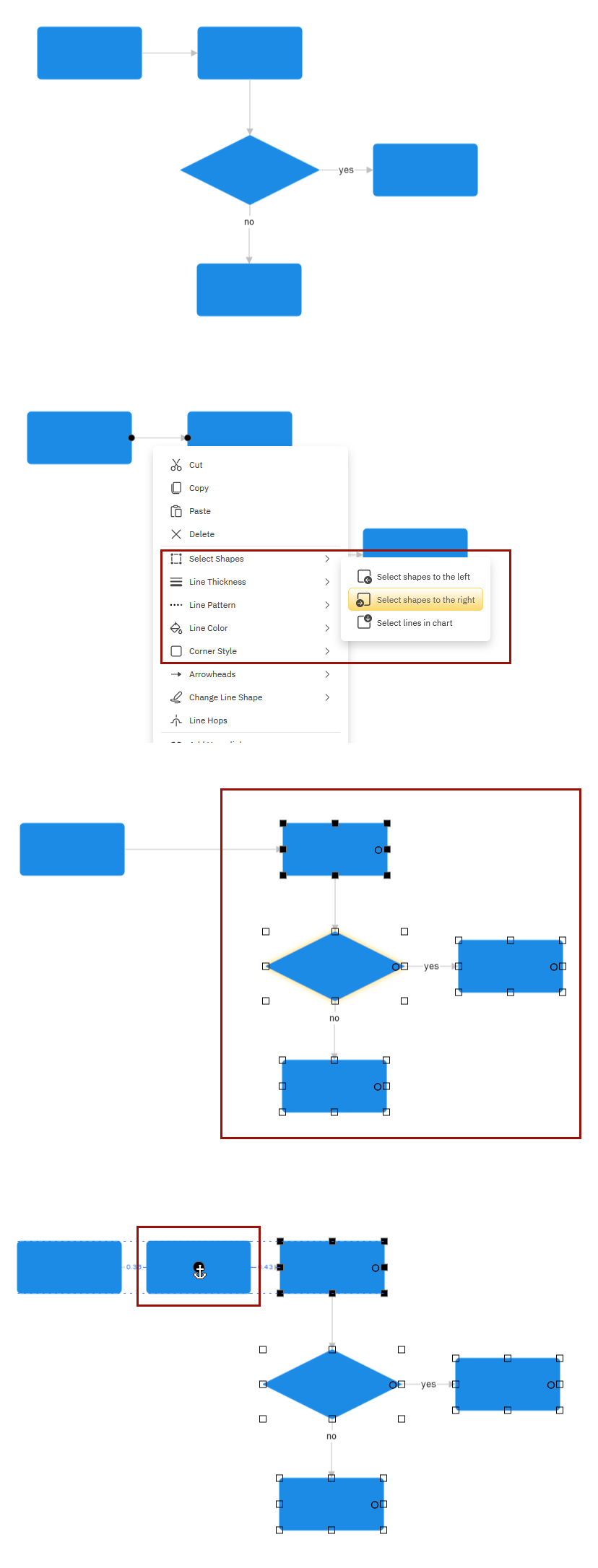
For example, let's say you need to move all the shapes to the right of the first shape in a flowchart to make room to insert a new shape. You could select each shape individually using the Ctrl key or try to draw a selection box around the group, but one method is too tedious and the other is too imprecise.
Instead, right-click on the line between the two shapes and choose **Select shapes to the right** from the **Select Shapes** menu. Now you can easily move an entire section of your diagram.
### Select All Lines in a Chart vs Your Workspace
Since SmartDraw allows multiple diagram types in a single workspace, sometimes you may want to select just the lines for a particular chart instead of every diagram.
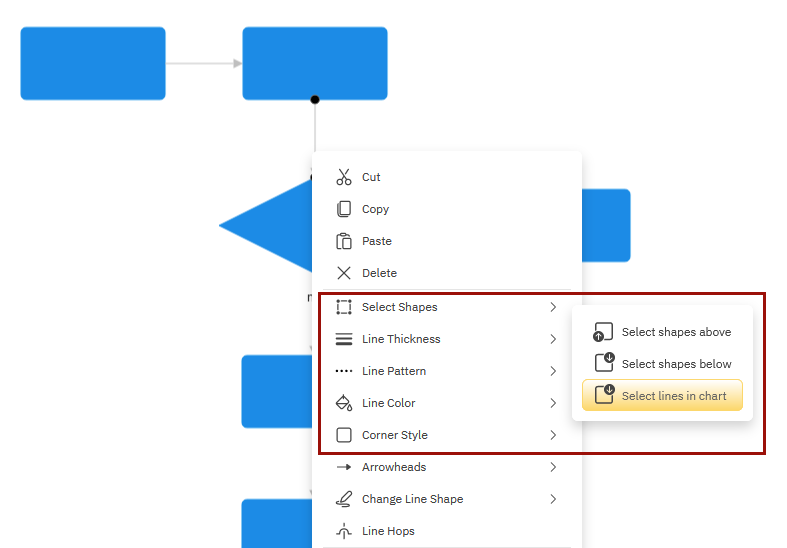
Right-click on a line for the chart you want to select lines for and choose **Select lines in chart** under the **Select Shapes** menu. This option is available in line draw style templates like flowcharts, software diagrams, circuit diagrams, network diagrams and more. It's not an option for org charts, mind maps, or decisions trees because those lines are automatic connectors that are automatically selected as a group.
While you have a shape, line, or multiple shapes and lines selected you can use your mouse to move them around the drawing area or even change various properties. See [Changing Properties](https://support.smartdraw.com/changing-properties-of-your-selection-fill-color-style-and-more?hsLang=en-us).
- [The Basics](https://support.smartdraw.com/the-basics?hsLang=en-us#main-content)
- [Getting Started](https://support.smartdraw.com/the-basics?hsLang=en-us#getting-started)
- [Selection](https://support.smartdraw.com/the-basics?hsLang=en-us#selection)
- [Moving & Sizing](https://support.smartdraw.com/the-basics?hsLang=en-us#moving-sizing)
- [Text Entry](https://support.smartdraw.com/the-basics?hsLang=en-us#text-entry)
- [File Saving](https://support.smartdraw.com/the-basics?hsLang=en-us#file-saving)
- [How to Draw Anything](https://support.smartdraw.com/how-to-draw-anything?hsLang=en-us#main-content)
- [Getting Started](https://support.smartdraw.com/how-to-draw-anything?hsLang=en-us#getting-started)
- [Popular Diagrams](https://support.smartdraw.com/how-to-draw-anything?hsLang=en-us#popular-diagrams)
- [Other Diagrams](https://support.smartdraw.com/how-to-draw-anything?hsLang=en-us#other-diagrams)
- [FAQ](https://support.smartdraw.com/faq?hsLang=en-us#main-content)
- [Ordering Questions](https://support.smartdraw.com/faq?hsLang=en-us#ordering-questions)
- [Trials](https://support.smartdraw.com/faq?hsLang=en-us#trials)
- [Subscriptions](https://support.smartdraw.com/faq?hsLang=en-us#subscriptions)
- [Printing](https://support.smartdraw.com/faq?hsLang=en-us#printing)
- [My Account](https://support.smartdraw.com/my-account?hsLang=en-us#main-content)
- [All Users](https://support.smartdraw.com/my-account?hsLang=en-us#all-users)
- [Multi-Seat and Enterprise](https://support.smartdraw.com/my-account?hsLang=en-us#multi-seat-and-enterprise)
- [Enterprise](https://support.smartdraw.com/my-account?hsLang=en-us#enterprise)
- [Templates & Documents](https://support.smartdraw.com/templates-documents?hsLang=en-us#main-content)
- [Templates](https://support.smartdraw.com/templates-documents?hsLang=en-us#templates)
- [My Documents](https://support.smartdraw.com/templates-documents?hsLang=en-us#my-documents)
- [File Storage](https://support.smartdraw.com/templates-documents?hsLang=en-us#file-storage)
- [Videos](https://support.smartdraw.com/videos?hsLang=en-us#main-content)
- [Diagramming Basics and Tips](https://support.smartdraw.com/videos?hsLang=en-us#diagramming-basics-and-tips)
- [How to Draw Every Type of Diagram](https://support.smartdraw.com/videos?hsLang=en-us#how-to-draw-every-type-of-diagram)
- [Advanced Diagramming with Data](https://support.smartdraw.com/videos?hsLang=en-us#advanced-diagramming-with-data)
- [Sharing and Integrations](https://support.smartdraw.com/videos?hsLang=en-us#sharing-and-integrations)
- [Managing Your License, Users, and Account](https://support.smartdraw.com/videos?hsLang=en-us#managing-your-license-users-and-account)
- [SmartDraw AI](https://support.smartdraw.com/smartdraw-ai?hsLang=en-us#main-content)
- [AI Diagramming](https://support.smartdraw.com/smartdraw-ai?hsLang=en-us#ai-diagramming)
- [MCP Server](https://support.smartdraw.com/smartdraw-ai?hsLang=en-us#mcp-server)
- [Managing AI Access](https://support.smartdraw.com/smartdraw-ai?hsLang=en-us#managing-ai-access)
- [Collaboration](https://support.smartdraw.com/collaboration?hsLang=en-us#main-content)
- [Collaboration](https://support.smartdraw.com/collaboration?hsLang=en-us#collaboration)
- [Export](https://support.smartdraw.com/collaboration?hsLang=en-us#export)
- [Whiteboarding](https://support.smartdraw.com/collaboration?hsLang=en-us#whiteboarding)
- [Integrations](https://support.smartdraw.com/integrations?hsLang=en-us#main-content)
- [Storage](https://support.smartdraw.com/integrations?hsLang=en-us#storage)
- [Apps](https://support.smartdraw.com/integrations?hsLang=en-us#apps)
- [Visualizers](https://support.smartdraw.com/integrations?hsLang=en-us#visualizers)
- [Diagrams from Data](https://support.smartdraw.com/diagrams-from-data?hsLang=en-us#main-content)
- [Data Visualizers](https://support.smartdraw.com/diagrams-from-data?hsLang=en-us#data-visualizers)
- [Charts, Graphs, and Gauges](https://support.smartdraw.com/diagrams-from-data?hsLang=en-us#charts-graphs-and-gauges)
- [Shape Data](https://support.smartdraw.com/diagrams-from-data?hsLang=en-us#shape-data)
- [Custom Visualization](https://support.smartdraw.com/diagrams-from-data?hsLang=en-us#custom-visualization)
- [Reference](https://support.smartdraw.com/reference?hsLang=en-us#main-content)
- [Symbols](https://support.smartdraw.com/reference?hsLang=en-us#symbols)
- [Connectors](https://support.smartdraw.com/reference?hsLang=en-us#connectors)
- [Lines](https://support.smartdraw.com/reference?hsLang=en-us#lines)
- [Arranging Shapes](https://support.smartdraw.com/reference?hsLang=en-us#arranging-shapes)
- [Colors & Styles](https://support.smartdraw.com/reference?hsLang=en-us#colors-styles)
- [Dimensions](https://support.smartdraw.com/reference?hsLang=en-us#dimensions)
- [Floor Planning Tips](https://support.smartdraw.com/reference?hsLang=en-us#floor-planning-tips)
- [Enhancing Shapes](https://support.smartdraw.com/reference?hsLang=en-us#enhancing-shapes)
- [Workspace](https://support.smartdraw.com/reference?hsLang=en-us#workspace)
- [Layers](https://support.smartdraw.com/reference?hsLang=en-us#layers)
- [Grouping](https://support.smartdraw.com/reference?hsLang=en-us#grouping)
- [Tables](https://support.smartdraw.com/reference?hsLang=en-us#tables)
- [Containers](https://support.smartdraw.com/reference?hsLang=en-us#containers)
- [Printing](https://support.smartdraw.com/printing?hsLang=en-us#main-content)
- [Printing](https://support.smartdraw.com/printing?hsLang=en-us#printing)
[](https://www.smartdraw.com/)
Copyright © 1994-2026 SmartDraw, LLC