---
title: Moving a Shape or Groups of Shapes
description: Move shapes with the mouse or arrow keys, select groups, and move whole sections of a diagram at once.
---
[Skip to content](https://support.smartdraw.com/moving-a-shape-or-groups-of-shapes#main-content)
English - United States
Show submenu for translations
[Submit a Request](https://support.smartdraw.com/kb-tickets/new?hsLang=en-us)

Open main navigation
Close main navigation
- English - United States
Show submenu for translations
- [Submit a Request](https://support.smartdraw.com/kb-tickets/new)
How can we help you?
- There are no suggestions because the search field is empty.
1. [SmartDraw Knowledge Base](https://support.smartdraw.com/?hsLang=en-us)
2. [Reference](https://support.smartdraw.com/reference?hsLang=en-us)
3. [Arranging Shapes](https://support.smartdraw.com/reference?hsLang=en-us#arranging-shapes)
# Moving a Shape or Groups of Shapes
### Using the Mouse
You can move any object simply by clicking on it with the mouse, and then moving the mouse, while keeping the mouse button pressed down. An outline of the object will follow your mouse as you move it.
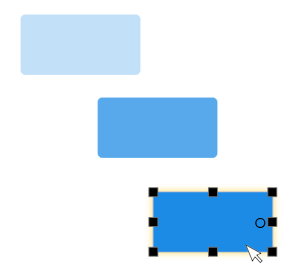
If you hold the **Shift key** down while you use the mouse to move an object, it moves only horizontally or vertically (not diagonally).
### Moving a Group of Objects
If more than one object is selected, clicking on one of them moves all of the selected objects as a group.
### Selecting Multiple Objects
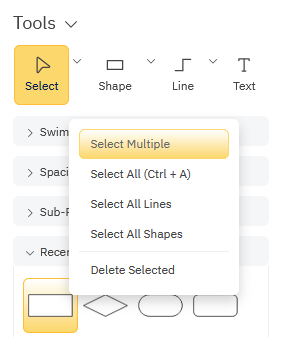
The easiest way to select more than one object is to first choose the **Multiple Selection** tool under the **Select** drop down on the **SmartPanel** tab. With this tool selected, clicking on an object does not de-select others. You can select more than one object by simply clicking on them one at a time. Clicking in the background of the drawing cancels the selection of the **Multiple Selection** tool.
You can also select more than one object by dragging the mouse around them to draw a selection box that includes every shape you want to select.
Dragging the mouse this way across the drawing window draws a temporary dotted rectangle. Any objects completely enclosed by this rectangle are selected once the mouse button is released.
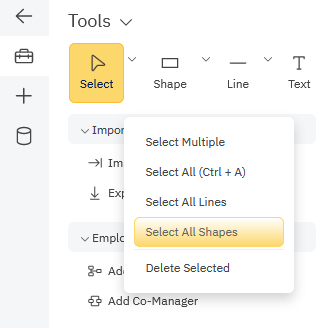
If you want to move all shapes in a diagram, go to the **Select** command in the SmartPanel and choose **Select All Shapes**.
### Moving Entire Sections of a Diagram as a Group
In diagrams drawn using SmartDraw's line draw tool like flowcharts, electrical circuit diagrams, software diagrams, and network designs, you can choose to click on a line and select shapes to the left or right of your selection.
This makes it easier to move entire sections of your diagram in one swoop to make room to insert new shapes without too much manual repositioning.
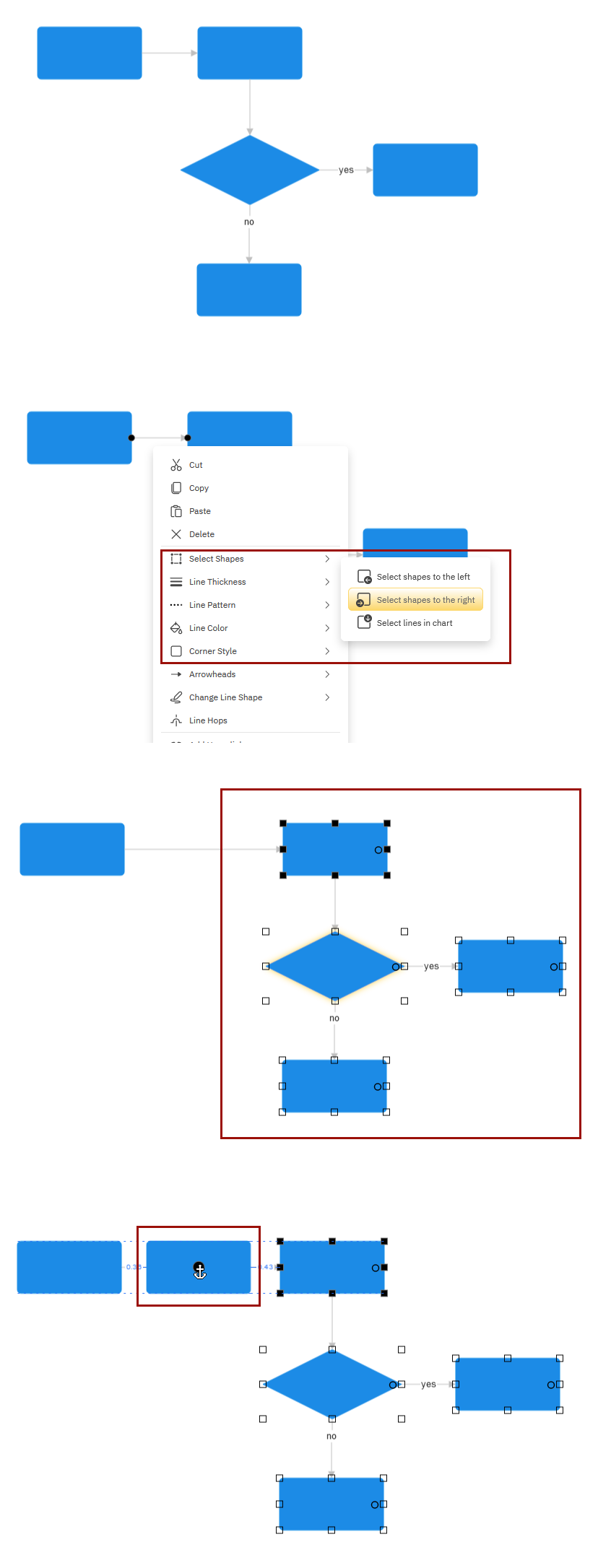
Right-click on a line and under **Select Shapes** choose **Select shapes to the left** or **Select shapes to the right**.
For example, let's say you need to move all the shapes to the right of the first shape in a flowchart to make room to insert a new shape. You could select each shape individually using the Ctrl key or try to draw a selection box around the group, but one method is too tedious and the other is too imprecise.
Instead, right-click on the line between the two shapes and choose **Select shapes to the right** from the **Select Shapes** menu. Now you can easily move an entire section of your diagram.
### Use Frames to Move Objects as a Group
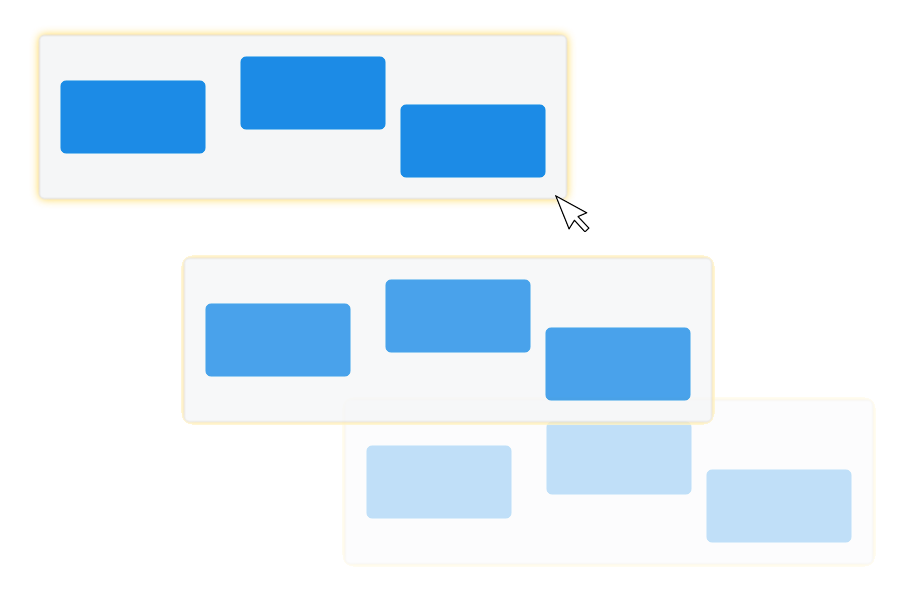
You can group an entire diagram or just a collection of shapes using frames. Frames help you position objects and diagrams on your page.
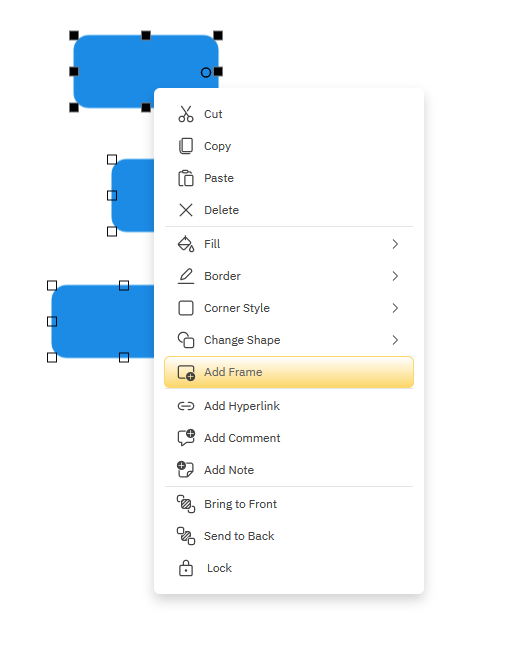
You can add a frame to any grouping of shapes using the right-click menu. Select all the shapes or diagram you want to include and choose **Add Frame** from the right-click menu.
The frame will appear as a gray rectangle around the symbols or diagram selected. To move it, just grab and drag.
### Using the Arrow Keys
You can use the arrow keys to move a selected object very precisely. Clicking on an arrow key moves the object by one screen pixel (1/100 of an inch at normal viewing magnification) with each keystroke. The right and down arrows move the object to the right and bottom. The left and up arrows move it to the left and up. If more than one object is selected, all are moved.
### Aligning Objects
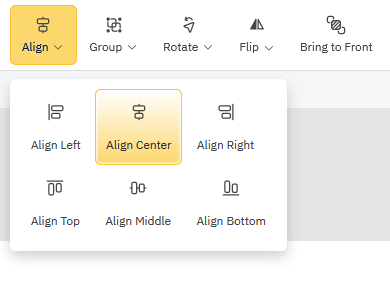
The **Align** command under the **Home** tab can be used to align all selected objects with the selected target object. [Learn more.](https://support.smartdraw.com/aligning?hsLang=en-us)
### Spacing Objects Evenly
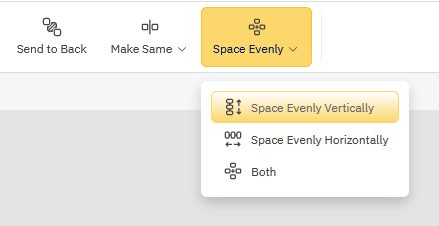
Send symbols forward or backward, make them the same size, or space them evenly on your visual by **clicking on the symbols** in your workspace, then selecting **Bring to Front**, **Send to Back**, **Make Same**, or **Space Evenly** in the **Home** tab. [Learn more.](https://support.smartdraw.com/space-evenly?hsLang=en-us)
### Centering the Drawing on the Page
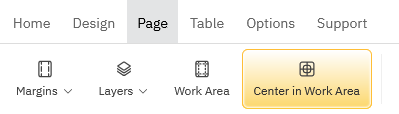
The **Center in Work Area** command under the **Page** tab can be used to move all the objects in the drawing so that they are centered in the minimum number of pages needed to print them.
- [The Basics](https://support.smartdraw.com/the-basics?hsLang=en-us#main-content)
- [Getting Started](https://support.smartdraw.com/the-basics?hsLang=en-us#getting-started)
- [Selection](https://support.smartdraw.com/the-basics?hsLang=en-us#selection)
- [Moving & Sizing](https://support.smartdraw.com/the-basics?hsLang=en-us#moving-sizing)
- [Text Entry](https://support.smartdraw.com/the-basics?hsLang=en-us#text-entry)
- [File Saving](https://support.smartdraw.com/the-basics?hsLang=en-us#file-saving)
- [How to Draw Anything](https://support.smartdraw.com/how-to-draw-anything?hsLang=en-us#main-content)
- [Getting Started](https://support.smartdraw.com/how-to-draw-anything?hsLang=en-us#getting-started)
- [Popular Diagrams](https://support.smartdraw.com/how-to-draw-anything?hsLang=en-us#popular-diagrams)
- [Other Diagrams](https://support.smartdraw.com/how-to-draw-anything?hsLang=en-us#other-diagrams)
- [FAQ](https://support.smartdraw.com/faq?hsLang=en-us#main-content)
- [Ordering Questions](https://support.smartdraw.com/faq?hsLang=en-us#ordering-questions)
- [Trials](https://support.smartdraw.com/faq?hsLang=en-us#trials)
- [Subscriptions](https://support.smartdraw.com/faq?hsLang=en-us#subscriptions)
- [Printing](https://support.smartdraw.com/faq?hsLang=en-us#printing)
- [My Account](https://support.smartdraw.com/my-account?hsLang=en-us#main-content)
- [All Users](https://support.smartdraw.com/my-account?hsLang=en-us#all-users)
- [Multi-Seat and Enterprise](https://support.smartdraw.com/my-account?hsLang=en-us#multi-seat-and-enterprise)
- [Enterprise](https://support.smartdraw.com/my-account?hsLang=en-us#enterprise)
- [Templates & Documents](https://support.smartdraw.com/templates-documents?hsLang=en-us#main-content)
- [Templates](https://support.smartdraw.com/templates-documents?hsLang=en-us#templates)
- [My Documents](https://support.smartdraw.com/templates-documents?hsLang=en-us#my-documents)
- [File Storage](https://support.smartdraw.com/templates-documents?hsLang=en-us#file-storage)
- [Videos](https://support.smartdraw.com/videos?hsLang=en-us#main-content)
- [Diagramming Basics and Tips](https://support.smartdraw.com/videos?hsLang=en-us#diagramming-basics-and-tips)
- [How to Draw Every Type of Diagram](https://support.smartdraw.com/videos?hsLang=en-us#how-to-draw-every-type-of-diagram)
- [Advanced Diagramming with Data](https://support.smartdraw.com/videos?hsLang=en-us#advanced-diagramming-with-data)
- [Sharing and Integrations](https://support.smartdraw.com/videos?hsLang=en-us#sharing-and-integrations)
- [Managing Your License, Users, and Account](https://support.smartdraw.com/videos?hsLang=en-us#managing-your-license-users-and-account)
- [SmartDraw AI](https://support.smartdraw.com/smartdraw-ai?hsLang=en-us#main-content)
- [AI Diagramming](https://support.smartdraw.com/smartdraw-ai?hsLang=en-us#ai-diagramming)
- [MCP Server](https://support.smartdraw.com/smartdraw-ai?hsLang=en-us#mcp-server)
- [Managing AI Access](https://support.smartdraw.com/smartdraw-ai?hsLang=en-us#managing-ai-access)
- [Collaboration](https://support.smartdraw.com/collaboration?hsLang=en-us#main-content)
- [Collaboration](https://support.smartdraw.com/collaboration?hsLang=en-us#collaboration)
- [Export](https://support.smartdraw.com/collaboration?hsLang=en-us#export)
- [Whiteboarding](https://support.smartdraw.com/collaboration?hsLang=en-us#whiteboarding)
- [Integrations](https://support.smartdraw.com/integrations?hsLang=en-us#main-content)
- [Storage](https://support.smartdraw.com/integrations?hsLang=en-us#storage)
- [Apps](https://support.smartdraw.com/integrations?hsLang=en-us#apps)
- [Visualizers](https://support.smartdraw.com/integrations?hsLang=en-us#visualizers)
- [Diagrams from Data](https://support.smartdraw.com/diagrams-from-data?hsLang=en-us#main-content)
- [Data Visualizers](https://support.smartdraw.com/diagrams-from-data?hsLang=en-us#data-visualizers)
- [Charts, Graphs, and Gauges](https://support.smartdraw.com/diagrams-from-data?hsLang=en-us#charts-graphs-and-gauges)
- [Shape Data](https://support.smartdraw.com/diagrams-from-data?hsLang=en-us#shape-data)
- [Custom Visualization](https://support.smartdraw.com/diagrams-from-data?hsLang=en-us#custom-visualization)
- [Reference](https://support.smartdraw.com/reference?hsLang=en-us#main-content)
- [Symbols](https://support.smartdraw.com/reference?hsLang=en-us#symbols)
- [Connectors](https://support.smartdraw.com/reference?hsLang=en-us#connectors)
- [Lines](https://support.smartdraw.com/reference?hsLang=en-us#lines)
- [Arranging Shapes](https://support.smartdraw.com/reference?hsLang=en-us#arranging-shapes)
- [Colors & Styles](https://support.smartdraw.com/reference?hsLang=en-us#colors-styles)
- [Dimensions](https://support.smartdraw.com/reference?hsLang=en-us#dimensions)
- [Floor Planning Tips](https://support.smartdraw.com/reference?hsLang=en-us#floor-planning-tips)
- [Enhancing Shapes](https://support.smartdraw.com/reference?hsLang=en-us#enhancing-shapes)
- [Workspace](https://support.smartdraw.com/reference?hsLang=en-us#workspace)
- [Layers](https://support.smartdraw.com/reference?hsLang=en-us#layers)
- [Grouping](https://support.smartdraw.com/reference?hsLang=en-us#grouping)
- [Tables](https://support.smartdraw.com/reference?hsLang=en-us#tables)
- [Containers](https://support.smartdraw.com/reference?hsLang=en-us#containers)
- [Printing](https://support.smartdraw.com/printing?hsLang=en-us#main-content)
- [Printing](https://support.smartdraw.com/printing?hsLang=en-us#printing)
[](https://www.smartdraw.com/)
Copyright © 1994-2026 SmartDraw, LLC