---
title: Import a Google Maps Image and Scale it
description: Import a Google Maps satellite image as a background layer and scale it using the map's own scale bar.
---
[Skip to content](https://support.smartdraw.com/import-a-google-maps-image-and-scale-it#main-content)
English - United States
Show submenu for translations
[Submit a Request](https://support.smartdraw.com/kb-tickets/new?hsLang=en-us)

Open main navigation
Close main navigation
- English - United States
Show submenu for translations
- [Submit a Request](https://support.smartdraw.com/kb-tickets/new)
How can we help you?
- There are no suggestions because the search field is empty.
1. [SmartDraw Knowledge Base](https://support.smartdraw.com/?hsLang=en-us)
2. [Reference](https://support.smartdraw.com/reference?hsLang=en-us)
3. [Floor Planning Tips](https://support.smartdraw.com/reference?hsLang=en-us#floor-planning-tips)
# Import a Google Maps Image and Scale it
You can import a Google Maps satellite image to serve as a foundation for new site plans, landscape designs, fire pre-plans, accident reconstruction diagrams, and more. Save time and provide real-world context to your drawings.
### Step 1: Pick a Relevant Template
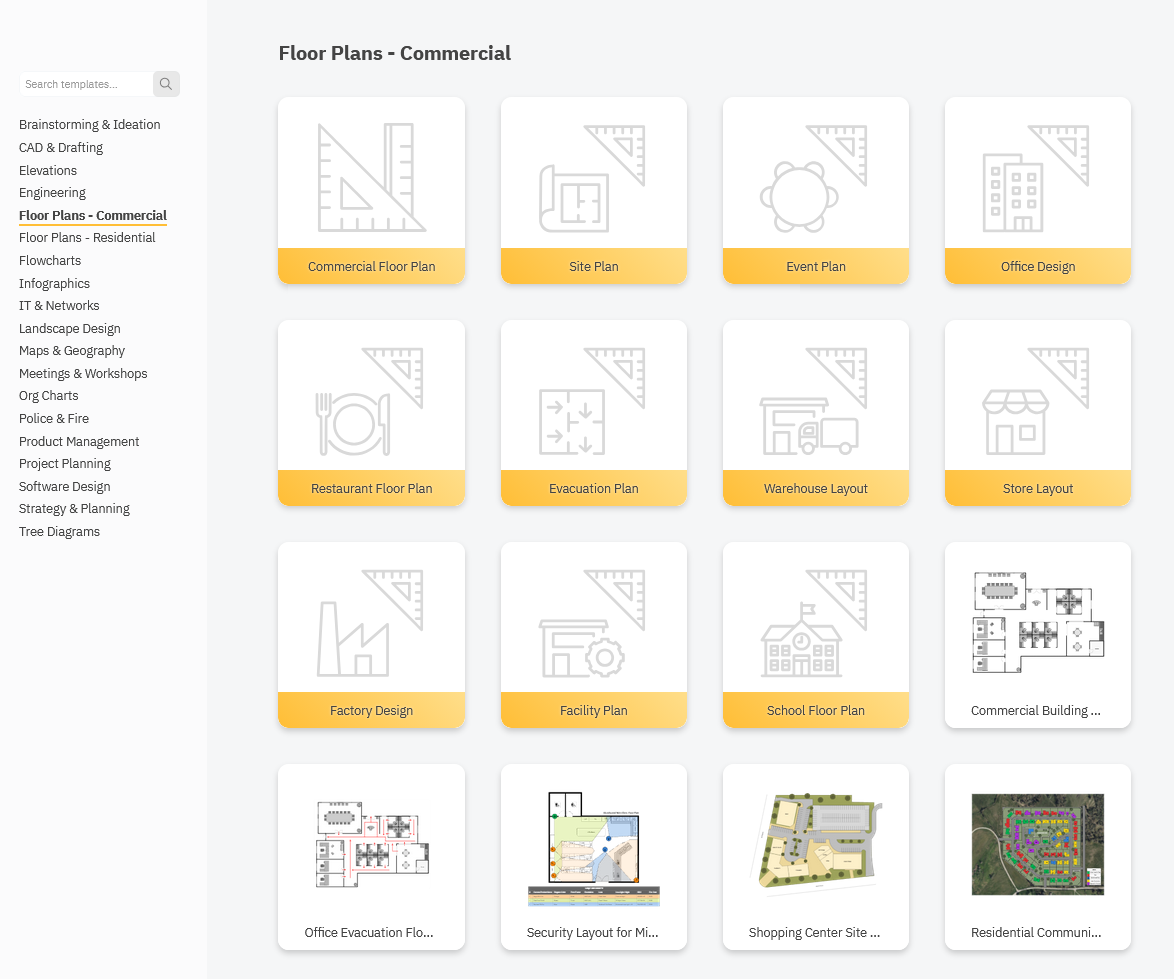
Start by opening a template that matches the type of scale drawing you want to create. On SmartDraw's dashboard, click on **New Document** and select one of the available templates. SmartDraw's templates have unique properties that are specifically configured to make drawing the selected diagram easy.
You can choose from:
- Site Plan
- Event Plan
- Evacuation Plan
- Residential Landscape Design
- Commercial Landscape Design
- Deck Design
- Irrigation Design
- Garden Design
- Accident Reconstruction
- Fire Pre-Plan
and more.
To find a specific template, you can browse categories or search SmartDraw's template library.
All of the above templates will already have a default scale and give you the ability to define a custom scale of your choosing. They will also have the tools to scale your imported image and symbols ready to drag-and-drop to your drawing.
### Step 2: Insert Your Google Maps Image
Once you have your template open, you're ready to import your Google Maps photo.
Find the **Insert** tool on the **Home** tab and choose **Picture**.
In the dialog that pops up, browse your computer for Google Maps image you want to import.
Make sure you select **Import as a Background Image**.
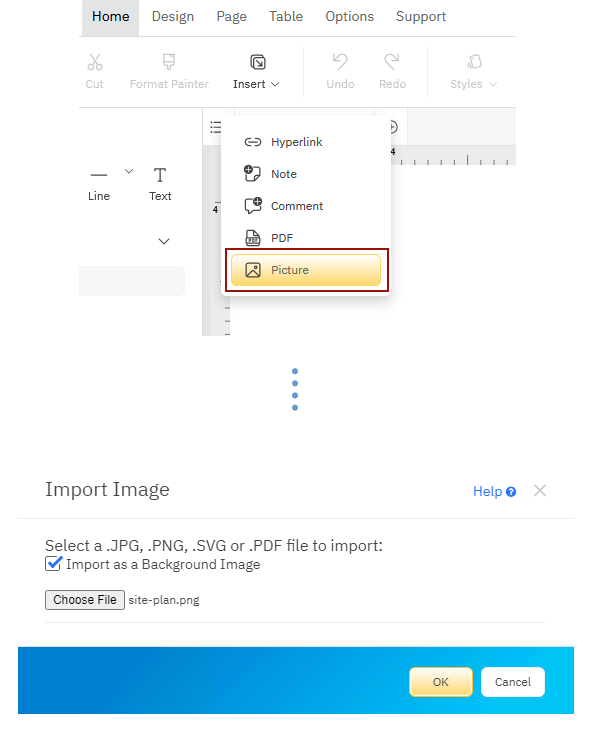
Click **OK** to import your image into a background layer.
### Step 3: Select Your Reference in the Imported Image
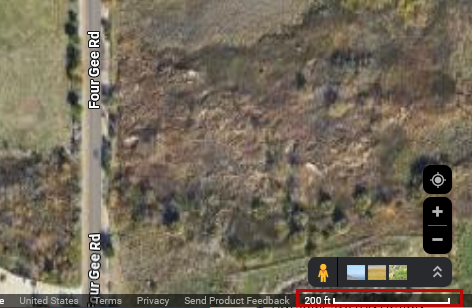
To help you scale your imported Google Maps image, we'll want to match a line drawn in SmartDraw with an object with known dimensions from the imported file. So before we can resize the image, pick an object that you know the dimensions of to use as a reference.
If you started with a Google map capture, you can use the scale shown in the lower right corner of the map.
### Step 4: Scale the Image Using a Reference Line
Once you picked your reference object, you're ready to true up the scale of your imported map and your drawing or diagram template. In the SmartPanel, to the left of your drawing area, click on **Scale Image with Reference Line**. This tool will help you draw a temporary line and use it to automatically match the scale of your import.
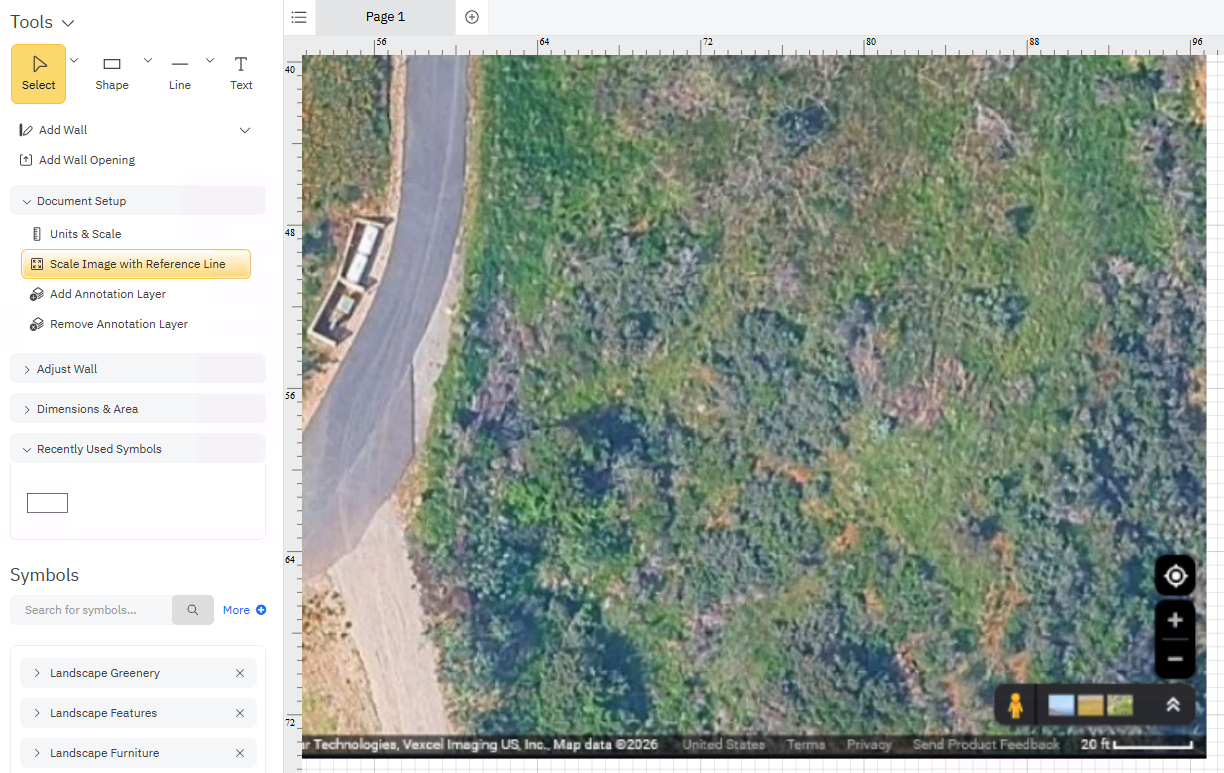
Next, draw a reference line that matches the length of your selected segment.
This line will serve as SmartDraw's guide for resizing the imported image. In the modal that pops up, enter the actual length of the line you just drew.
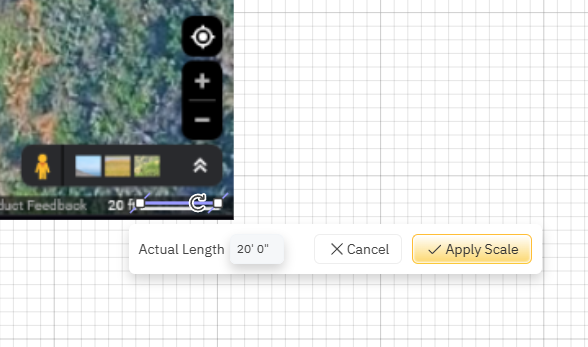
Hit **Apply Scale** to resize the imported image automatically. The image will now match the scale of your floor plan. SmartDraw will automatically remove the reference line used.
It's that easy.
- [The Basics](https://support.smartdraw.com/the-basics?hsLang=en-us#main-content)
- [Getting Started](https://support.smartdraw.com/the-basics?hsLang=en-us#getting-started)
- [Selection](https://support.smartdraw.com/the-basics?hsLang=en-us#selection)
- [Moving & Sizing](https://support.smartdraw.com/the-basics?hsLang=en-us#moving-sizing)
- [Text Entry](https://support.smartdraw.com/the-basics?hsLang=en-us#text-entry)
- [File Saving](https://support.smartdraw.com/the-basics?hsLang=en-us#file-saving)
- [How to Draw Anything](https://support.smartdraw.com/how-to-draw-anything?hsLang=en-us#main-content)
- [Getting Started](https://support.smartdraw.com/how-to-draw-anything?hsLang=en-us#getting-started)
- [Popular Diagrams](https://support.smartdraw.com/how-to-draw-anything?hsLang=en-us#popular-diagrams)
- [Other Diagrams](https://support.smartdraw.com/how-to-draw-anything?hsLang=en-us#other-diagrams)
- [FAQ](https://support.smartdraw.com/faq?hsLang=en-us#main-content)
- [Ordering Questions](https://support.smartdraw.com/faq?hsLang=en-us#ordering-questions)
- [Trials](https://support.smartdraw.com/faq?hsLang=en-us#trials)
- [Subscriptions](https://support.smartdraw.com/faq?hsLang=en-us#subscriptions)
- [Printing](https://support.smartdraw.com/faq?hsLang=en-us#printing)
- [My Account](https://support.smartdraw.com/my-account?hsLang=en-us#main-content)
- [All Users](https://support.smartdraw.com/my-account?hsLang=en-us#all-users)
- [Multi-Seat and Enterprise](https://support.smartdraw.com/my-account?hsLang=en-us#multi-seat-and-enterprise)
- [Enterprise](https://support.smartdraw.com/my-account?hsLang=en-us#enterprise)
- [Templates & Documents](https://support.smartdraw.com/templates-documents?hsLang=en-us#main-content)
- [Templates](https://support.smartdraw.com/templates-documents?hsLang=en-us#templates)
- [My Documents](https://support.smartdraw.com/templates-documents?hsLang=en-us#my-documents)
- [File Storage](https://support.smartdraw.com/templates-documents?hsLang=en-us#file-storage)
- [Videos](https://support.smartdraw.com/videos?hsLang=en-us#main-content)
- [Diagramming Basics and Tips](https://support.smartdraw.com/videos?hsLang=en-us#diagramming-basics-and-tips)
- [How to Draw Every Type of Diagram](https://support.smartdraw.com/videos?hsLang=en-us#how-to-draw-every-type-of-diagram)
- [Advanced Diagramming with Data](https://support.smartdraw.com/videos?hsLang=en-us#advanced-diagramming-with-data)
- [Sharing and Integrations](https://support.smartdraw.com/videos?hsLang=en-us#sharing-and-integrations)
- [Managing Your License, Users, and Account](https://support.smartdraw.com/videos?hsLang=en-us#managing-your-license-users-and-account)
- [SmartDraw AI](https://support.smartdraw.com/smartdraw-ai?hsLang=en-us#main-content)
- [AI Diagramming](https://support.smartdraw.com/smartdraw-ai?hsLang=en-us#ai-diagramming)
- [MCP Server](https://support.smartdraw.com/smartdraw-ai?hsLang=en-us#mcp-server)
- [Managing AI Access](https://support.smartdraw.com/smartdraw-ai?hsLang=en-us#managing-ai-access)
- [Collaboration](https://support.smartdraw.com/collaboration?hsLang=en-us#main-content)
- [Collaboration](https://support.smartdraw.com/collaboration?hsLang=en-us#collaboration)
- [Export](https://support.smartdraw.com/collaboration?hsLang=en-us#export)
- [Whiteboarding](https://support.smartdraw.com/collaboration?hsLang=en-us#whiteboarding)
- [Integrations](https://support.smartdraw.com/integrations?hsLang=en-us#main-content)
- [Storage](https://support.smartdraw.com/integrations?hsLang=en-us#storage)
- [Apps](https://support.smartdraw.com/integrations?hsLang=en-us#apps)
- [Visualizers](https://support.smartdraw.com/integrations?hsLang=en-us#visualizers)
- [Diagrams from Data](https://support.smartdraw.com/diagrams-from-data?hsLang=en-us#main-content)
- [Data Visualizers](https://support.smartdraw.com/diagrams-from-data?hsLang=en-us#data-visualizers)
- [Charts, Graphs, and Gauges](https://support.smartdraw.com/diagrams-from-data?hsLang=en-us#charts-graphs-and-gauges)
- [Shape Data](https://support.smartdraw.com/diagrams-from-data?hsLang=en-us#shape-data)
- [Custom Visualization](https://support.smartdraw.com/diagrams-from-data?hsLang=en-us#custom-visualization)
- [Reference](https://support.smartdraw.com/reference?hsLang=en-us#main-content)
- [Symbols](https://support.smartdraw.com/reference?hsLang=en-us#symbols)
- [Connectors](https://support.smartdraw.com/reference?hsLang=en-us#connectors)
- [Lines](https://support.smartdraw.com/reference?hsLang=en-us#lines)
- [Arranging Shapes](https://support.smartdraw.com/reference?hsLang=en-us#arranging-shapes)
- [Colors & Styles](https://support.smartdraw.com/reference?hsLang=en-us#colors-styles)
- [Dimensions](https://support.smartdraw.com/reference?hsLang=en-us#dimensions)
- [Floor Planning Tips](https://support.smartdraw.com/reference?hsLang=en-us#floor-planning-tips)
- [Enhancing Shapes](https://support.smartdraw.com/reference?hsLang=en-us#enhancing-shapes)
- [Workspace](https://support.smartdraw.com/reference?hsLang=en-us#workspace)
- [Layers](https://support.smartdraw.com/reference?hsLang=en-us#layers)
- [Grouping](https://support.smartdraw.com/reference?hsLang=en-us#grouping)
- [Tables](https://support.smartdraw.com/reference?hsLang=en-us#tables)
- [Containers](https://support.smartdraw.com/reference?hsLang=en-us#containers)
- [Printing](https://support.smartdraw.com/printing?hsLang=en-us#main-content)
- [Printing](https://support.smartdraw.com/printing?hsLang=en-us#printing)
[](https://www.smartdraw.com/)
Copyright © 1994-2026 SmartDraw, LLC