---
title: Generate Jira Reports like PI Boards, Roadmaps, and More from Data
description: Generate blocking issue reports, epic dependency reports, PI boards, and roadmaps from your Jira data.
---
[Skip to content](https://support.smartdraw.com/generate-jira-reports-like-pi-boards-roadmaps-and-more-from-data#main-content)
English - United States
Show submenu for translations
[Submit a Request](https://support.smartdraw.com/kb-tickets/new?hsLang=en-us)

Open main navigation
Close main navigation
- English - United States
Show submenu for translations
- [Submit a Request](https://support.smartdraw.com/kb-tickets/new)
How can we help you?
- There are no suggestions because the search field is empty.
1. [SmartDraw Knowledge Base](https://support.smartdraw.com/?hsLang=en-us)
2. [Diagrams from Data](https://support.smartdraw.com/diagrams-from-data?hsLang=en-us)
3. [Data Visualizers](https://support.smartdraw.com/diagrams-from-data?hsLang=en-us#data-visualizers)
# Generate Jira Reports like PI Boards, Roadmaps, and More from Data
SmartDraw can generate reports using your Jira data including a Blocking Issue Report, Epic Dependency Report, PI Board, and Product Roadmap.
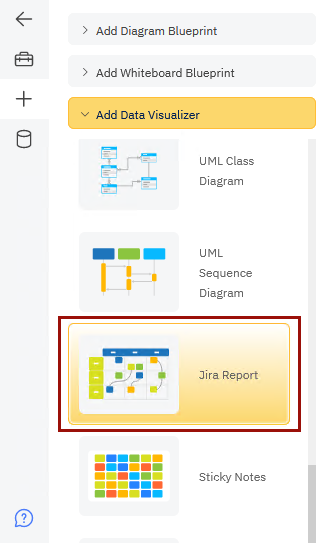
To start, find the **Jira Reports** data visualizer under the **Plus** menu (represented by the **+** icon). Select the **Data Visualizers** category and click on **Jira Reports**.
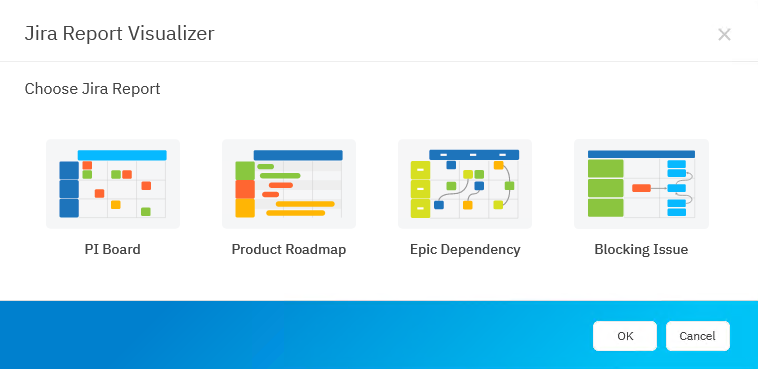
You'll be presented with the 4 reports available to generate.
### Connect to Your Atlassian Account and Jira Instance
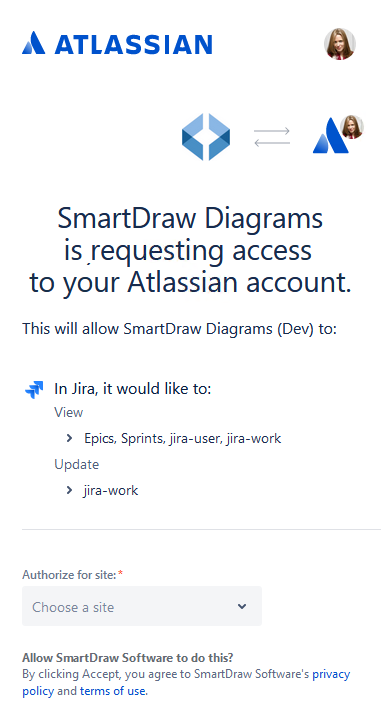
Selecting any report from the Jira Reports dialog will prompt you to login with your Atlassian Account and allow SmartDraw to see your data for the site selected.
### PI Board
The PI board will give management visibility into dependencies and highlights potential risks to delivering a project on time. Click the **PI Board icon** in the **Jira Reports Data Visualizer** to get started.
In the next dialog, you'll be able to pick a project and choose the Sprints you want to include.
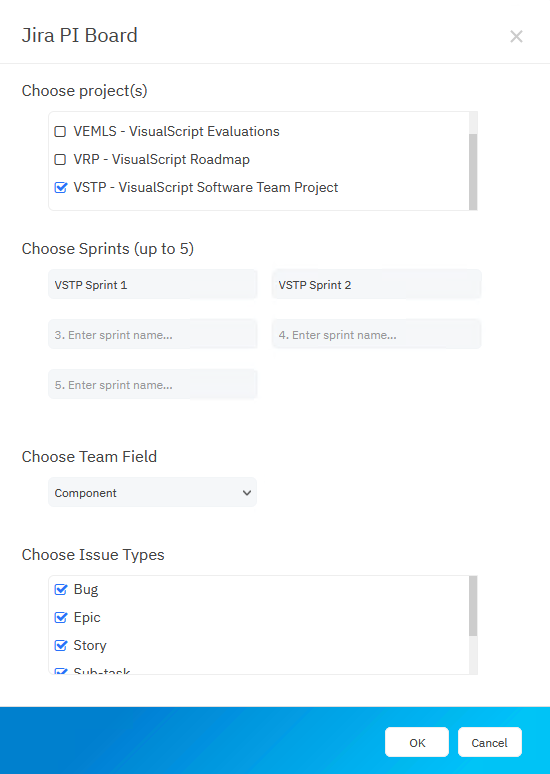
Once you select a project, the Sprints will be auto-populated based on your data. Click the Sprint field to see a list of available Sprints as a drop down.
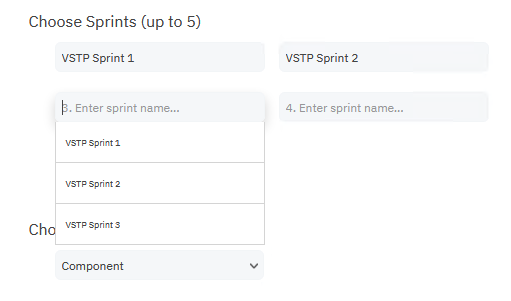
SmartDraw also needs to know how your team information is stored in Jira. By default, SmartDraw assumes **Components** are used to represent teams. You can also choose Project, Team, or a custom field unique to your instance.
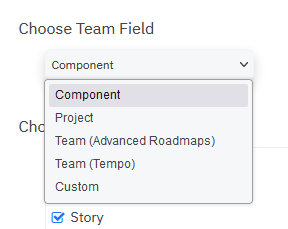
Finally, choose what types of issues you want to include in your visual, then click **OK** to generate your PI board.
### Product Roadmap
Product roadmaps can be used to report on when new features and functionality will ship at a high level.
Click the **Product Roadmap icon** in the **Jira Reports Data Visualizer** to get started.
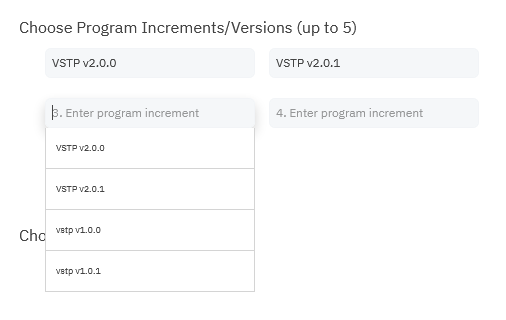
In the next dialog, you'll be able to pick a project or projects and program increments. SmartDraw will read your Jira data and present you with the projects you can select from.
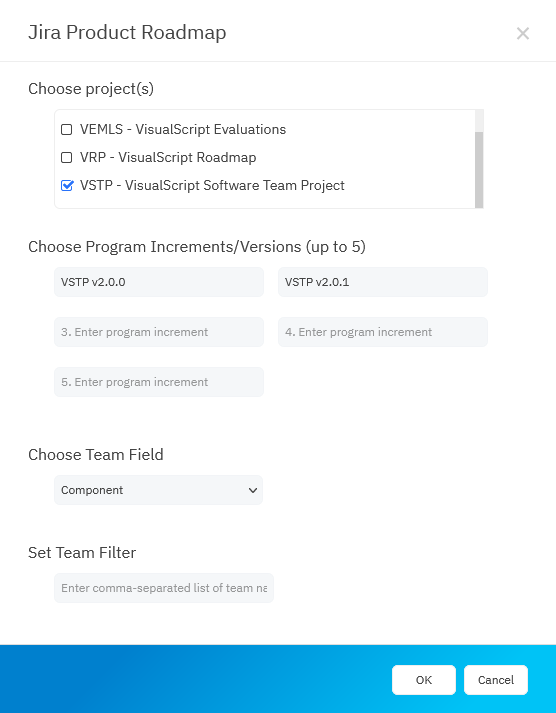
Once you selected a project, SmartDraw will auto-populate a drop-down of options for program increments.
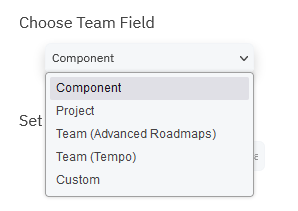
SmartDraw also needs to know how your team information is stored in Jira. By default, SmartDraw assumes **Components** are used to represent teams. You can also choose Project, Team, or a custom field unique to your instance.
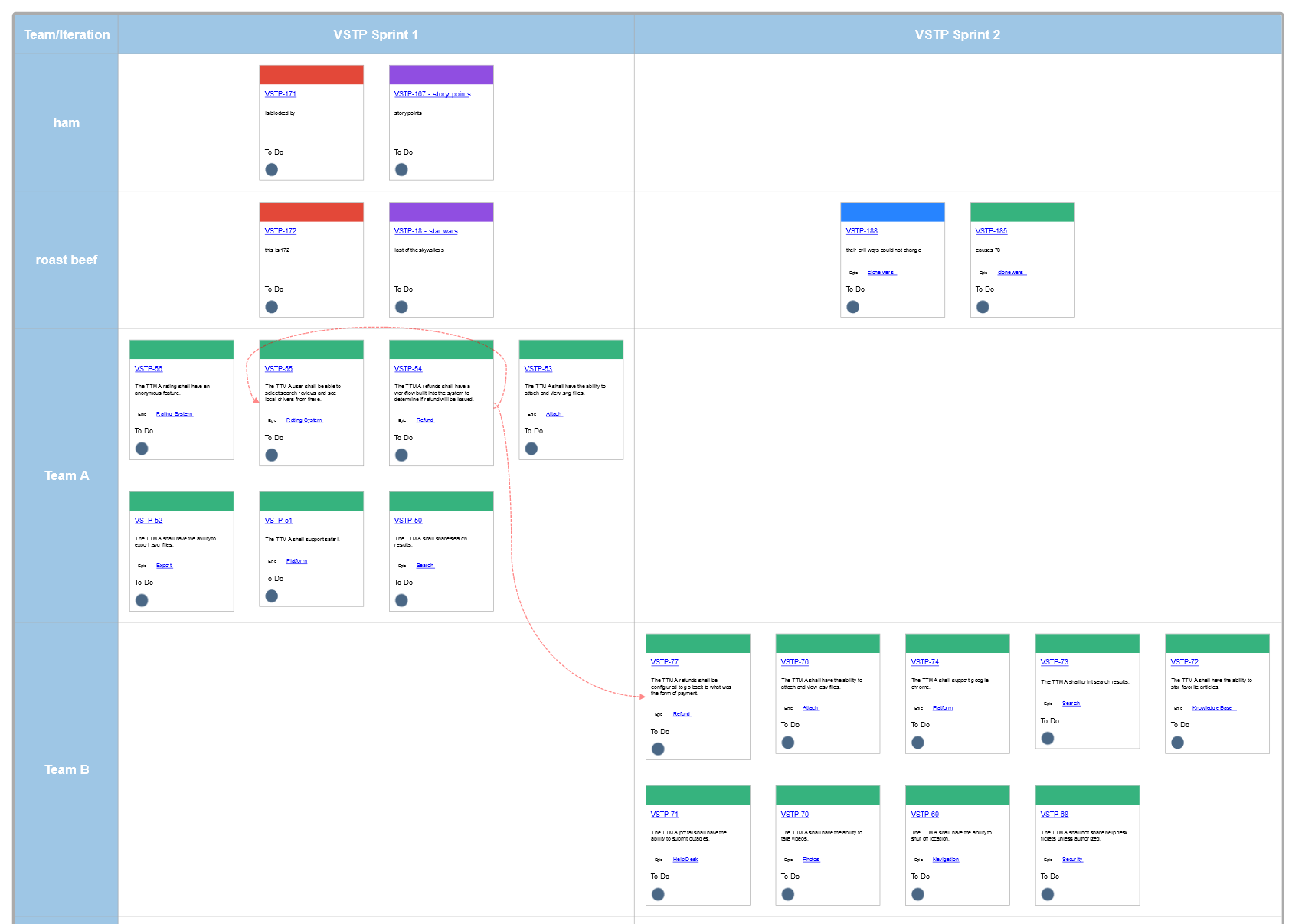
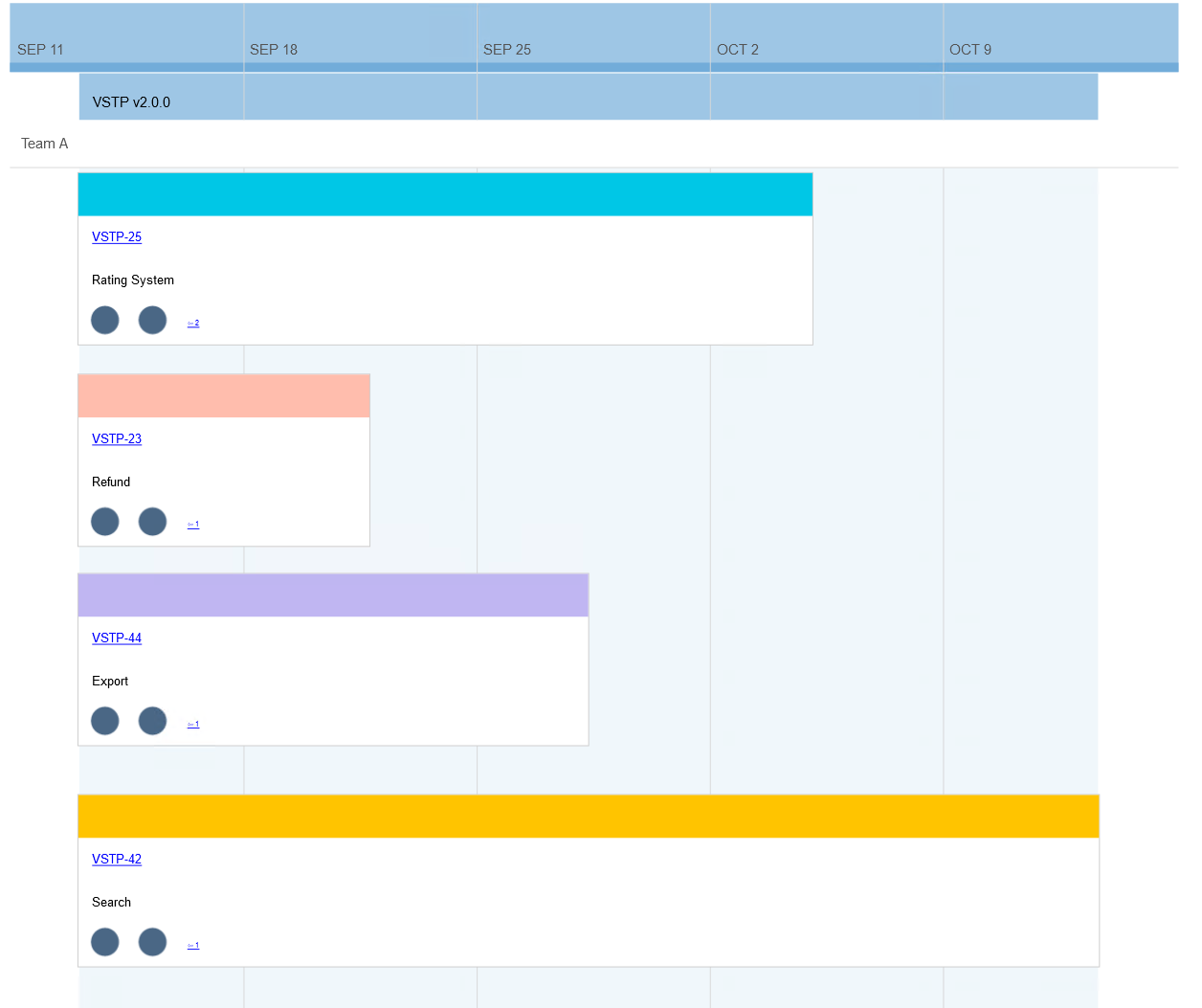
Once generated, you'll notice that the report is broken down by teams spanning a given time period.
Multiple teams can work on the same Epic and an Epic can have issues that exist in multiple versions.
Statuses for issues and epics are represented with circles at the bottom of the Epic bar using the standard Atlassian colors : blue for to do, yellow for in progress, and green for done.
The status to the left is the status of the Epic. The status to the right is the status of the issues in the Epic, assigned to that specific team.
Everything is linked to data in Jira if you want to dig deeper.
### Epic Dependency Report
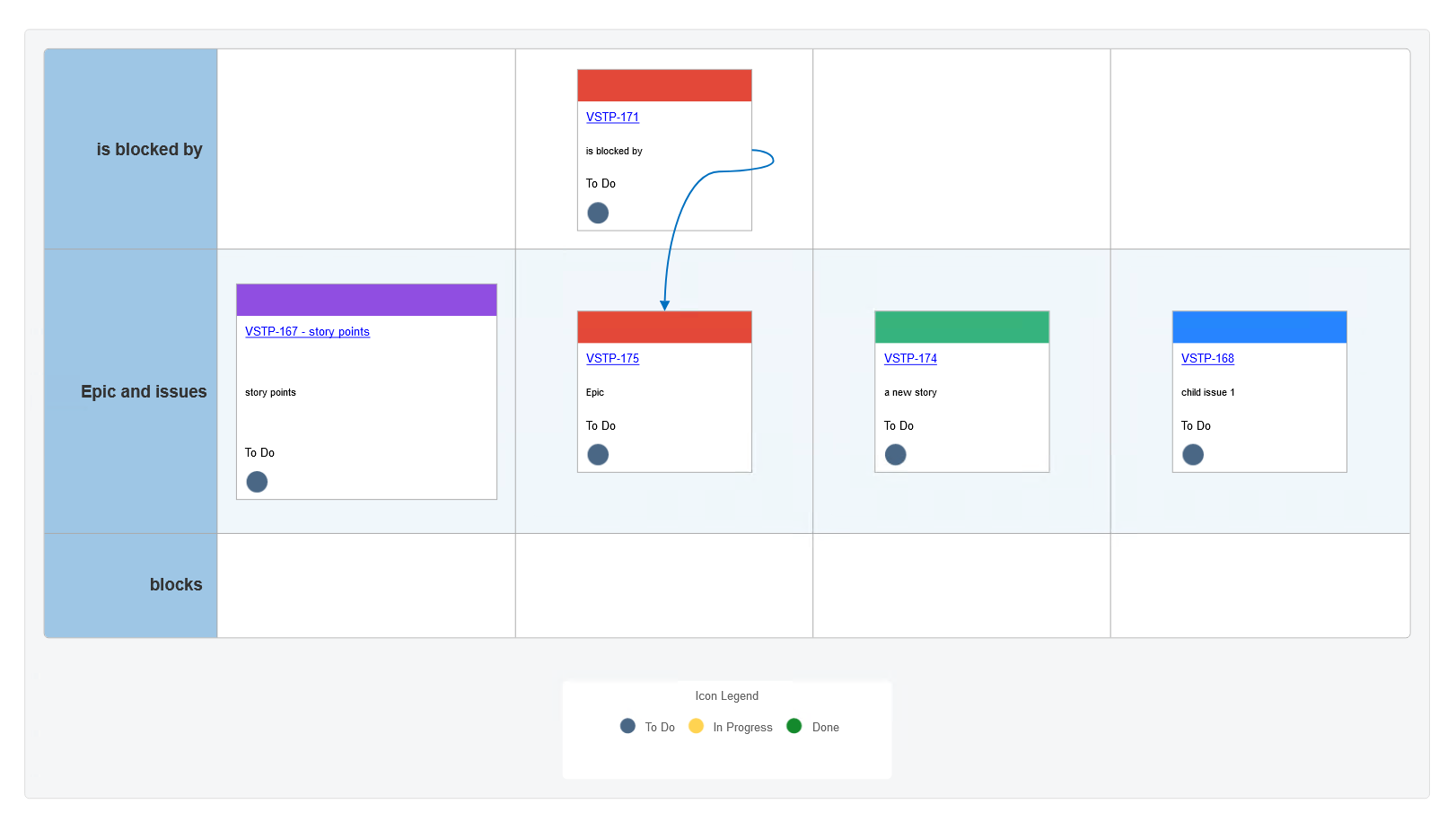
The epic dependency report will show you all the issues and their dependencies for a single Epic. This report allows organizations to see what is blocking the Epic's stories from being completed as planned.
Click the **Epic Dependency icon** in the **Jira Reports Data Visualizer** to get started.
In the following dialog, you will need to provide issue key for the Epic you want to center this report around.
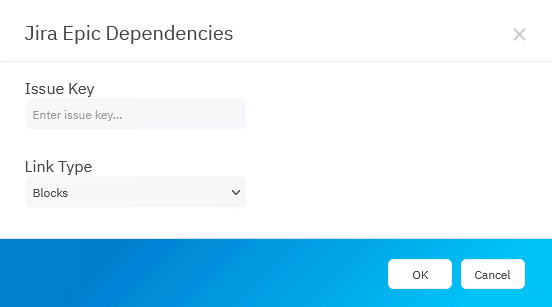
Next, you'll need to specify the type of dependencies or links you want the report to focus on. You can choose from Blocks, Clones, Duplicates, Problem, or Relates. By default, **Blocks** will be selected.
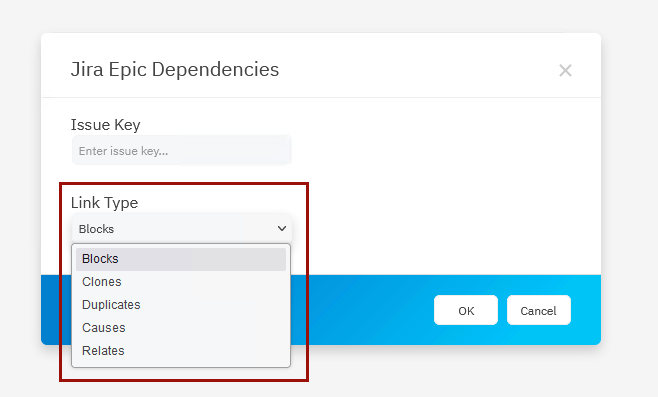
Click **Ok** to generate your report.
### Blocking Issue Report
The blocking issue report will let you see potential bottlenecks that could be slowing down your team at the issue level.
Click the **Blocking Issue icon** in the **Jira Reports Data Visualizer** to get started.
In the following dialog, you will need to provide issue key you want to center this report around.
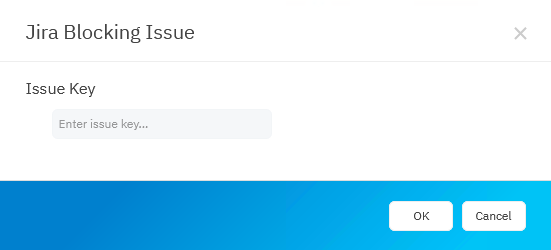
Depending on the information available in your Jira instance and the issue you selected, the generated diagram may look something like this.
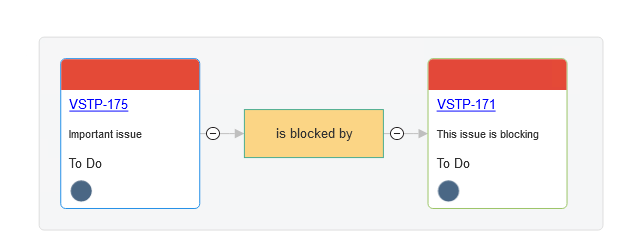
The colored dots on each card show the status of the issue as *to do*, *in progress*, or *done*.
Click on the issue key in any box to see your issue in your Jira instance in case you need to drill down for more information.
- [The Basics](https://support.smartdraw.com/the-basics?hsLang=en-us#main-content)
- [Getting Started](https://support.smartdraw.com/the-basics?hsLang=en-us#getting-started)
- [Selection](https://support.smartdraw.com/the-basics?hsLang=en-us#selection)
- [Moving & Sizing](https://support.smartdraw.com/the-basics?hsLang=en-us#moving-sizing)
- [Text Entry](https://support.smartdraw.com/the-basics?hsLang=en-us#text-entry)
- [File Saving](https://support.smartdraw.com/the-basics?hsLang=en-us#file-saving)
- [How to Draw Anything](https://support.smartdraw.com/how-to-draw-anything?hsLang=en-us#main-content)
- [Getting Started](https://support.smartdraw.com/how-to-draw-anything?hsLang=en-us#getting-started)
- [Popular Diagrams](https://support.smartdraw.com/how-to-draw-anything?hsLang=en-us#popular-diagrams)
- [Other Diagrams](https://support.smartdraw.com/how-to-draw-anything?hsLang=en-us#other-diagrams)
- [FAQ](https://support.smartdraw.com/faq?hsLang=en-us#main-content)
- [Ordering Questions](https://support.smartdraw.com/faq?hsLang=en-us#ordering-questions)
- [Trials](https://support.smartdraw.com/faq?hsLang=en-us#trials)
- [Subscriptions](https://support.smartdraw.com/faq?hsLang=en-us#subscriptions)
- [Printing](https://support.smartdraw.com/faq?hsLang=en-us#printing)
- [My Account](https://support.smartdraw.com/my-account?hsLang=en-us#main-content)
- [All Users](https://support.smartdraw.com/my-account?hsLang=en-us#all-users)
- [Multi-Seat and Enterprise](https://support.smartdraw.com/my-account?hsLang=en-us#multi-seat-and-enterprise)
- [Enterprise](https://support.smartdraw.com/my-account?hsLang=en-us#enterprise)
- [Templates & Documents](https://support.smartdraw.com/templates-documents?hsLang=en-us#main-content)
- [Templates](https://support.smartdraw.com/templates-documents?hsLang=en-us#templates)
- [My Documents](https://support.smartdraw.com/templates-documents?hsLang=en-us#my-documents)
- [File Storage](https://support.smartdraw.com/templates-documents?hsLang=en-us#file-storage)
- [Videos](https://support.smartdraw.com/videos?hsLang=en-us#main-content)
- [Diagramming Basics and Tips](https://support.smartdraw.com/videos?hsLang=en-us#diagramming-basics-and-tips)
- [How to Draw Every Type of Diagram](https://support.smartdraw.com/videos?hsLang=en-us#how-to-draw-every-type-of-diagram)
- [Advanced Diagramming with Data](https://support.smartdraw.com/videos?hsLang=en-us#advanced-diagramming-with-data)
- [Sharing and Integrations](https://support.smartdraw.com/videos?hsLang=en-us#sharing-and-integrations)
- [Managing Your License, Users, and Account](https://support.smartdraw.com/videos?hsLang=en-us#managing-your-license-users-and-account)
- [SmartDraw AI](https://support.smartdraw.com/smartdraw-ai?hsLang=en-us#main-content)
- [AI Diagramming](https://support.smartdraw.com/smartdraw-ai?hsLang=en-us#ai-diagramming)
- [MCP Server](https://support.smartdraw.com/smartdraw-ai?hsLang=en-us#mcp-server)
- [Managing AI Access](https://support.smartdraw.com/smartdraw-ai?hsLang=en-us#managing-ai-access)
- [Collaboration](https://support.smartdraw.com/collaboration?hsLang=en-us#main-content)
- [Collaboration](https://support.smartdraw.com/collaboration?hsLang=en-us#collaboration)
- [Export](https://support.smartdraw.com/collaboration?hsLang=en-us#export)
- [Whiteboarding](https://support.smartdraw.com/collaboration?hsLang=en-us#whiteboarding)
- [Integrations](https://support.smartdraw.com/integrations?hsLang=en-us#main-content)
- [Storage](https://support.smartdraw.com/integrations?hsLang=en-us#storage)
- [Apps](https://support.smartdraw.com/integrations?hsLang=en-us#apps)
- [Visualizers](https://support.smartdraw.com/integrations?hsLang=en-us#visualizers)
- [Diagrams from Data](https://support.smartdraw.com/diagrams-from-data?hsLang=en-us#main-content)
- [Data Visualizers](https://support.smartdraw.com/diagrams-from-data?hsLang=en-us#data-visualizers)
- [Charts, Graphs, and Gauges](https://support.smartdraw.com/diagrams-from-data?hsLang=en-us#charts-graphs-and-gauges)
- [Shape Data](https://support.smartdraw.com/diagrams-from-data?hsLang=en-us#shape-data)
- [Custom Visualization](https://support.smartdraw.com/diagrams-from-data?hsLang=en-us#custom-visualization)
- [Reference](https://support.smartdraw.com/reference?hsLang=en-us#main-content)
- [Symbols](https://support.smartdraw.com/reference?hsLang=en-us#symbols)
- [Connectors](https://support.smartdraw.com/reference?hsLang=en-us#connectors)
- [Lines](https://support.smartdraw.com/reference?hsLang=en-us#lines)
- [Arranging Shapes](https://support.smartdraw.com/reference?hsLang=en-us#arranging-shapes)
- [Colors & Styles](https://support.smartdraw.com/reference?hsLang=en-us#colors-styles)
- [Dimensions](https://support.smartdraw.com/reference?hsLang=en-us#dimensions)
- [Floor Planning Tips](https://support.smartdraw.com/reference?hsLang=en-us#floor-planning-tips)
- [Enhancing Shapes](https://support.smartdraw.com/reference?hsLang=en-us#enhancing-shapes)
- [Workspace](https://support.smartdraw.com/reference?hsLang=en-us#workspace)
- [Layers](https://support.smartdraw.com/reference?hsLang=en-us#layers)
- [Grouping](https://support.smartdraw.com/reference?hsLang=en-us#grouping)
- [Tables](https://support.smartdraw.com/reference?hsLang=en-us#tables)
- [Containers](https://support.smartdraw.com/reference?hsLang=en-us#containers)
- [Printing](https://support.smartdraw.com/printing?hsLang=en-us#main-content)
- [Printing](https://support.smartdraw.com/printing?hsLang=en-us#printing)
[](https://www.smartdraw.com/)
Copyright © 1994-2026 SmartDraw, LLC