---
title: Creating Custom Shapes from Lines
description: Build a custom shape by joining line segments with the Polygon Line tool, mixing straight and curved runs.
---
[Skip to content](https://support.smartdraw.com/creating-custom-shapes-from-lines#main-content)
English - United States
Show submenu for translations
[Submit a Request](https://support.smartdraw.com/kb-tickets/new?hsLang=en-us)

Open main navigation
Close main navigation
- English - United States
Show submenu for translations
- [Submit a Request](https://support.smartdraw.com/kb-tickets/new)
How can we help you?
- There are no suggestions because the search field is empty.
1. [SmartDraw Knowledge Base](https://support.smartdraw.com/?hsLang=en-us)
2. [Reference](https://support.smartdraw.com/reference?hsLang=en-us)
3. [Lines](https://support.smartdraw.com/reference?hsLang=en-us#lines)
# Creating Custom Shapes from Lines
You can create custom shapes using the Polygon Line tool or by simple connecting multiple line segments of any kind mixing curved and straight lines. We will cover both in this article.
### Create a Custom Shape using the Polygon Line Tool
At the top of the SmartPanel to the left of your workspace, click on **Line** and choose **Polygon Line**.
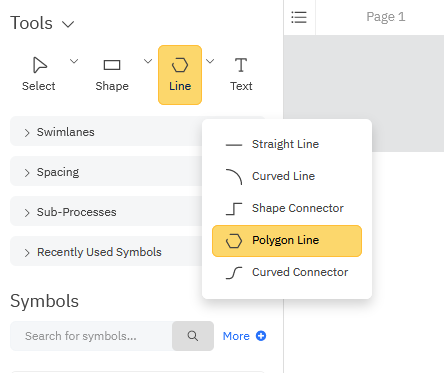
Start drawing your shape by clicking once to start the first segment and dragging your mouse to extend the line in any direction on your workspace. Clicking again will end the segment and let you start the next one. Repeat this process of clicking to start and end segments and dragging your mouse as many times as you need to create your shape. When you're ready to close your polygon, bring your cursor near your starting point. You'll see a big circle appear indicating that if you let go your shape will close automatically.
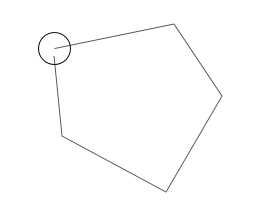
Once your shape is closed, it will automatically assume to current fill color.
You'll also see black squares at the end of each line segment. These are adjustment handles that let you modify the outline of your shape by moving the end of the line segment. Just click on a handle and drag it to reposition.
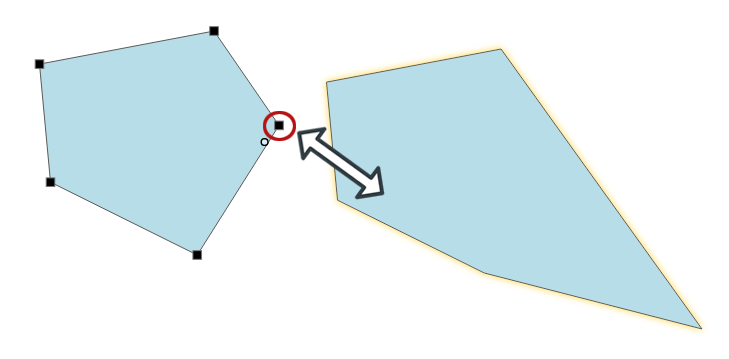
Once you're happy with your shape, clicking off it will remove the adjustment handles. You'll notice it now has 4 black squares around the shape and green dots on the middle of each line segment.
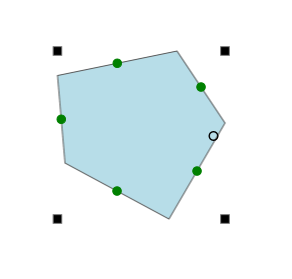
The green dots in the middle of each line segment allow you to move just that line segment either inward or outward to change the size shape. Move your cursor over the green line until it becomes a two-sided arrow, then click and drag the line to change your shape.
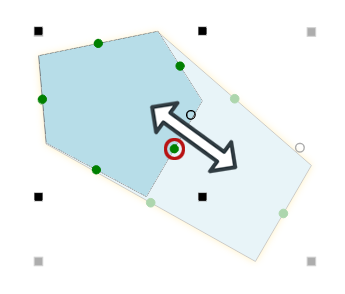
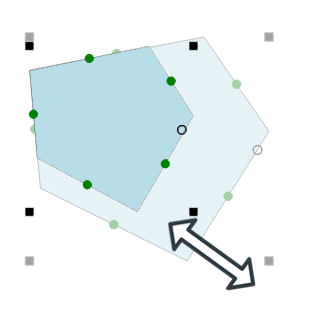
The black squares are grow handles that allow you to grow or shrink your shape according the **Grow Properties** you have set. By default, there are no restrictions, so you can distort the proportions of your shape as much as you want. However, you can set the Grow Properties to be *Proportional* only if you want the same shape just at a larger or smaller size. [Learn more about Grow Properties here.](https://support.smartdraw.com/grow-properties?hsLang=en-us)
Click and drag the grow handles to resize your new shape.
Read these articles to learn how to modify your shape's properties like [fill color](https://support.smartdraw.com/changing-shape-styles-fill-color-border-thickness-and-more?hsLang=en-us) or [line style](https://support.smartdraw.com/changing-line-style-and-color?hsLang=en-us).
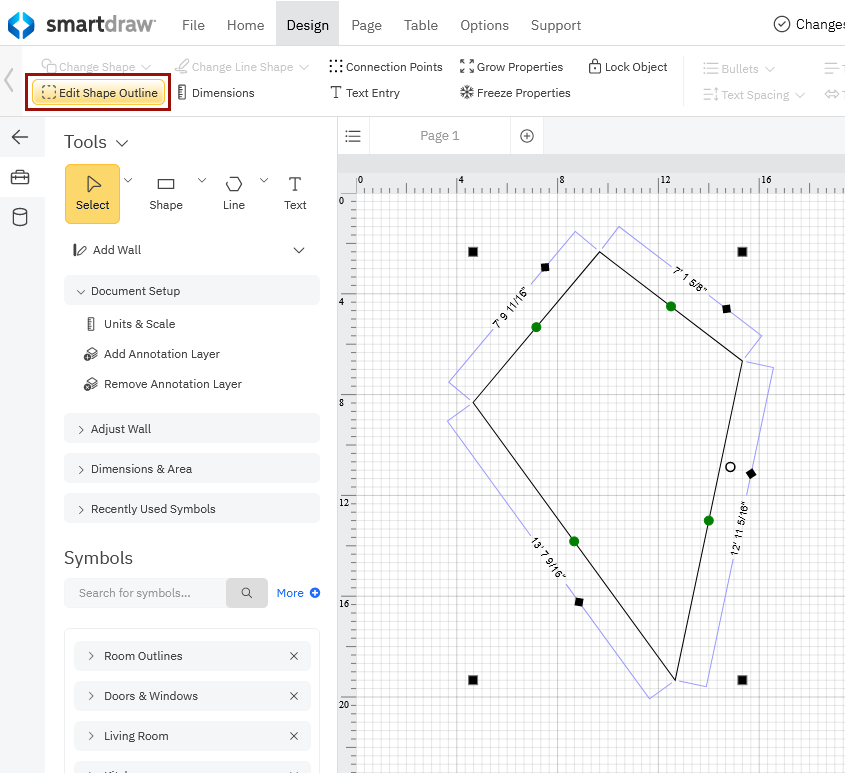
If you need to edit your shape after closing, you can always go to the **Design** tab and select **Edit Shape Outline** to re-enter shape edit mode and modify line segments.
### Create a Custom Shape Using Straight and Curved Lines
You can also connect any combination of straight and curved lines to create a custom shape.
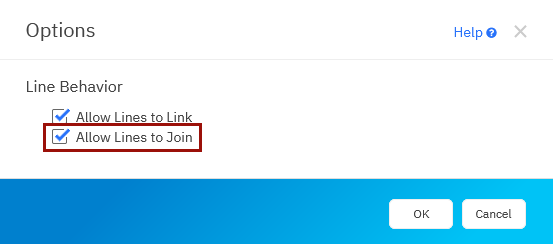
First, make sure you allow SmartDraw to join lines. This is a setting you can turn on in the **Options** menu under the **File** tab.

Make sure you have the setting to **Allow Lines to Join** checked under Line Behavior.
Now, you're ready to draw a custom shape by joining any combination of straight and curved lines.
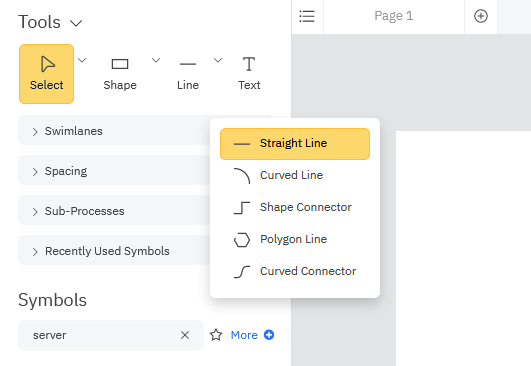
In the SmartPanel, click on **Line** and select either the **Straight Line** or **Curved Line** tool to start.
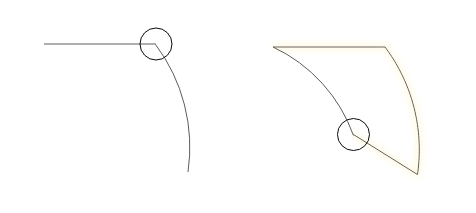
Click once and draw a line segment by dragging your mouse. Release your mouse to end the segment. To connect the next line, click at the end of the previous segment. You'll see a larger white circle appear indicating the lines will be connected. Repeat this until you're ready to close your shape. To close your shape, drag the line segment towards the starting pointing until you see you the big white circle appear. This tells you if you release your line, your shape will be closed.
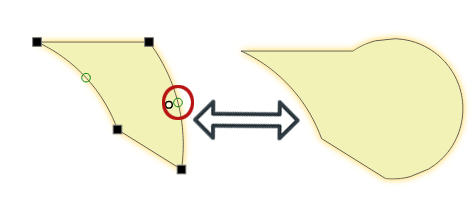
Once your custom shape is connected, you can use the adjustment handles to make any final modifications.
The black square adjustment handles let you reposition the end of each line segment.
The hollow green adjustment handles in the middle of each line segment allow you to change the arc of your curved line segments.
When you're happy with your shape, click off of it to get the regular grow handles that let you resize it.
- [The Basics](https://support.smartdraw.com/the-basics?hsLang=en-us#main-content)
- [Getting Started](https://support.smartdraw.com/the-basics?hsLang=en-us#getting-started)
- [Selection](https://support.smartdraw.com/the-basics?hsLang=en-us#selection)
- [Moving & Sizing](https://support.smartdraw.com/the-basics?hsLang=en-us#moving-sizing)
- [Text Entry](https://support.smartdraw.com/the-basics?hsLang=en-us#text-entry)
- [File Saving](https://support.smartdraw.com/the-basics?hsLang=en-us#file-saving)
- [How to Draw Anything](https://support.smartdraw.com/how-to-draw-anything?hsLang=en-us#main-content)
- [Getting Started](https://support.smartdraw.com/how-to-draw-anything?hsLang=en-us#getting-started)
- [Popular Diagrams](https://support.smartdraw.com/how-to-draw-anything?hsLang=en-us#popular-diagrams)
- [Other Diagrams](https://support.smartdraw.com/how-to-draw-anything?hsLang=en-us#other-diagrams)
- [FAQ](https://support.smartdraw.com/faq?hsLang=en-us#main-content)
- [Ordering Questions](https://support.smartdraw.com/faq?hsLang=en-us#ordering-questions)
- [Trials](https://support.smartdraw.com/faq?hsLang=en-us#trials)
- [Subscriptions](https://support.smartdraw.com/faq?hsLang=en-us#subscriptions)
- [Printing](https://support.smartdraw.com/faq?hsLang=en-us#printing)
- [My Account](https://support.smartdraw.com/my-account?hsLang=en-us#main-content)
- [All Users](https://support.smartdraw.com/my-account?hsLang=en-us#all-users)
- [Multi-Seat and Enterprise](https://support.smartdraw.com/my-account?hsLang=en-us#multi-seat-and-enterprise)
- [Enterprise](https://support.smartdraw.com/my-account?hsLang=en-us#enterprise)
- [Templates & Documents](https://support.smartdraw.com/templates-documents?hsLang=en-us#main-content)
- [Templates](https://support.smartdraw.com/templates-documents?hsLang=en-us#templates)
- [My Documents](https://support.smartdraw.com/templates-documents?hsLang=en-us#my-documents)
- [File Storage](https://support.smartdraw.com/templates-documents?hsLang=en-us#file-storage)
- [Videos](https://support.smartdraw.com/videos?hsLang=en-us#main-content)
- [Diagramming Basics and Tips](https://support.smartdraw.com/videos?hsLang=en-us#diagramming-basics-and-tips)
- [How to Draw Every Type of Diagram](https://support.smartdraw.com/videos?hsLang=en-us#how-to-draw-every-type-of-diagram)
- [Advanced Diagramming with Data](https://support.smartdraw.com/videos?hsLang=en-us#advanced-diagramming-with-data)
- [Sharing and Integrations](https://support.smartdraw.com/videos?hsLang=en-us#sharing-and-integrations)
- [Managing Your License, Users, and Account](https://support.smartdraw.com/videos?hsLang=en-us#managing-your-license-users-and-account)
- [SmartDraw AI](https://support.smartdraw.com/smartdraw-ai?hsLang=en-us#main-content)
- [AI Diagramming](https://support.smartdraw.com/smartdraw-ai?hsLang=en-us#ai-diagramming)
- [MCP Server](https://support.smartdraw.com/smartdraw-ai?hsLang=en-us#mcp-server)
- [Managing AI Access](https://support.smartdraw.com/smartdraw-ai?hsLang=en-us#managing-ai-access)
- [Collaboration](https://support.smartdraw.com/collaboration?hsLang=en-us#main-content)
- [Collaboration](https://support.smartdraw.com/collaboration?hsLang=en-us#collaboration)
- [Export](https://support.smartdraw.com/collaboration?hsLang=en-us#export)
- [Whiteboarding](https://support.smartdraw.com/collaboration?hsLang=en-us#whiteboarding)
- [Integrations](https://support.smartdraw.com/integrations?hsLang=en-us#main-content)
- [Storage](https://support.smartdraw.com/integrations?hsLang=en-us#storage)
- [Apps](https://support.smartdraw.com/integrations?hsLang=en-us#apps)
- [Visualizers](https://support.smartdraw.com/integrations?hsLang=en-us#visualizers)
- [Diagrams from Data](https://support.smartdraw.com/diagrams-from-data?hsLang=en-us#main-content)
- [Data Visualizers](https://support.smartdraw.com/diagrams-from-data?hsLang=en-us#data-visualizers)
- [Charts, Graphs, and Gauges](https://support.smartdraw.com/diagrams-from-data?hsLang=en-us#charts-graphs-and-gauges)
- [Shape Data](https://support.smartdraw.com/diagrams-from-data?hsLang=en-us#shape-data)
- [Custom Visualization](https://support.smartdraw.com/diagrams-from-data?hsLang=en-us#custom-visualization)
- [Reference](https://support.smartdraw.com/reference?hsLang=en-us#main-content)
- [Symbols](https://support.smartdraw.com/reference?hsLang=en-us#symbols)
- [Connectors](https://support.smartdraw.com/reference?hsLang=en-us#connectors)
- [Lines](https://support.smartdraw.com/reference?hsLang=en-us#lines)
- [Arranging Shapes](https://support.smartdraw.com/reference?hsLang=en-us#arranging-shapes)
- [Colors & Styles](https://support.smartdraw.com/reference?hsLang=en-us#colors-styles)
- [Dimensions](https://support.smartdraw.com/reference?hsLang=en-us#dimensions)
- [Floor Planning Tips](https://support.smartdraw.com/reference?hsLang=en-us#floor-planning-tips)
- [Enhancing Shapes](https://support.smartdraw.com/reference?hsLang=en-us#enhancing-shapes)
- [Workspace](https://support.smartdraw.com/reference?hsLang=en-us#workspace)
- [Layers](https://support.smartdraw.com/reference?hsLang=en-us#layers)
- [Grouping](https://support.smartdraw.com/reference?hsLang=en-us#grouping)
- [Tables](https://support.smartdraw.com/reference?hsLang=en-us#tables)
- [Containers](https://support.smartdraw.com/reference?hsLang=en-us#containers)
- [Printing](https://support.smartdraw.com/printing?hsLang=en-us#main-content)
- [Printing](https://support.smartdraw.com/printing?hsLang=en-us#printing)
[](https://www.smartdraw.com/)
Copyright © 1994-2026 SmartDraw, LLC