---
title: Create Data Rules
description: Set up data rules so SmartDraw restyles shapes automatically based on the data attached to them.
---
[Skip to content](https://support.smartdraw.com/create-data-rules#main-content)
English - United States
Show submenu for translations
[Submit a Request](https://support.smartdraw.com/kb-tickets/new?hsLang=en-us)

Open main navigation
Close main navigation
- English - United States
Show submenu for translations
- [Submit a Request](https://support.smartdraw.com/kb-tickets/new)
How can we help you?
- There are no suggestions because the search field is empty.
1. [SmartDraw Knowledge Base](https://support.smartdraw.com/?hsLang=en-us)
2. [Diagrams from Data](https://support.smartdraw.com/diagrams-from-data?hsLang=en-us)
3. [Shape Data](https://support.smartdraw.com/diagrams-from-data?hsLang=en-us#shape-data)
# Create Data Rules
Data rules allow you to automatically modify your diagram based on data.
First, switch to the **Data** view in your SmartPanel using the **Data** icon in the **Left Bar**.
Next, click on the **Actions** menu, select **Manage Data Rules,** and choose **New Rule**.
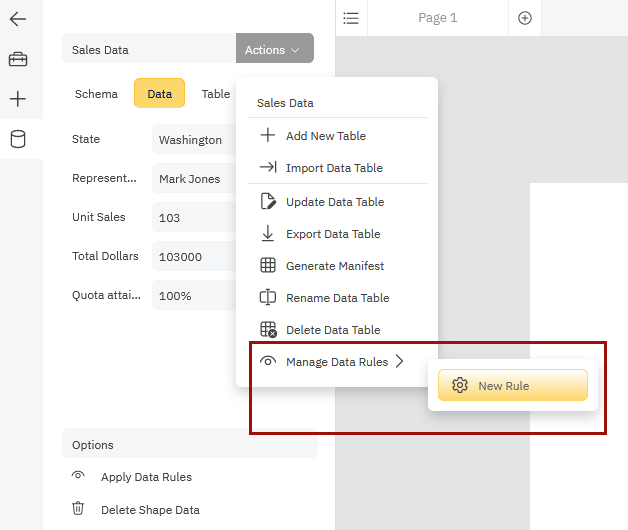
You can make the colors and other attributes of a shape depend on the values of its data.
You may want to:
- Show issues on schedule or falling behind
- Show high utilization of a component on your AWS set up
- Show if a particular issue is "at risk"
You can change the color of the text, border, glow, or fill, and more. You can even add an icon when appropriate.
Combining the ability to change the appearance of shapes with updating of data via import allows you to use a diagram as a dashboard that reflects the current state of your data.
### Setting Up a Rule
**Step 1:** Give it a name.
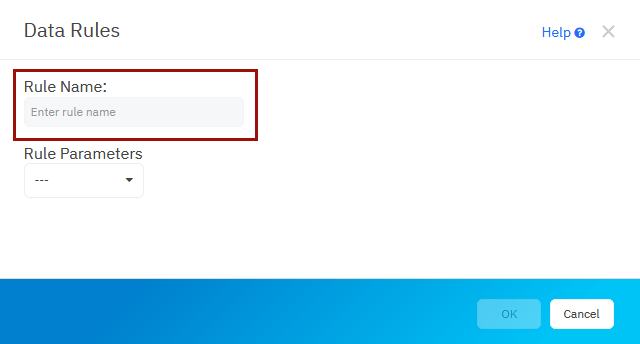
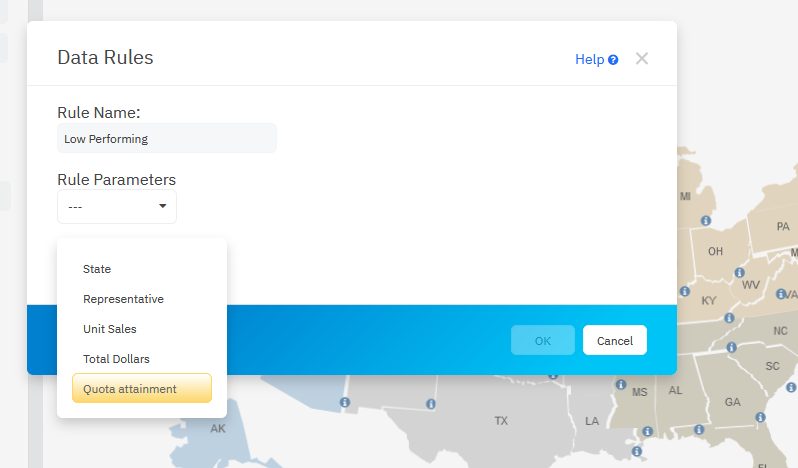
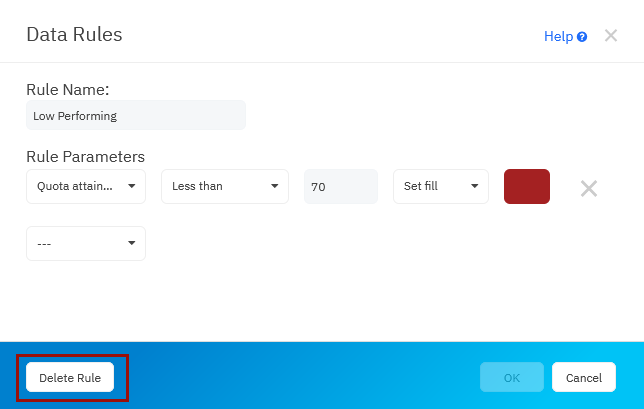
**Step 2:** Next, we're going to set up all the rule parameters. First, pick which part of your schema your rule will apply to. The drop-down auto-populates with available options from your data table. We're going to want to highlight any states where the quote is below a 70% threshold. So we're going to select Quota attainment from the drop down.
**Step 3:** Select the statement you want to apply in your rule. Your options are going to involve mathematical comparisons of some quantity. In this case, we want to change the diagram if the quota is below a specific threshold.
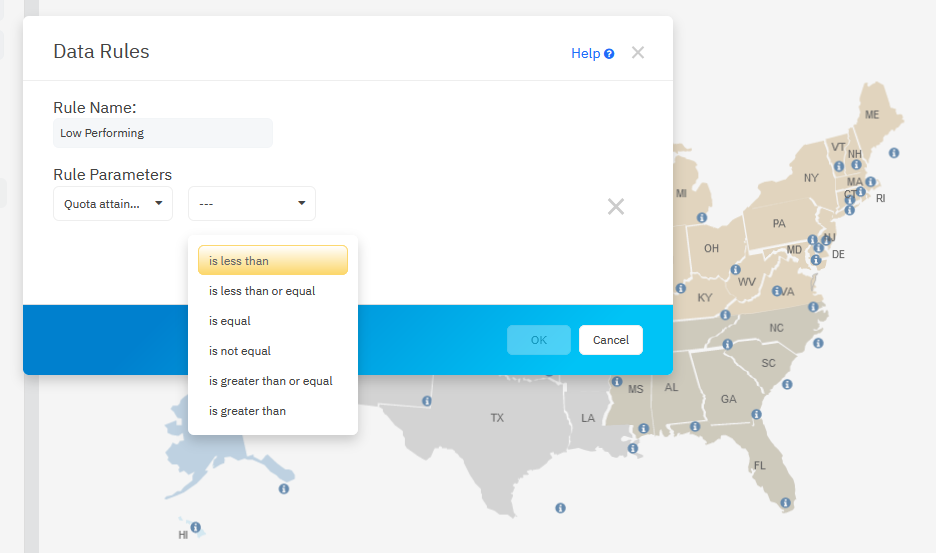
**Step 4:** Pick the quantity. Type in the number you want to compare against.
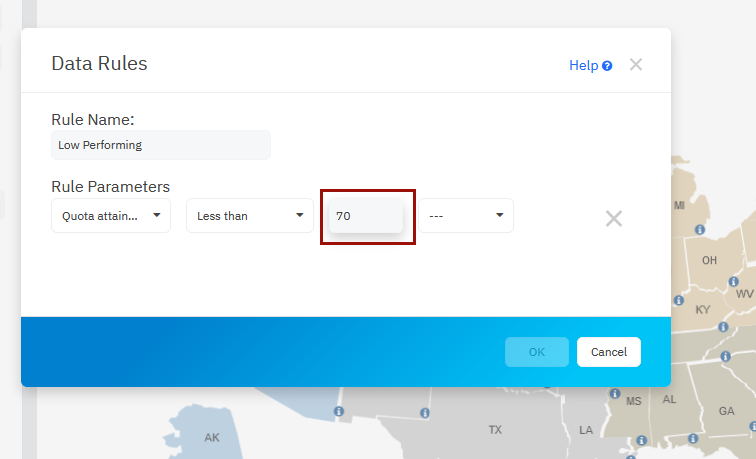
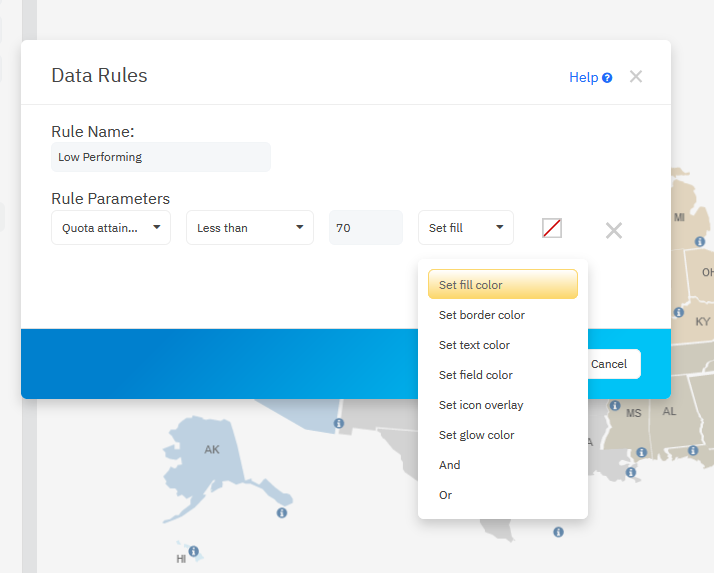
**Step 5:** Select the action the rule applies when the statement is true. You can also select And/Or to further define your rule. Do you want to change the fill color of the shape? The outline? In this case, we're going to set the fill color to something eye-catching.
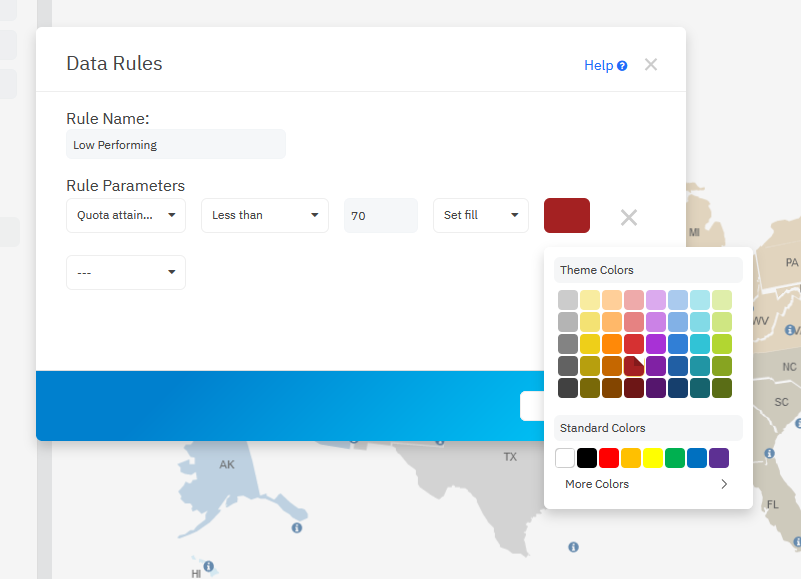
If you choose a color, you'll be asked to select the color from a standard color picker palette.
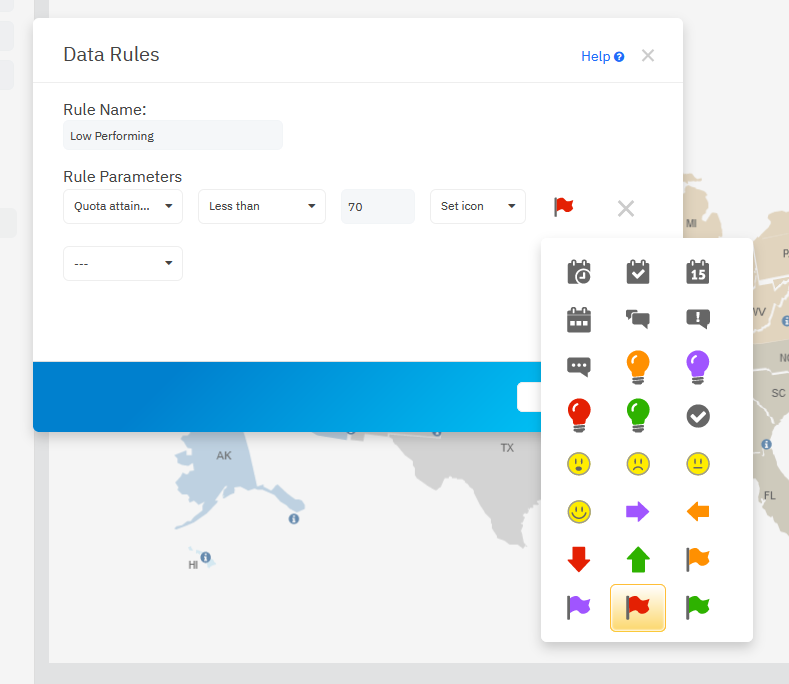
If you choose to **Set icon overlay**, you can select from a per-selected set:
### Apply Data Rules
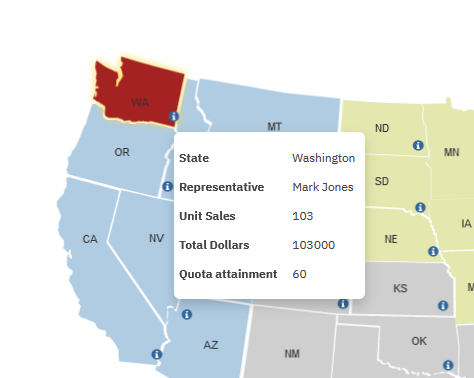
Let's look at both scenarios. Here's the data rule where we set the fill color of any shape (in this case state) to red when the quota falls below 70%. **NOTE:** make sure the data you're measuring against in your rule is set to be an "Integer" type, not text.
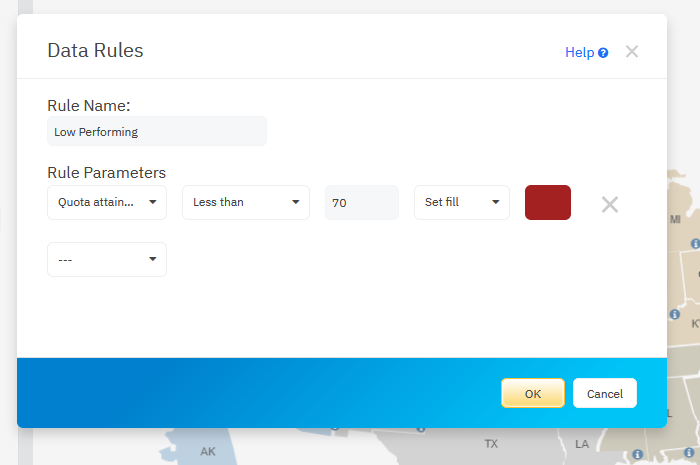
Once you created the rule, go back to your diagram and select all the shapes on your diagram you want to apply the rule to.
If you want it to apply to all shapes, you can select all using **Ctrl+A**. You can also use **Select All** from the **Select** menu at the top of the SmartPanel to the left of your workspace.
Click **Apply Data Rules.**
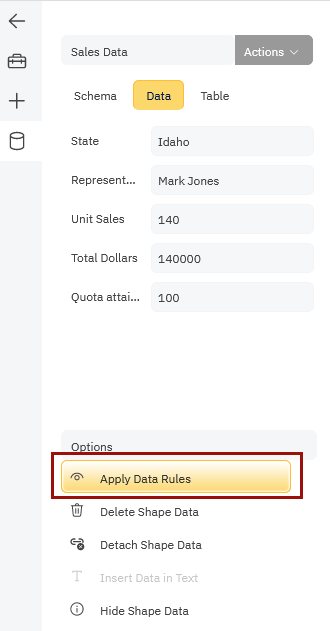
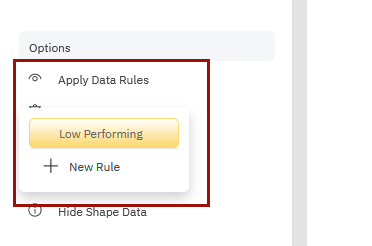
Select the rule you want to apply.
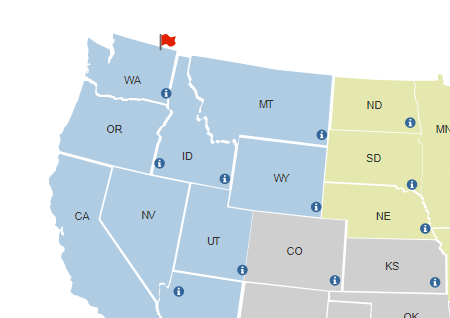
It looks like Washington state falls below our 70% threshold:
If instead of fill color, you want to see an icon, you can modify the rule to show an icon when the rule is met.
### Modify a Data Rule
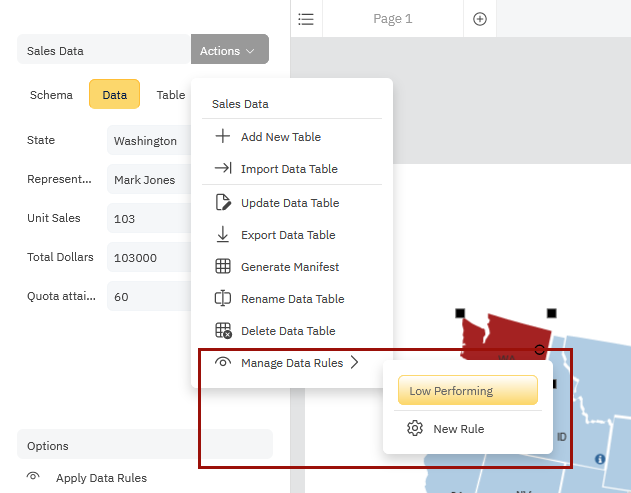
You can modify your rule at any time using the **Actions** menu. Click on **Manage Data Rules** and choose your rule by name.
### Remove a Data Rule from a Shape
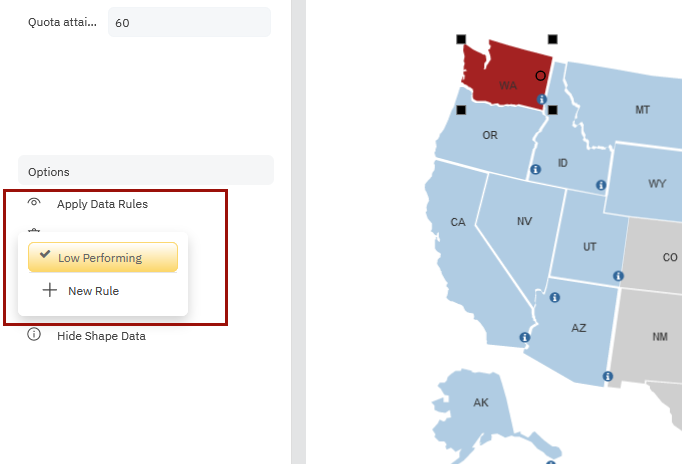
If you want to remove a rule from a shape, select the shape and under **Apply Data Rules** select the name of the rule you want to uncouple to remove the check mark.
### Delete a Data Rule
Click on **Actions** **> Manage Data Rules** > **\[Name of Data Rule\]** and choose **Delete Rule** from the dialog.
- [The Basics](https://support.smartdraw.com/the-basics?hsLang=en-us#main-content)
- [Getting Started](https://support.smartdraw.com/the-basics?hsLang=en-us#getting-started)
- [Selection](https://support.smartdraw.com/the-basics?hsLang=en-us#selection)
- [Moving & Sizing](https://support.smartdraw.com/the-basics?hsLang=en-us#moving-sizing)
- [Text Entry](https://support.smartdraw.com/the-basics?hsLang=en-us#text-entry)
- [File Saving](https://support.smartdraw.com/the-basics?hsLang=en-us#file-saving)
- [How to Draw Anything](https://support.smartdraw.com/how-to-draw-anything?hsLang=en-us#main-content)
- [Getting Started](https://support.smartdraw.com/how-to-draw-anything?hsLang=en-us#getting-started)
- [Popular Diagrams](https://support.smartdraw.com/how-to-draw-anything?hsLang=en-us#popular-diagrams)
- [Other Diagrams](https://support.smartdraw.com/how-to-draw-anything?hsLang=en-us#other-diagrams)
- [FAQ](https://support.smartdraw.com/faq?hsLang=en-us#main-content)
- [Ordering Questions](https://support.smartdraw.com/faq?hsLang=en-us#ordering-questions)
- [Trials](https://support.smartdraw.com/faq?hsLang=en-us#trials)
- [Subscriptions](https://support.smartdraw.com/faq?hsLang=en-us#subscriptions)
- [Printing](https://support.smartdraw.com/faq?hsLang=en-us#printing)
- [My Account](https://support.smartdraw.com/my-account?hsLang=en-us#main-content)
- [All Users](https://support.smartdraw.com/my-account?hsLang=en-us#all-users)
- [Multi-Seat and Enterprise](https://support.smartdraw.com/my-account?hsLang=en-us#multi-seat-and-enterprise)
- [Enterprise](https://support.smartdraw.com/my-account?hsLang=en-us#enterprise)
- [Templates & Documents](https://support.smartdraw.com/templates-documents?hsLang=en-us#main-content)
- [Templates](https://support.smartdraw.com/templates-documents?hsLang=en-us#templates)
- [My Documents](https://support.smartdraw.com/templates-documents?hsLang=en-us#my-documents)
- [File Storage](https://support.smartdraw.com/templates-documents?hsLang=en-us#file-storage)
- [Videos](https://support.smartdraw.com/videos?hsLang=en-us#main-content)
- [Diagramming Basics and Tips](https://support.smartdraw.com/videos?hsLang=en-us#diagramming-basics-and-tips)
- [How to Draw Every Type of Diagram](https://support.smartdraw.com/videos?hsLang=en-us#how-to-draw-every-type-of-diagram)
- [Advanced Diagramming with Data](https://support.smartdraw.com/videos?hsLang=en-us#advanced-diagramming-with-data)
- [Sharing and Integrations](https://support.smartdraw.com/videos?hsLang=en-us#sharing-and-integrations)
- [Managing Your License, Users, and Account](https://support.smartdraw.com/videos?hsLang=en-us#managing-your-license-users-and-account)
- [SmartDraw AI](https://support.smartdraw.com/smartdraw-ai?hsLang=en-us#main-content)
- [AI Diagramming](https://support.smartdraw.com/smartdraw-ai?hsLang=en-us#ai-diagramming)
- [MCP Server](https://support.smartdraw.com/smartdraw-ai?hsLang=en-us#mcp-server)
- [Managing AI Access](https://support.smartdraw.com/smartdraw-ai?hsLang=en-us#managing-ai-access)
- [Collaboration](https://support.smartdraw.com/collaboration?hsLang=en-us#main-content)
- [Collaboration](https://support.smartdraw.com/collaboration?hsLang=en-us#collaboration)
- [Export](https://support.smartdraw.com/collaboration?hsLang=en-us#export)
- [Whiteboarding](https://support.smartdraw.com/collaboration?hsLang=en-us#whiteboarding)
- [Integrations](https://support.smartdraw.com/integrations?hsLang=en-us#main-content)
- [Storage](https://support.smartdraw.com/integrations?hsLang=en-us#storage)
- [Apps](https://support.smartdraw.com/integrations?hsLang=en-us#apps)
- [Visualizers](https://support.smartdraw.com/integrations?hsLang=en-us#visualizers)
- [Diagrams from Data](https://support.smartdraw.com/diagrams-from-data?hsLang=en-us#main-content)
- [Data Visualizers](https://support.smartdraw.com/diagrams-from-data?hsLang=en-us#data-visualizers)
- [Charts, Graphs, and Gauges](https://support.smartdraw.com/diagrams-from-data?hsLang=en-us#charts-graphs-and-gauges)
- [Shape Data](https://support.smartdraw.com/diagrams-from-data?hsLang=en-us#shape-data)
- [Custom Visualization](https://support.smartdraw.com/diagrams-from-data?hsLang=en-us#custom-visualization)
- [Reference](https://support.smartdraw.com/reference?hsLang=en-us#main-content)
- [Symbols](https://support.smartdraw.com/reference?hsLang=en-us#symbols)
- [Connectors](https://support.smartdraw.com/reference?hsLang=en-us#connectors)
- [Lines](https://support.smartdraw.com/reference?hsLang=en-us#lines)
- [Arranging Shapes](https://support.smartdraw.com/reference?hsLang=en-us#arranging-shapes)
- [Colors & Styles](https://support.smartdraw.com/reference?hsLang=en-us#colors-styles)
- [Dimensions](https://support.smartdraw.com/reference?hsLang=en-us#dimensions)
- [Floor Planning Tips](https://support.smartdraw.com/reference?hsLang=en-us#floor-planning-tips)
- [Enhancing Shapes](https://support.smartdraw.com/reference?hsLang=en-us#enhancing-shapes)
- [Workspace](https://support.smartdraw.com/reference?hsLang=en-us#workspace)
- [Layers](https://support.smartdraw.com/reference?hsLang=en-us#layers)
- [Grouping](https://support.smartdraw.com/reference?hsLang=en-us#grouping)
- [Tables](https://support.smartdraw.com/reference?hsLang=en-us#tables)
- [Containers](https://support.smartdraw.com/reference?hsLang=en-us#containers)
- [Printing](https://support.smartdraw.com/printing?hsLang=en-us#main-content)
- [Printing](https://support.smartdraw.com/printing?hsLang=en-us#printing)
[](https://www.smartdraw.com/)
Copyright © 1994-2026 SmartDraw, LLC