---
title: Configure SSO with JumpCloud
description: Set up single sign-on with JumpCloud, including the specific Issuer ID pattern SmartDraw requires.
---
[Skip to content](https://support.smartdraw.com/configure-sso-with-jumpcloud#main-content)
English - United States
Show submenu for translations
[Submit a Request](https://support.smartdraw.com/kb-tickets/new?hsLang=en-us)

Open main navigation
Close main navigation
- English - United States
Show submenu for translations
- [Submit a Request](https://support.smartdraw.com/kb-tickets/new)
How can we help you?
- There are no suggestions because the search field is empty.
1. [SmartDraw Knowledge Base](https://support.smartdraw.com/?hsLang=en-us)
2. [My Account](https://support.smartdraw.com/my-account?hsLang=en-us)
3. [Enterprise](https://support.smartdraw.com/my-account?hsLang=en-us#enterprise)
# Configure SSO with JumpCloud
### \*Important\* When using JumpCloud SSO, you must provide a unique Issuer ID that follows this pattern:
### **https://sso.jumpcloud.com/saml2/smartdraw-companyname**
### Replace "companyname" with your organization's name.
### Add a Custom SAML App
First, we need to configure a new custom SAML app in your JumpCloud™ account and export the **JumpCloud Metadata** to make configuring SmartDraw SSO easier.
1. Go to the Admin Console website ([https://console.jumpcloud.com](https://console.jumpcloud.com)) and sign-in with your administrator credentials.
2. Click on **SSO** in the navigation.
3. Click the green + to configure a new SSO application.
4. At the bottom of the screen, click **Custom SAML App**.

### Basic Configuration
Provide a unique name for the SSO configuration. We suggest SmartDraw SSO.
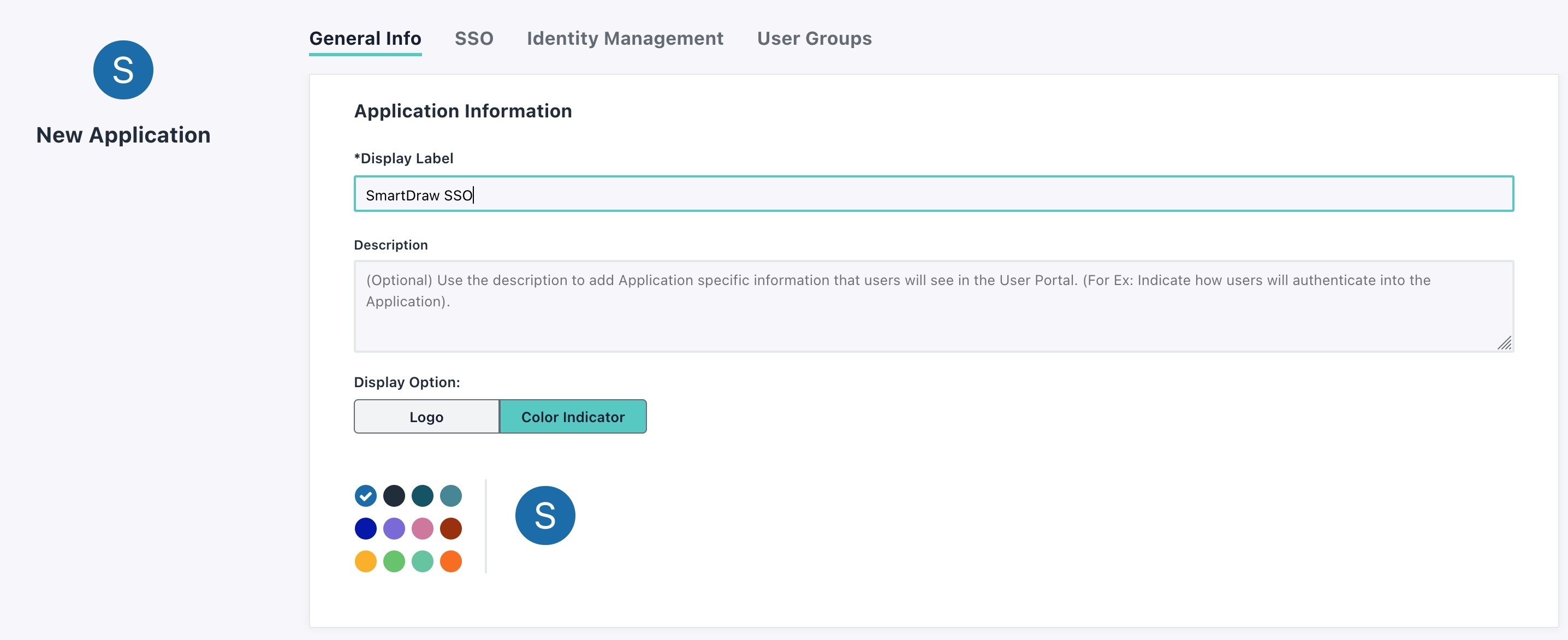
Click on the SSO tab and populate the form with the following values:
- IdP Entity ID: [https://sso.jumpcloud.com/saml2/smartdraw-companyname](https://sso.jumpcloud.com/saml2/smartdraw-companyname)
- SP Entity ID: [https://www.smartdraw.com](https://www.smartdraw.com)
- ACS URL: [https://app.smartdraw.com/sso/saml/login/companydomain](https://app.smartdraw.com/sso/saml/companydomain)
- SAMLSubject Name ID: email
- SAMLSubject NameID Format: urn:oasis:names:tc:SAML:1.0:nameid-format:unspecified
- Signature Algorithm: RSA-SHA256
- IDP: [https://sso.jumpcloud.com/saml2/smartdraw-companyname](https://sso.jumpcloud.com/saml2/smartdraw-companyname)
For ID and URL values:
- "companydomain" should be replaced with your company domain (e.g. acme.com)
- "companyname" should be replaced with your company name (e.g. acme)
### User Attributes
Add the following user attribute mappings:
- FirstName: firstname
- LastName: lastname
- Email: email
- UserName: username
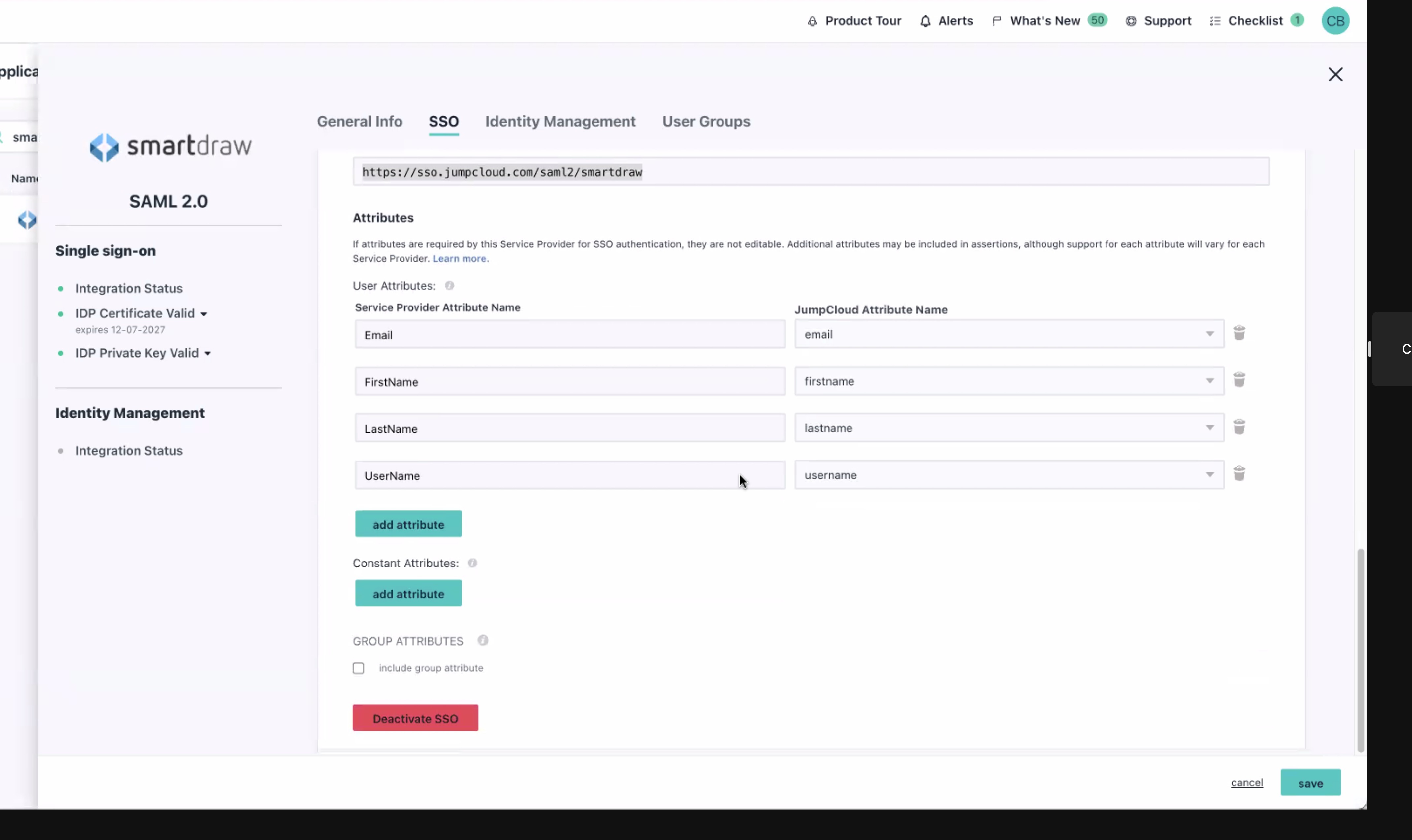
Review settings and click **Activate**.
### Export Metadata
Once your custom SAML app is activated, click **Export Metadata** to download the xml metadata for the new configuration to your device.
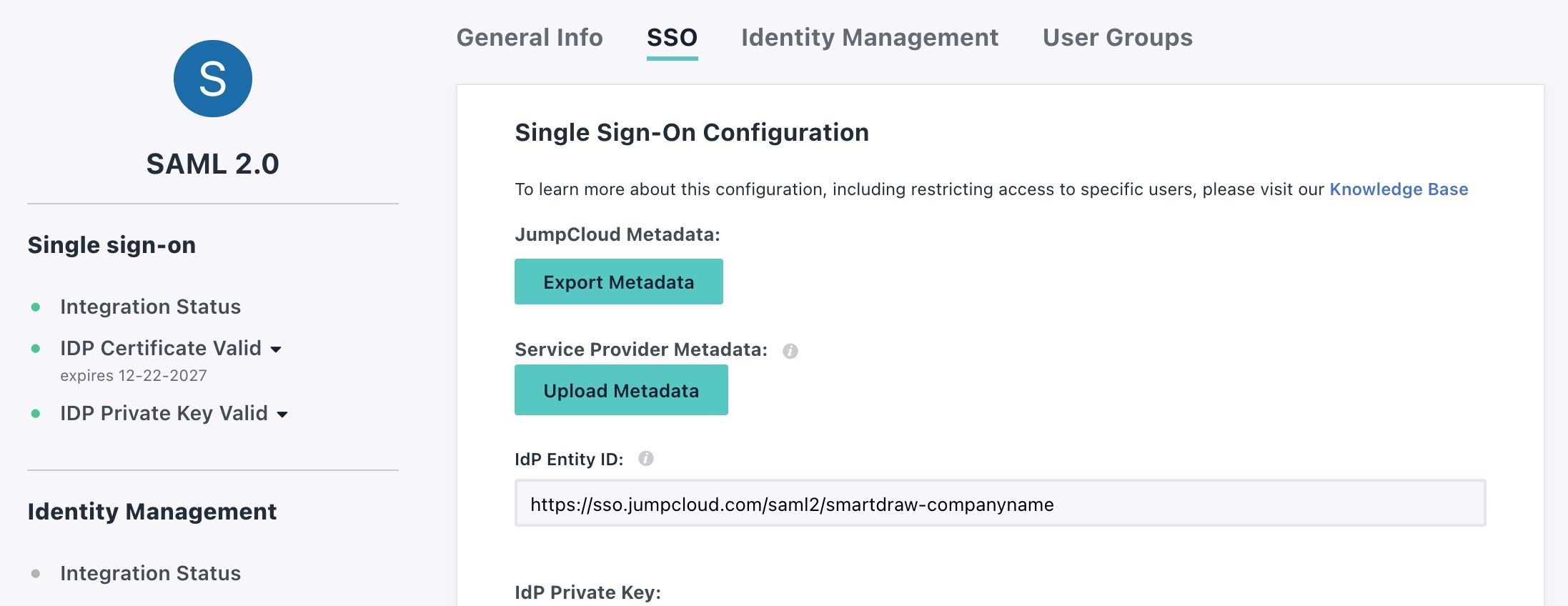
### Setting Up Your SmartDraw License for SSO
To complete the SSO configuration, you need to import the metadata file you downloaded and connect the entity URL from JumpCloud to your SmartDraw license.
Login to [My Account](https://www.smartdraw.com/myaccount).
Click on **SSO** in the left panel.
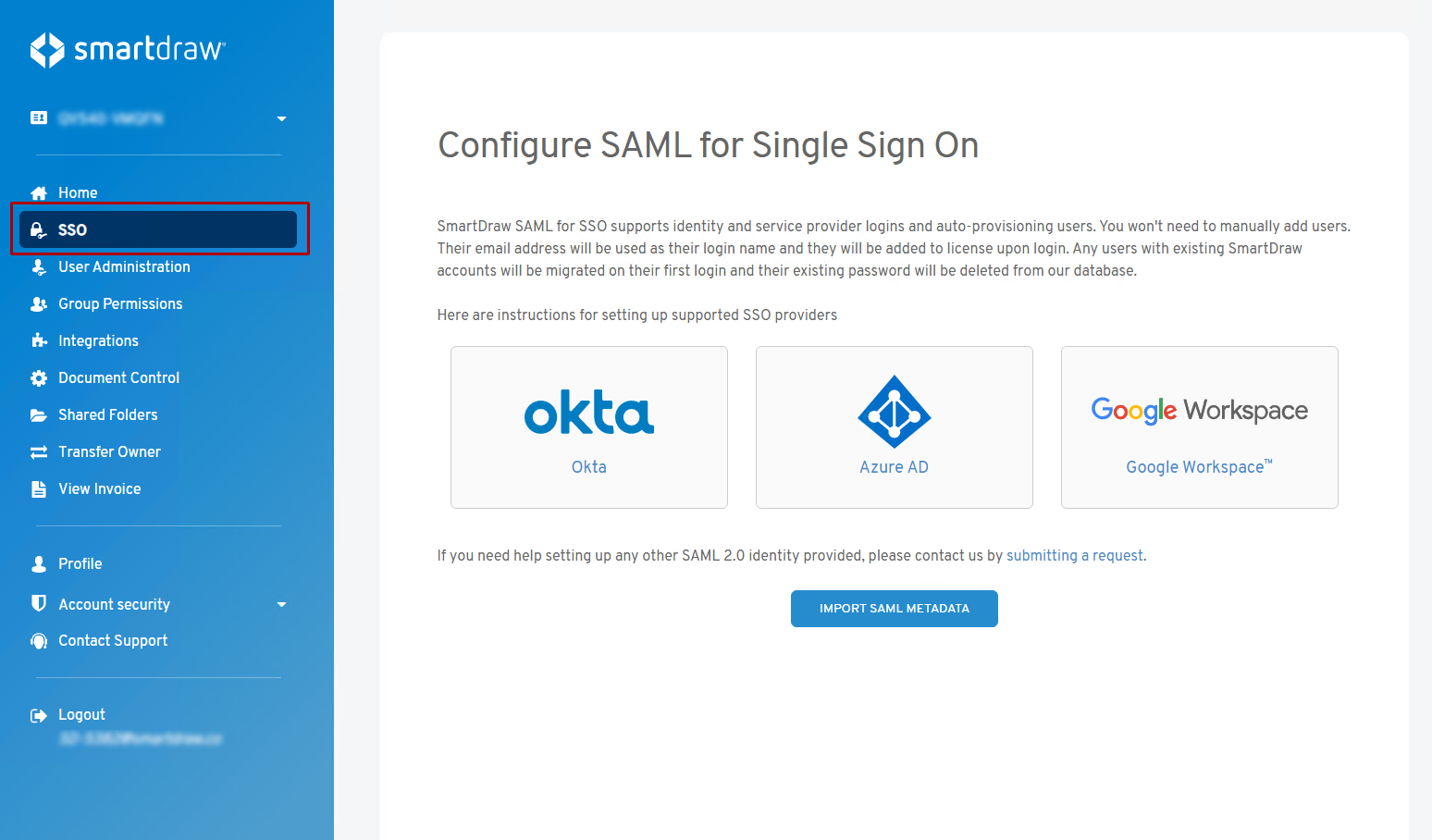
Click on the **Import SAML Metadata** button.
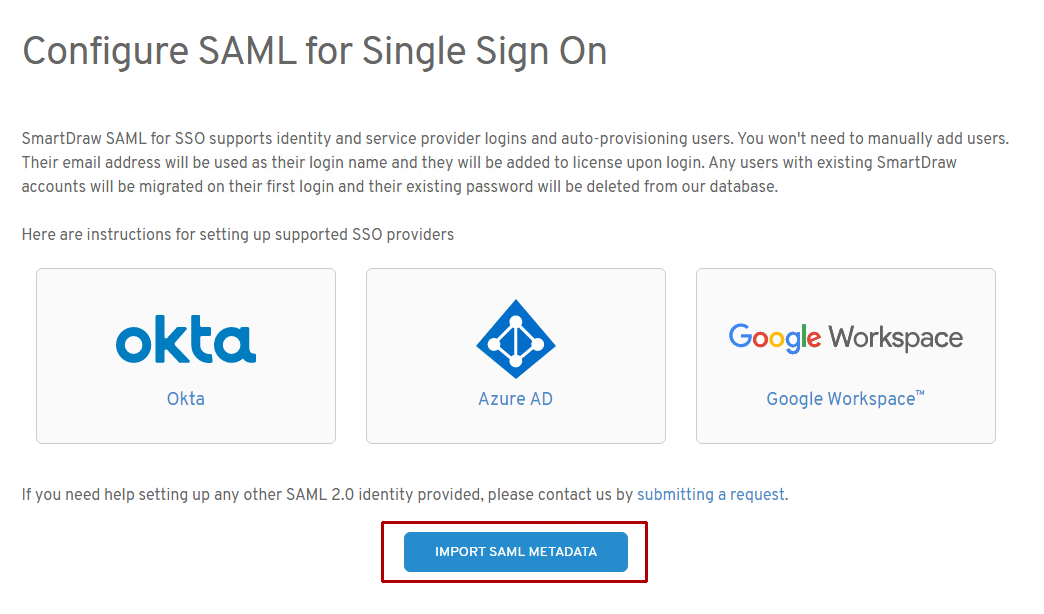
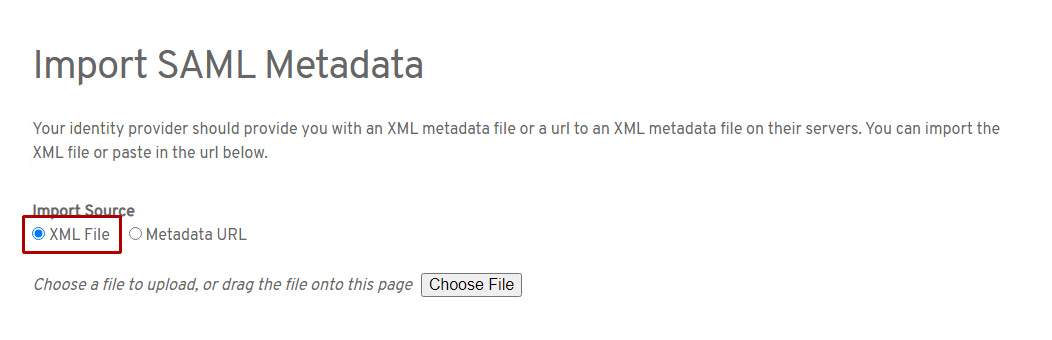
On the next screen, select **XML file** and browse to the XML file you saved from Google Workspace on your computer.
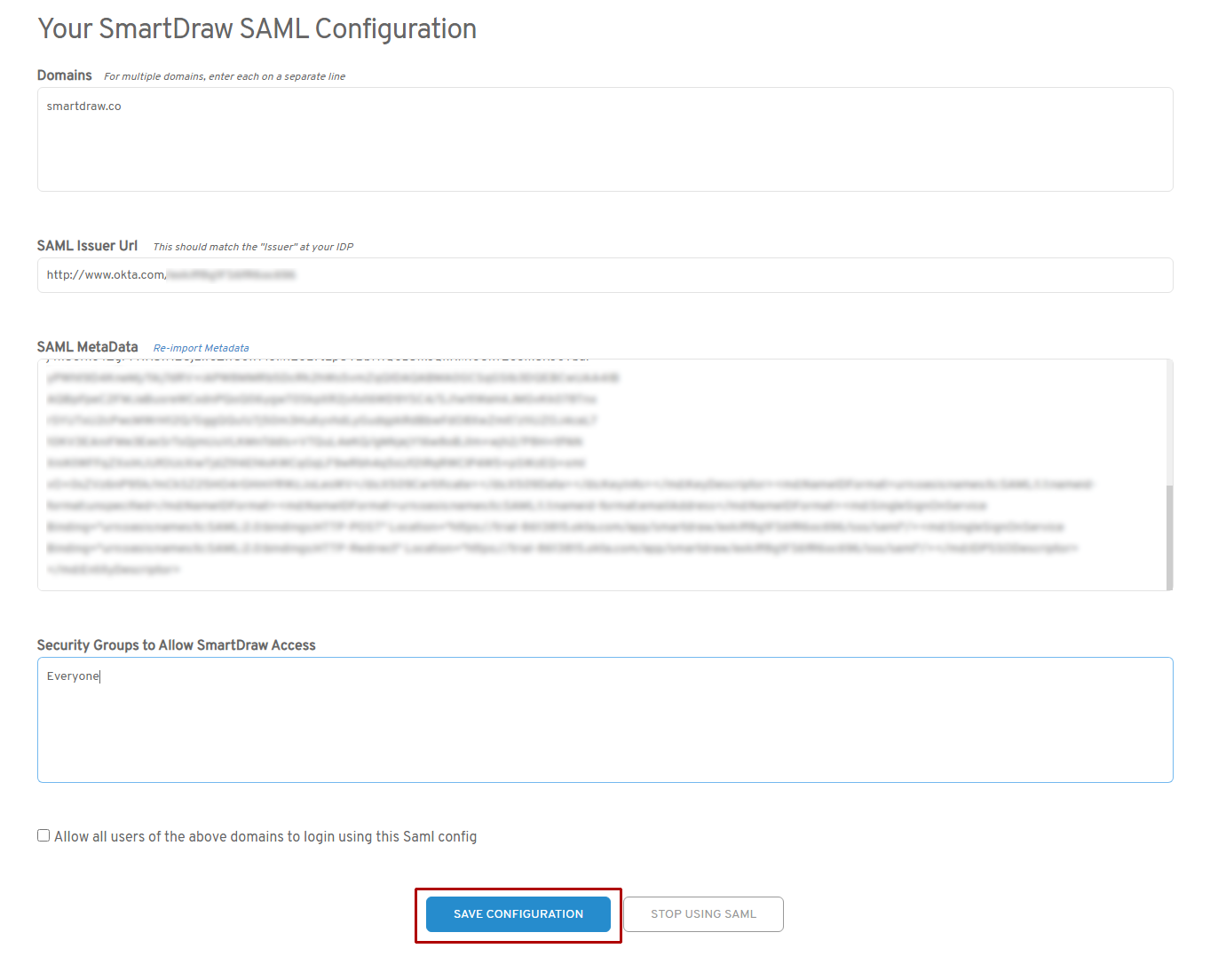
SmartDraw will automatically process the imported file. You can double-check the SAML issues and URL and click **Save Configuration** to enable JumpCloud SSO.
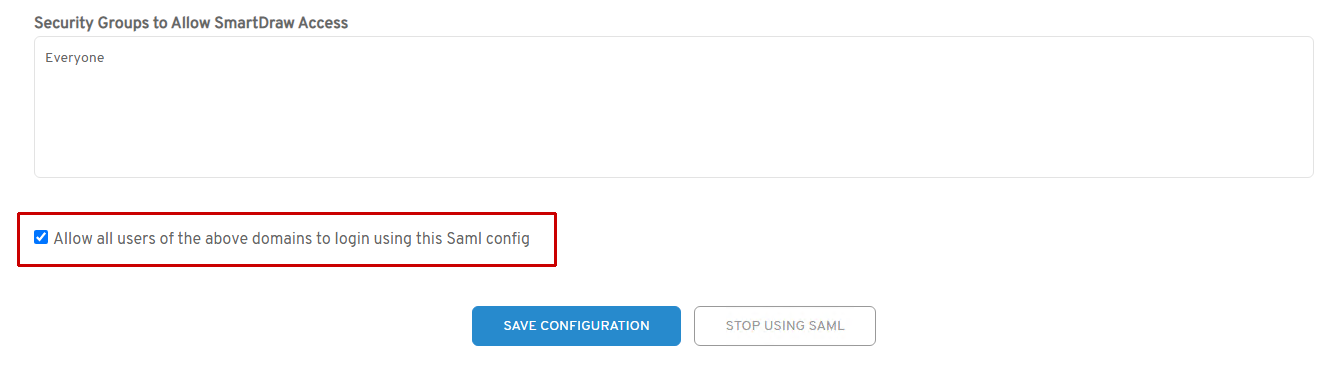
When you're ready to fully enable SSO for every user, make sure you check **All users of the above domains to login using this Saml config** and save your settings.
This toggle lets you check your SSO set up before users see it. You can turn it on and off as you need to test things, but it needs to be checked for your users to be able to use SSO with SmartDraw.
Click **Save Configuration**. You are now ready to test the SSO configuration and make sure it's working properly. You may either click on SmartDraw from your apps portal or paste the ACS URL into a new browser tab.
- [The Basics](https://support.smartdraw.com/the-basics?hsLang=en-us#main-content)
- [Getting Started](https://support.smartdraw.com/the-basics?hsLang=en-us#getting-started)
- [Selection](https://support.smartdraw.com/the-basics?hsLang=en-us#selection)
- [Moving & Sizing](https://support.smartdraw.com/the-basics?hsLang=en-us#moving-sizing)
- [Text Entry](https://support.smartdraw.com/the-basics?hsLang=en-us#text-entry)
- [File Saving](https://support.smartdraw.com/the-basics?hsLang=en-us#file-saving)
- [How to Draw Anything](https://support.smartdraw.com/how-to-draw-anything?hsLang=en-us#main-content)
- [Getting Started](https://support.smartdraw.com/how-to-draw-anything?hsLang=en-us#getting-started)
- [Popular Diagrams](https://support.smartdraw.com/how-to-draw-anything?hsLang=en-us#popular-diagrams)
- [Other Diagrams](https://support.smartdraw.com/how-to-draw-anything?hsLang=en-us#other-diagrams)
- [FAQ](https://support.smartdraw.com/faq?hsLang=en-us#main-content)
- [Ordering Questions](https://support.smartdraw.com/faq?hsLang=en-us#ordering-questions)
- [Trials](https://support.smartdraw.com/faq?hsLang=en-us#trials)
- [Subscriptions](https://support.smartdraw.com/faq?hsLang=en-us#subscriptions)
- [Printing](https://support.smartdraw.com/faq?hsLang=en-us#printing)
- [My Account](https://support.smartdraw.com/my-account?hsLang=en-us#main-content)
- [All Users](https://support.smartdraw.com/my-account?hsLang=en-us#all-users)
- [Multi-Seat and Enterprise](https://support.smartdraw.com/my-account?hsLang=en-us#multi-seat-and-enterprise)
- [Enterprise](https://support.smartdraw.com/my-account?hsLang=en-us#enterprise)
- [Templates & Documents](https://support.smartdraw.com/templates-documents?hsLang=en-us#main-content)
- [Templates](https://support.smartdraw.com/templates-documents?hsLang=en-us#templates)
- [My Documents](https://support.smartdraw.com/templates-documents?hsLang=en-us#my-documents)
- [File Storage](https://support.smartdraw.com/templates-documents?hsLang=en-us#file-storage)
- [Videos](https://support.smartdraw.com/videos?hsLang=en-us#main-content)
- [Diagramming Basics and Tips](https://support.smartdraw.com/videos?hsLang=en-us#diagramming-basics-and-tips)
- [How to Draw Every Type of Diagram](https://support.smartdraw.com/videos?hsLang=en-us#how-to-draw-every-type-of-diagram)
- [Advanced Diagramming with Data](https://support.smartdraw.com/videos?hsLang=en-us#advanced-diagramming-with-data)
- [Sharing and Integrations](https://support.smartdraw.com/videos?hsLang=en-us#sharing-and-integrations)
- [Managing Your License, Users, and Account](https://support.smartdraw.com/videos?hsLang=en-us#managing-your-license-users-and-account)
- [SmartDraw AI](https://support.smartdraw.com/smartdraw-ai?hsLang=en-us#main-content)
- [AI Diagramming](https://support.smartdraw.com/smartdraw-ai?hsLang=en-us#ai-diagramming)
- [MCP Server](https://support.smartdraw.com/smartdraw-ai?hsLang=en-us#mcp-server)
- [Managing AI Access](https://support.smartdraw.com/smartdraw-ai?hsLang=en-us#managing-ai-access)
- [Collaboration](https://support.smartdraw.com/collaboration?hsLang=en-us#main-content)
- [Collaboration](https://support.smartdraw.com/collaboration?hsLang=en-us#collaboration)
- [Export](https://support.smartdraw.com/collaboration?hsLang=en-us#export)
- [Whiteboarding](https://support.smartdraw.com/collaboration?hsLang=en-us#whiteboarding)
- [Integrations](https://support.smartdraw.com/integrations?hsLang=en-us#main-content)
- [Storage](https://support.smartdraw.com/integrations?hsLang=en-us#storage)
- [Apps](https://support.smartdraw.com/integrations?hsLang=en-us#apps)
- [Visualizers](https://support.smartdraw.com/integrations?hsLang=en-us#visualizers)
- [Diagrams from Data](https://support.smartdraw.com/diagrams-from-data?hsLang=en-us#main-content)
- [Data Visualizers](https://support.smartdraw.com/diagrams-from-data?hsLang=en-us#data-visualizers)
- [Charts, Graphs, and Gauges](https://support.smartdraw.com/diagrams-from-data?hsLang=en-us#charts-graphs-and-gauges)
- [Shape Data](https://support.smartdraw.com/diagrams-from-data?hsLang=en-us#shape-data)
- [Custom Visualization](https://support.smartdraw.com/diagrams-from-data?hsLang=en-us#custom-visualization)
- [Reference](https://support.smartdraw.com/reference?hsLang=en-us#main-content)
- [Symbols](https://support.smartdraw.com/reference?hsLang=en-us#symbols)
- [Connectors](https://support.smartdraw.com/reference?hsLang=en-us#connectors)
- [Lines](https://support.smartdraw.com/reference?hsLang=en-us#lines)
- [Arranging Shapes](https://support.smartdraw.com/reference?hsLang=en-us#arranging-shapes)
- [Colors & Styles](https://support.smartdraw.com/reference?hsLang=en-us#colors-styles)
- [Dimensions](https://support.smartdraw.com/reference?hsLang=en-us#dimensions)
- [Floor Planning Tips](https://support.smartdraw.com/reference?hsLang=en-us#floor-planning-tips)
- [Enhancing Shapes](https://support.smartdraw.com/reference?hsLang=en-us#enhancing-shapes)
- [Workspace](https://support.smartdraw.com/reference?hsLang=en-us#workspace)
- [Layers](https://support.smartdraw.com/reference?hsLang=en-us#layers)
- [Grouping](https://support.smartdraw.com/reference?hsLang=en-us#grouping)
- [Tables](https://support.smartdraw.com/reference?hsLang=en-us#tables)
- [Containers](https://support.smartdraw.com/reference?hsLang=en-us#containers)
- [Printing](https://support.smartdraw.com/printing?hsLang=en-us#main-content)
- [Printing](https://support.smartdraw.com/printing?hsLang=en-us#printing)
[](https://www.smartdraw.com/)
Copyright © 1994-2026 SmartDraw, LLC