---
title: "Changing Shape Styles: Fill Color, Border Thickness and More"
description: Apply fill colors, gradients, textures, and hatches to shapes, and control border color, thickness, and opacity.
---
[Skip to content](https://support.smartdraw.com/changing-shape-styles-fill-color-border-thickness-and-more#main-content)
English - United States
Show submenu for translations
[Submit a Request](https://support.smartdraw.com/kb-tickets/new?hsLang=en-us)

Open main navigation
Close main navigation
- English - United States
Show submenu for translations
- [Submit a Request](https://support.smartdraw.com/kb-tickets/new)
How can we help you?
- There are no suggestions because the search field is empty.
1. [SmartDraw Knowledge Base](https://support.smartdraw.com/?hsLang=en-us)
2. [Reference](https://support.smartdraw.com/reference?hsLang=en-us)
3. [Colors & Styles](https://support.smartdraw.com/reference?hsLang=en-us#colors-styles)
# Changing Shape Styles: Fill Color, Border Thickness and More
You can apply a variety of colors, gradients, and textures to any selected shape or group of shapes.
### Selecting Shapes
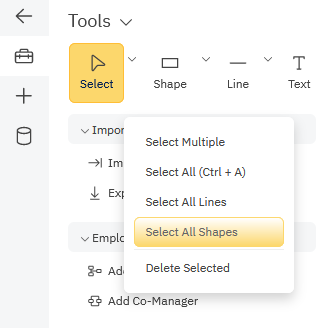
First, select the shapes you want to change by clicking on them. To select multiple shapes, hold down the **Ctrl** key while clicking on each shape. If you want to modify all shapes in a diagram, go to the **Select** command in the SmartPanel and choose **Select All Shapes**.
### Change Fill Color
Once your shape or shapes are selected, you can choose from the options under the **Fill** menu in the **Home** tab.
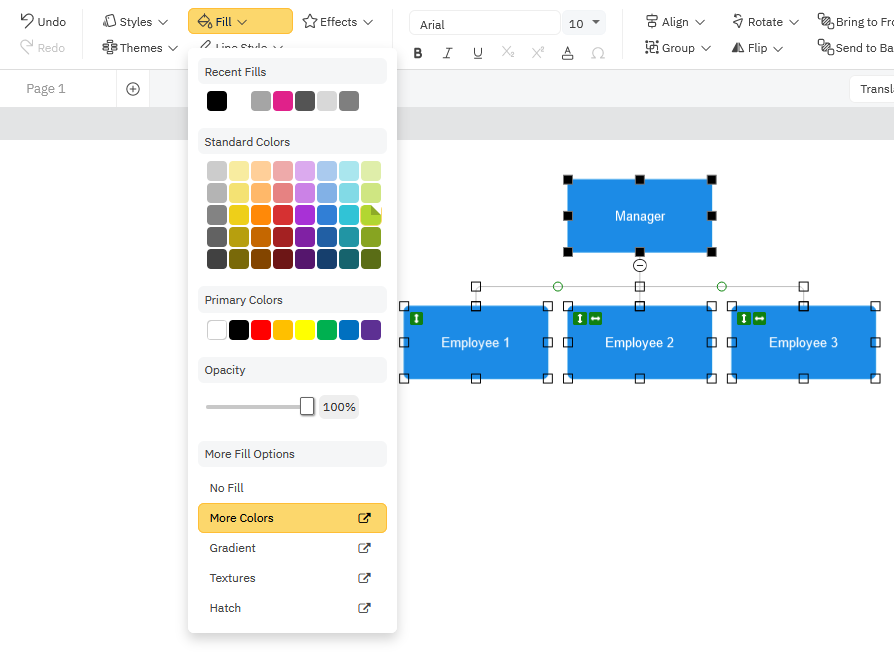
To make picking color easier, this menu will show recent fill colors first then a selection of theme colors that coordinate with the current color scheme you have chosen.
### Set a Custom Fill Color
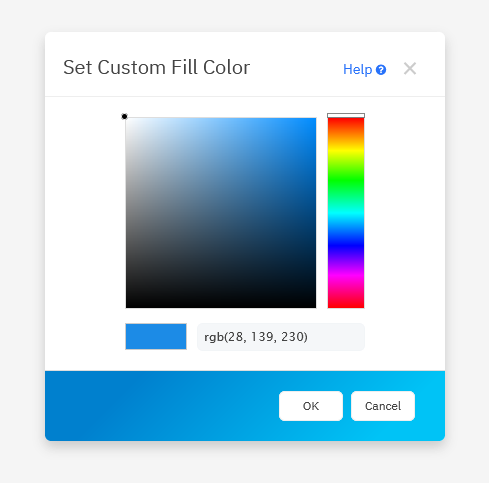
If you want more refined color control, click on **More Colors** to bring up a color wheel or to enter a specific RGB value.
### Setting Opacity
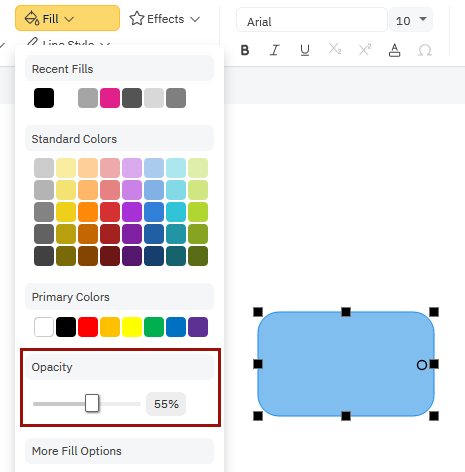
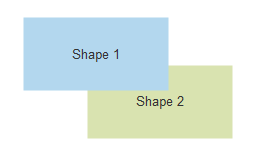
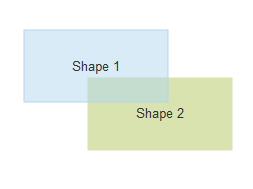
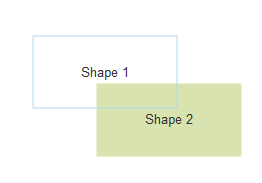
The opacity slider defines the opacity/transparency of the shape. The more transparent the shape, the more the underlying background or other shapes will show through it. When opacity is at 100% the shape is not transparent. When opacity is set to 0% the shape is completely transparent and only the text and the border is visible.
**Opacity at 100%**
**Opacity at 50%**
**Opacity at 0%**
### Setting a Gradient Fill Color
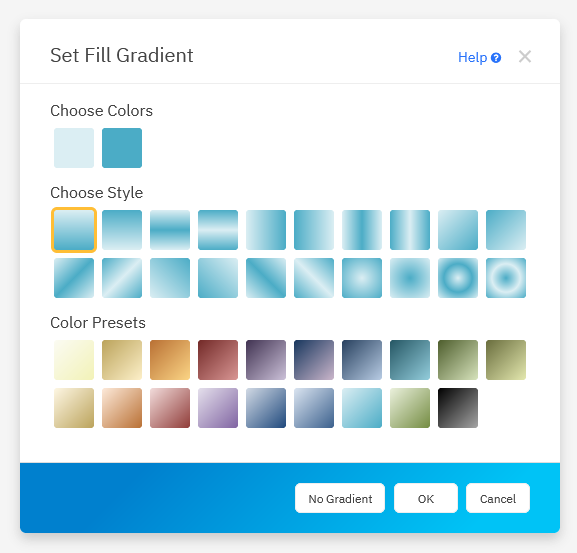
You can also apply a gradient fill color. To do so, click on **Home**->**Fill**->**Gradient** to bring up a dialog of gradient options.
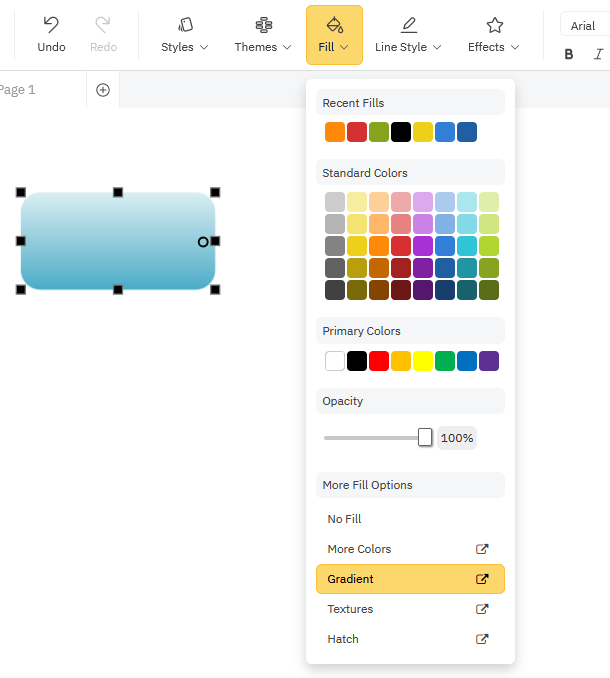
There are a few professionally designed gradients to choose from. You can also set the style or pick custom colors.
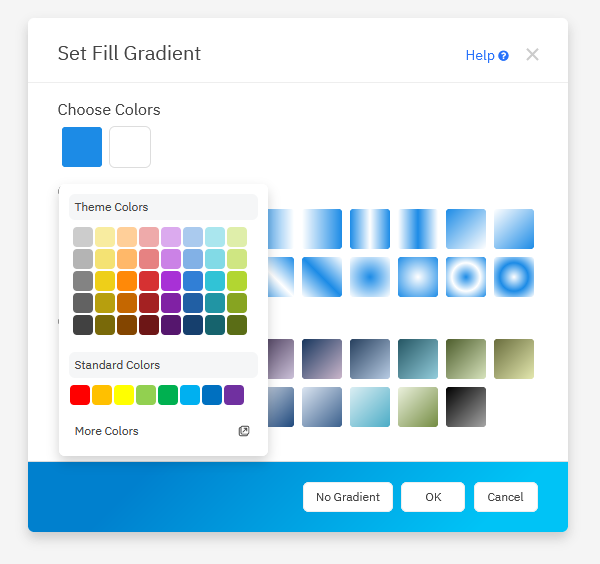
If you want to create your own gradient, you can click on the colored squares at the top of the Gradient dialog and choose your own custom color combo then set the style you want.
### Using a Texture Fill
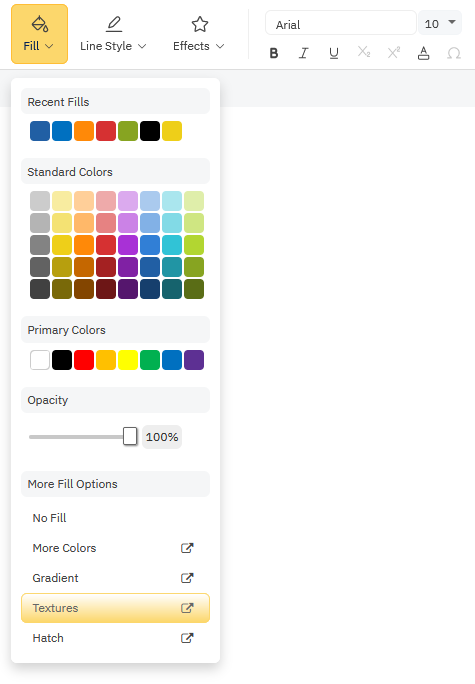
To apply a texture fill to a shape, select the **Textures** option from the **Fill** menu under the **Home** tab.
SmartDraw comes with a number of different photo-realistic textures built in from textiles and flowers to construction finishes like brick, granite, metal, tiles, wood, and stones.
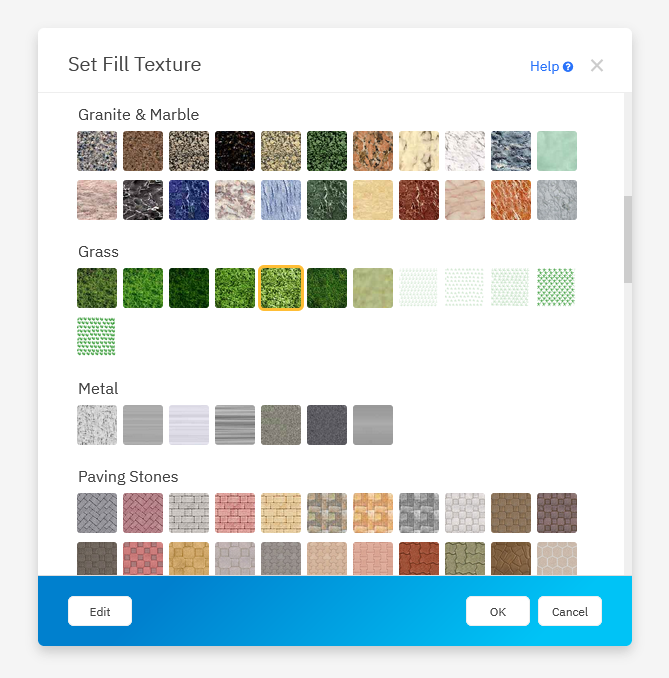
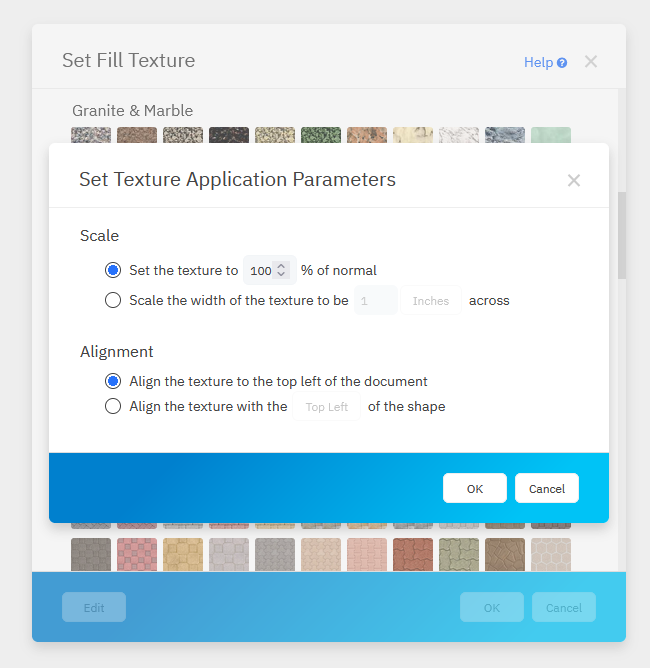
Clicking on the **Edit** button in the Texture dialog will bring up some options for how your texture will be applied.
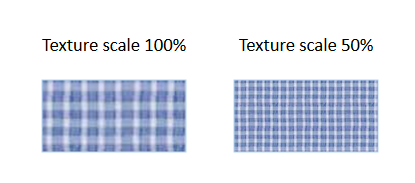
For example, setting the texture scale to be smaller than 100% will reduce the size of repeating pattern.
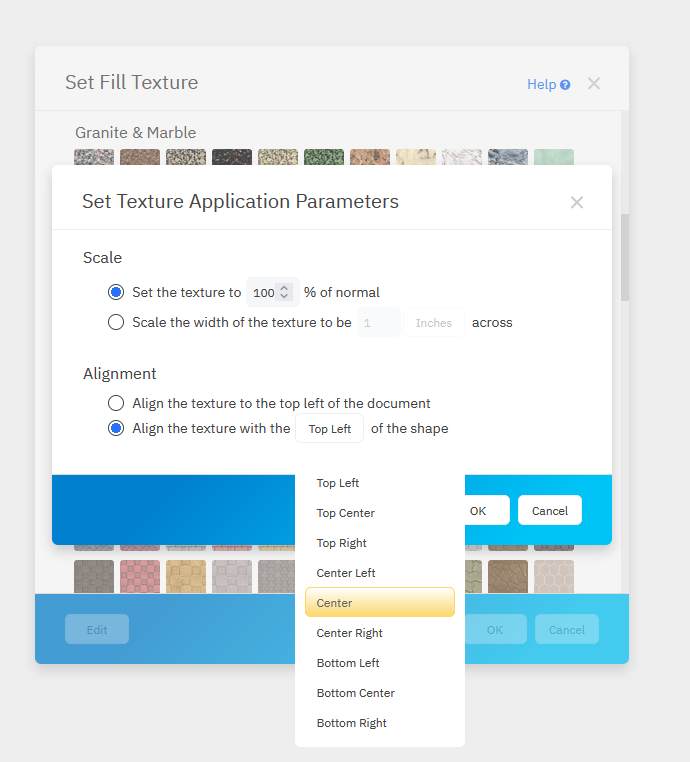
You can also choose the where the texture is applied from.
By default, textures are applied from the top left of the shape. You can choose another location by clicking **Edit** and setting the **Alignment** in the **Set Texture Application Parameters** dialog.
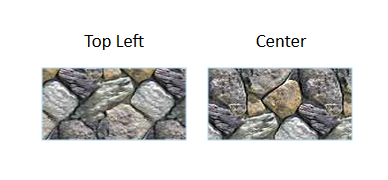
Changing where the pattern starts will produce slight cosmetic variations.
Compare the same texture applied from top left vs center.
### Adding a Hash
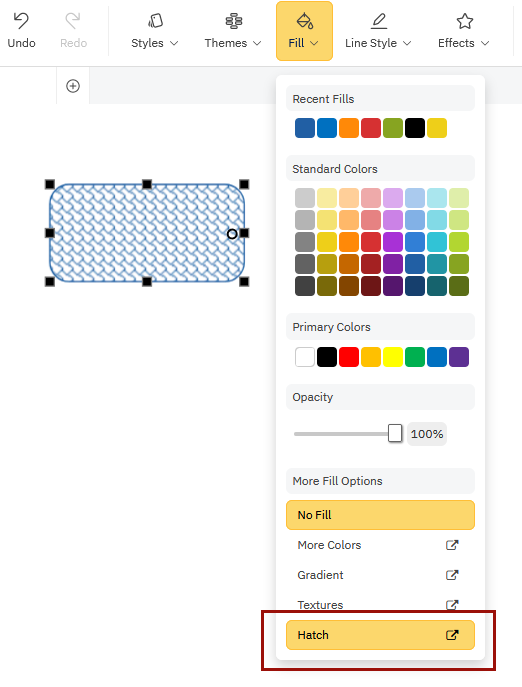
Instead of a fill color, you can fill a shape with a geometric pattern called a **Hatch**.
Unlike textures, hatch patterns are created with native lines. So their color is determined by the current line color.
First, make sure your shape has no fill color or that the line is a different color than the current fill color.
You can set your **Fill** color to none by choosing **No Fill**.
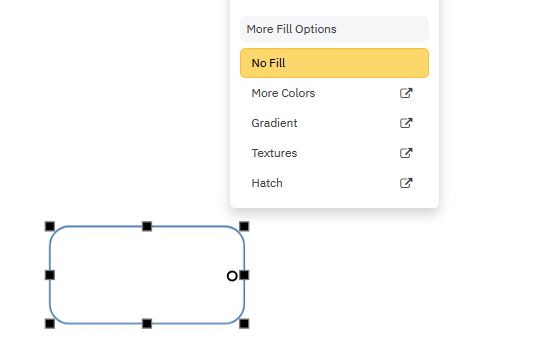
Next, in the same **Fill** menu, click on **Hatch** to make your selection.
Choose the hatch pattern that meets your needs and click **OK**.
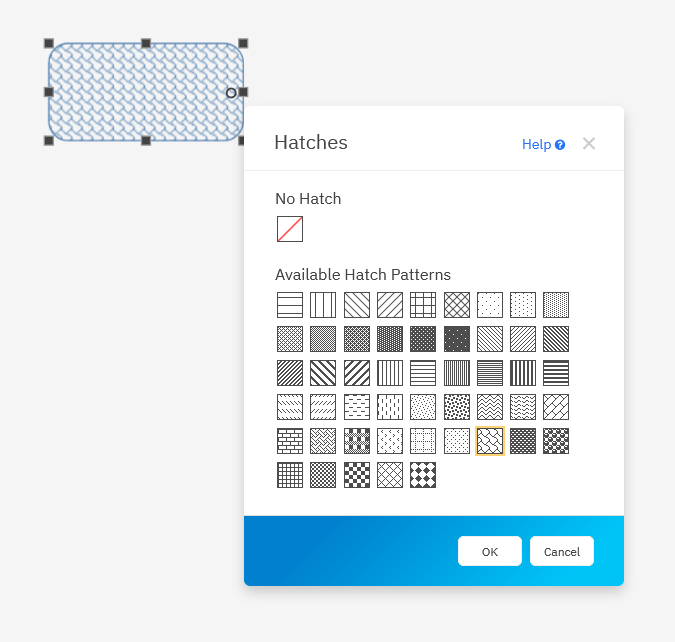
Because hatches are created using lines, changing the fill color doesn't change the hatch on your shape. To remove the Hatch, select **No Hatch**. To change the color of the **Hatch**, go to the **Line Style** menu under the **Home** tab and choose a different color.
### Changing Your Shape's Border
The border color and weight is controlled by **Line Style** options in SmartDraw.
You can easily modify the thickness, color, and style of your shape's border using the **Line Style** options under the **Home** tab.
### Change Your Border Color using Line Styles
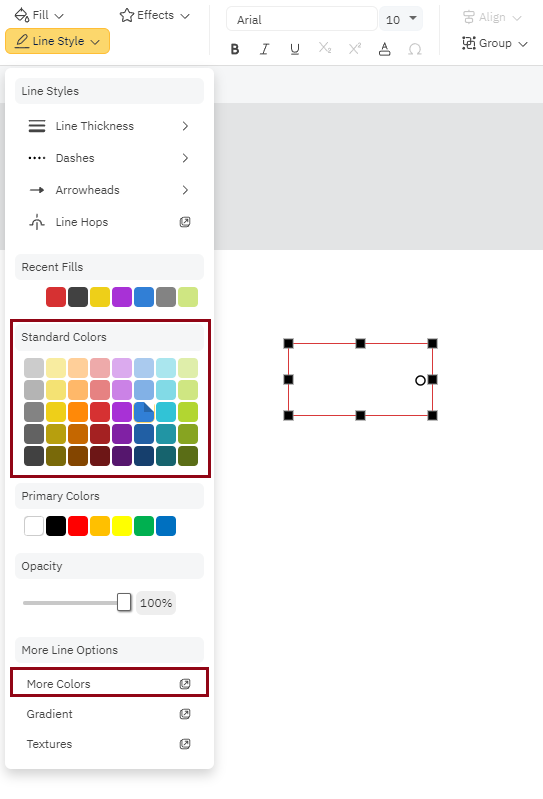
Select the shape or shapes you want to modify the border color on and under **Line Style** pick one of the standard colors from **Standard Colors** or choose a custom color under **More Colors**.
### Change Your Border Thickness Using Line Styles
Select the shape or shapes you want to modify the border thickness for and under **Line Style** choose a thickness level under **Line Thickness**.
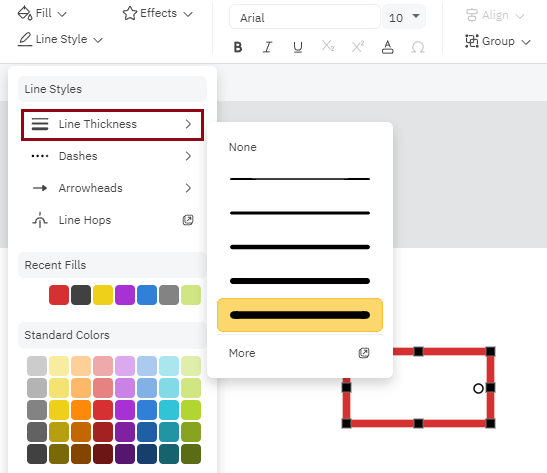
You can read about **Line Style** options in detail in this article: [/changing-line-style-and-color](https://support.smartdraw.com/changing-line-style-and-color?hsLang=en-us)
### Use the Right-Click Menu to Change Styles
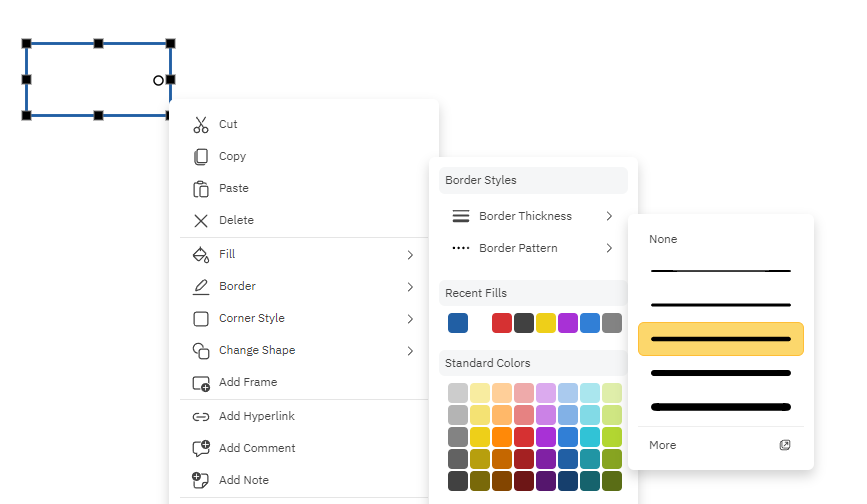
Alternatively, you can change your border properties using the **right-click menu**. Right-click on your shape and choose **Border**. The pop-up menu under **Borde**r will let you modify your **Border Style** including **Border Thickness** and **Fill** color.
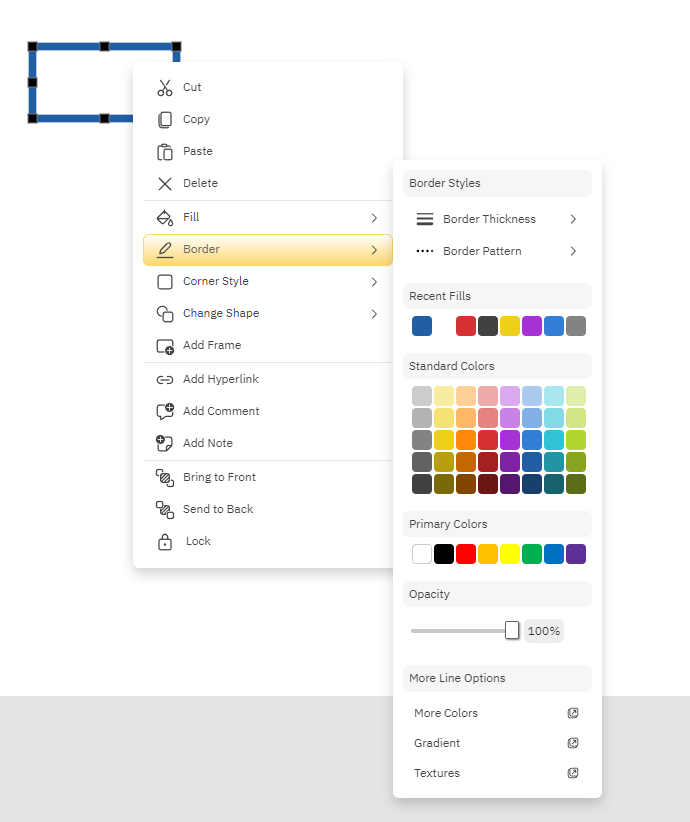
To change thickness:
1. **Right-click** on shape
2. Select **Border**
3. Click on **Border Thickness**
4. Choose a new thickness or set a custom thickness
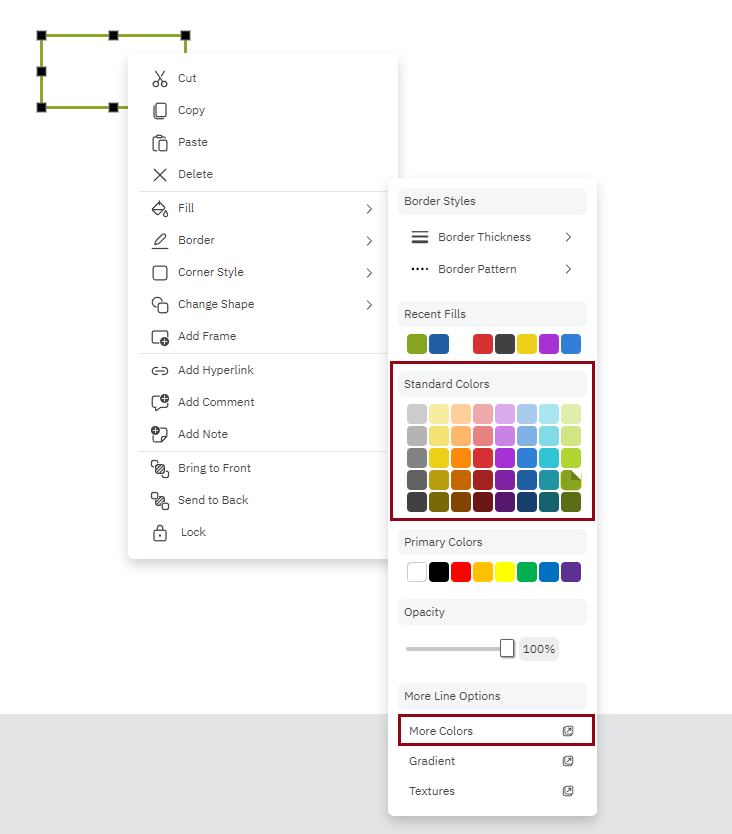
To change color:
1. **Right-click** on shape
2. Select **Border**
3. Click on any of the colors under **Standard Colors** or set a custom color under **More Colors**
- [The Basics](https://support.smartdraw.com/the-basics?hsLang=en-us#main-content)
- [Getting Started](https://support.smartdraw.com/the-basics?hsLang=en-us#getting-started)
- [Selection](https://support.smartdraw.com/the-basics?hsLang=en-us#selection)
- [Moving & Sizing](https://support.smartdraw.com/the-basics?hsLang=en-us#moving-sizing)
- [Text Entry](https://support.smartdraw.com/the-basics?hsLang=en-us#text-entry)
- [File Saving](https://support.smartdraw.com/the-basics?hsLang=en-us#file-saving)
- [How to Draw Anything](https://support.smartdraw.com/how-to-draw-anything?hsLang=en-us#main-content)
- [Getting Started](https://support.smartdraw.com/how-to-draw-anything?hsLang=en-us#getting-started)
- [Popular Diagrams](https://support.smartdraw.com/how-to-draw-anything?hsLang=en-us#popular-diagrams)
- [Other Diagrams](https://support.smartdraw.com/how-to-draw-anything?hsLang=en-us#other-diagrams)
- [FAQ](https://support.smartdraw.com/faq?hsLang=en-us#main-content)
- [Ordering Questions](https://support.smartdraw.com/faq?hsLang=en-us#ordering-questions)
- [Trials](https://support.smartdraw.com/faq?hsLang=en-us#trials)
- [Subscriptions](https://support.smartdraw.com/faq?hsLang=en-us#subscriptions)
- [Printing](https://support.smartdraw.com/faq?hsLang=en-us#printing)
- [My Account](https://support.smartdraw.com/my-account?hsLang=en-us#main-content)
- [All Users](https://support.smartdraw.com/my-account?hsLang=en-us#all-users)
- [Multi-Seat and Enterprise](https://support.smartdraw.com/my-account?hsLang=en-us#multi-seat-and-enterprise)
- [Enterprise](https://support.smartdraw.com/my-account?hsLang=en-us#enterprise)
- [Templates & Documents](https://support.smartdraw.com/templates-documents?hsLang=en-us#main-content)
- [Templates](https://support.smartdraw.com/templates-documents?hsLang=en-us#templates)
- [My Documents](https://support.smartdraw.com/templates-documents?hsLang=en-us#my-documents)
- [File Storage](https://support.smartdraw.com/templates-documents?hsLang=en-us#file-storage)
- [Videos](https://support.smartdraw.com/videos?hsLang=en-us#main-content)
- [Diagramming Basics and Tips](https://support.smartdraw.com/videos?hsLang=en-us#diagramming-basics-and-tips)
- [How to Draw Every Type of Diagram](https://support.smartdraw.com/videos?hsLang=en-us#how-to-draw-every-type-of-diagram)
- [Advanced Diagramming with Data](https://support.smartdraw.com/videos?hsLang=en-us#advanced-diagramming-with-data)
- [Sharing and Integrations](https://support.smartdraw.com/videos?hsLang=en-us#sharing-and-integrations)
- [Managing Your License, Users, and Account](https://support.smartdraw.com/videos?hsLang=en-us#managing-your-license-users-and-account)
- [SmartDraw AI](https://support.smartdraw.com/smartdraw-ai?hsLang=en-us#main-content)
- [AI Diagramming](https://support.smartdraw.com/smartdraw-ai?hsLang=en-us#ai-diagramming)
- [MCP Server](https://support.smartdraw.com/smartdraw-ai?hsLang=en-us#mcp-server)
- [Managing AI Access](https://support.smartdraw.com/smartdraw-ai?hsLang=en-us#managing-ai-access)
- [Collaboration](https://support.smartdraw.com/collaboration?hsLang=en-us#main-content)
- [Collaboration](https://support.smartdraw.com/collaboration?hsLang=en-us#collaboration)
- [Export](https://support.smartdraw.com/collaboration?hsLang=en-us#export)
- [Whiteboarding](https://support.smartdraw.com/collaboration?hsLang=en-us#whiteboarding)
- [Integrations](https://support.smartdraw.com/integrations?hsLang=en-us#main-content)
- [Storage](https://support.smartdraw.com/integrations?hsLang=en-us#storage)
- [Apps](https://support.smartdraw.com/integrations?hsLang=en-us#apps)
- [Visualizers](https://support.smartdraw.com/integrations?hsLang=en-us#visualizers)
- [Diagrams from Data](https://support.smartdraw.com/diagrams-from-data?hsLang=en-us#main-content)
- [Data Visualizers](https://support.smartdraw.com/diagrams-from-data?hsLang=en-us#data-visualizers)
- [Charts, Graphs, and Gauges](https://support.smartdraw.com/diagrams-from-data?hsLang=en-us#charts-graphs-and-gauges)
- [Shape Data](https://support.smartdraw.com/diagrams-from-data?hsLang=en-us#shape-data)
- [Custom Visualization](https://support.smartdraw.com/diagrams-from-data?hsLang=en-us#custom-visualization)
- [Reference](https://support.smartdraw.com/reference?hsLang=en-us#main-content)
- [Symbols](https://support.smartdraw.com/reference?hsLang=en-us#symbols)
- [Connectors](https://support.smartdraw.com/reference?hsLang=en-us#connectors)
- [Lines](https://support.smartdraw.com/reference?hsLang=en-us#lines)
- [Arranging Shapes](https://support.smartdraw.com/reference?hsLang=en-us#arranging-shapes)
- [Colors & Styles](https://support.smartdraw.com/reference?hsLang=en-us#colors-styles)
- [Dimensions](https://support.smartdraw.com/reference?hsLang=en-us#dimensions)
- [Floor Planning Tips](https://support.smartdraw.com/reference?hsLang=en-us#floor-planning-tips)
- [Enhancing Shapes](https://support.smartdraw.com/reference?hsLang=en-us#enhancing-shapes)
- [Workspace](https://support.smartdraw.com/reference?hsLang=en-us#workspace)
- [Layers](https://support.smartdraw.com/reference?hsLang=en-us#layers)
- [Grouping](https://support.smartdraw.com/reference?hsLang=en-us#grouping)
- [Tables](https://support.smartdraw.com/reference?hsLang=en-us#tables)
- [Containers](https://support.smartdraw.com/reference?hsLang=en-us#containers)
- [Printing](https://support.smartdraw.com/printing?hsLang=en-us#main-content)
- [Printing](https://support.smartdraw.com/printing?hsLang=en-us#printing)
[](https://www.smartdraw.com/)
Copyright © 1994-2026 SmartDraw, LLC