---
title: Change Line Shape
description: Switch a line between curved, segmented, straight, and other shapes.
---
[Skip to content](https://support.smartdraw.com/change-line-shape#main-content)
English - United States
Show submenu for translations
[Submit a Request](https://support.smartdraw.com/kb-tickets/new?hsLang=en-us)

Open main navigation
Close main navigation
- English - United States
Show submenu for translations
- [Submit a Request](https://support.smartdraw.com/kb-tickets/new)
How can we help you?
- There are no suggestions because the search field is empty.
1. [SmartDraw Knowledge Base](https://support.smartdraw.com/?hsLang=en-us)
2. [Reference](https://support.smartdraw.com/reference?hsLang=en-us)
3. [Lines](https://support.smartdraw.com/reference?hsLang=en-us#lines)
# Change Line Shape
Lines can have many different shapes: curved, segmented, straight, and so on. In this article, you can learn about the basic [line types](https://support.smartdraw.com/types-of-lines?hsLang=en-us) available when you first draw your line.
Once you have a line on your page, you can also convert it to a different line without having to redraw it using the **Change Line Shape** command under the **Design** tab.
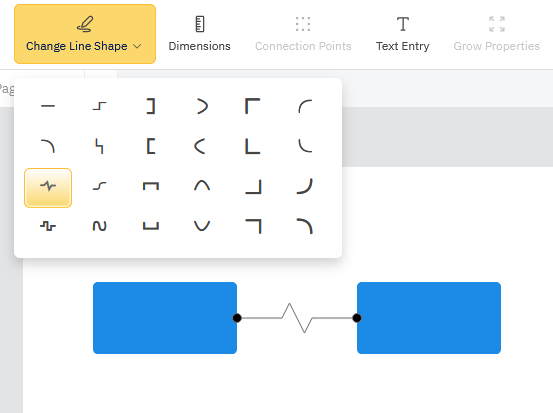
To change the shape of a line, select it (you can also select multiple lines at once by holding down Ctrl and clicking on each in turn) and in the **Design** tab, choose a new line type in the **Change Line Shape** menu.
The exception to this is Automatic Connectors used to connect shapes on organizational charts, mind maps, and decision trees.
- [The Basics](https://support.smartdraw.com/the-basics?hsLang=en-us#main-content)
- [Getting Started](https://support.smartdraw.com/the-basics?hsLang=en-us#getting-started)
- [Selection](https://support.smartdraw.com/the-basics?hsLang=en-us#selection)
- [Moving & Sizing](https://support.smartdraw.com/the-basics?hsLang=en-us#moving-sizing)
- [Text Entry](https://support.smartdraw.com/the-basics?hsLang=en-us#text-entry)
- [File Saving](https://support.smartdraw.com/the-basics?hsLang=en-us#file-saving)
- [How to Draw Anything](https://support.smartdraw.com/how-to-draw-anything?hsLang=en-us#main-content)
- [Getting Started](https://support.smartdraw.com/how-to-draw-anything?hsLang=en-us#getting-started)
- [Popular Diagrams](https://support.smartdraw.com/how-to-draw-anything?hsLang=en-us#popular-diagrams)
- [Other Diagrams](https://support.smartdraw.com/how-to-draw-anything?hsLang=en-us#other-diagrams)
- [FAQ](https://support.smartdraw.com/faq?hsLang=en-us#main-content)
- [Ordering Questions](https://support.smartdraw.com/faq?hsLang=en-us#ordering-questions)
- [Trials](https://support.smartdraw.com/faq?hsLang=en-us#trials)
- [Subscriptions](https://support.smartdraw.com/faq?hsLang=en-us#subscriptions)
- [Printing](https://support.smartdraw.com/faq?hsLang=en-us#printing)
- [My Account](https://support.smartdraw.com/my-account?hsLang=en-us#main-content)
- [All Users](https://support.smartdraw.com/my-account?hsLang=en-us#all-users)
- [Multi-Seat and Enterprise](https://support.smartdraw.com/my-account?hsLang=en-us#multi-seat-and-enterprise)
- [Enterprise](https://support.smartdraw.com/my-account?hsLang=en-us#enterprise)
- [Templates & Documents](https://support.smartdraw.com/templates-documents?hsLang=en-us#main-content)
- [Templates](https://support.smartdraw.com/templates-documents?hsLang=en-us#templates)
- [My Documents](https://support.smartdraw.com/templates-documents?hsLang=en-us#my-documents)
- [File Storage](https://support.smartdraw.com/templates-documents?hsLang=en-us#file-storage)
- [Videos](https://support.smartdraw.com/videos?hsLang=en-us#main-content)
- [Diagramming Basics and Tips](https://support.smartdraw.com/videos?hsLang=en-us#diagramming-basics-and-tips)
- [How to Draw Every Type of Diagram](https://support.smartdraw.com/videos?hsLang=en-us#how-to-draw-every-type-of-diagram)
- [Advanced Diagramming with Data](https://support.smartdraw.com/videos?hsLang=en-us#advanced-diagramming-with-data)
- [Sharing and Integrations](https://support.smartdraw.com/videos?hsLang=en-us#sharing-and-integrations)
- [Managing Your License, Users, and Account](https://support.smartdraw.com/videos?hsLang=en-us#managing-your-license-users-and-account)
- [SmartDraw AI](https://support.smartdraw.com/smartdraw-ai?hsLang=en-us#main-content)
- [AI Diagramming](https://support.smartdraw.com/smartdraw-ai?hsLang=en-us#ai-diagramming)
- [MCP Server](https://support.smartdraw.com/smartdraw-ai?hsLang=en-us#mcp-server)
- [Managing AI Access](https://support.smartdraw.com/smartdraw-ai?hsLang=en-us#managing-ai-access)
- [Collaboration](https://support.smartdraw.com/collaboration?hsLang=en-us#main-content)
- [Collaboration](https://support.smartdraw.com/collaboration?hsLang=en-us#collaboration)
- [Export](https://support.smartdraw.com/collaboration?hsLang=en-us#export)
- [Whiteboarding](https://support.smartdraw.com/collaboration?hsLang=en-us#whiteboarding)
- [Integrations](https://support.smartdraw.com/integrations?hsLang=en-us#main-content)
- [Storage](https://support.smartdraw.com/integrations?hsLang=en-us#storage)
- [Apps](https://support.smartdraw.com/integrations?hsLang=en-us#apps)
- [Visualizers](https://support.smartdraw.com/integrations?hsLang=en-us#visualizers)
- [Diagrams from Data](https://support.smartdraw.com/diagrams-from-data?hsLang=en-us#main-content)
- [Data Visualizers](https://support.smartdraw.com/diagrams-from-data?hsLang=en-us#data-visualizers)
- [Charts, Graphs, and Gauges](https://support.smartdraw.com/diagrams-from-data?hsLang=en-us#charts-graphs-and-gauges)
- [Shape Data](https://support.smartdraw.com/diagrams-from-data?hsLang=en-us#shape-data)
- [Custom Visualization](https://support.smartdraw.com/diagrams-from-data?hsLang=en-us#custom-visualization)
- [Reference](https://support.smartdraw.com/reference?hsLang=en-us#main-content)
- [Symbols](https://support.smartdraw.com/reference?hsLang=en-us#symbols)
- [Connectors](https://support.smartdraw.com/reference?hsLang=en-us#connectors)
- [Lines](https://support.smartdraw.com/reference?hsLang=en-us#lines)
- [Arranging Shapes](https://support.smartdraw.com/reference?hsLang=en-us#arranging-shapes)
- [Colors & Styles](https://support.smartdraw.com/reference?hsLang=en-us#colors-styles)
- [Dimensions](https://support.smartdraw.com/reference?hsLang=en-us#dimensions)
- [Floor Planning Tips](https://support.smartdraw.com/reference?hsLang=en-us#floor-planning-tips)
- [Enhancing Shapes](https://support.smartdraw.com/reference?hsLang=en-us#enhancing-shapes)
- [Workspace](https://support.smartdraw.com/reference?hsLang=en-us#workspace)
- [Layers](https://support.smartdraw.com/reference?hsLang=en-us#layers)
- [Grouping](https://support.smartdraw.com/reference?hsLang=en-us#grouping)
- [Tables](https://support.smartdraw.com/reference?hsLang=en-us#tables)
- [Containers](https://support.smartdraw.com/reference?hsLang=en-us#containers)
- [Printing](https://support.smartdraw.com/printing?hsLang=en-us#main-content)
- [Printing](https://support.smartdraw.com/printing?hsLang=en-us#printing)
[](https://www.smartdraw.com/)
Copyright © 1994-2026 SmartDraw, LLC