---
title: Build an Organizational Chart from Data
description: Import an employee list from Excel or your HR system and let SmartDraw build the org chart for you.
---
[Skip to content](https://support.smartdraw.com/build-an-organizational-chart-from-data#main-content)
English - United States
Show submenu for translations
[Submit a Request](https://support.smartdraw.com/kb-tickets/new?hsLang=en-us)

Open main navigation
Close main navigation
- English - United States
Show submenu for translations
- [Submit a Request](https://support.smartdraw.com/kb-tickets/new)
How can we help you?
- There are no suggestions because the search field is empty.
1. [SmartDraw Knowledge Base](https://support.smartdraw.com/?hsLang=en-us)
2. [Diagrams from Data](https://support.smartdraw.com/diagrams-from-data?hsLang=en-us)
3. [Data Visualizers](https://support.smartdraw.com/diagrams-from-data?hsLang=en-us#data-visualizers)
# Build an Organizational Chart from Data
SmartDraw lets you build an organizational chart automatically by importing data.
You can import a data file of your organization's employee list from Excel or any HR software where you manage employees. You can also generate an organizational chart by connecting to Microsoft Entra (previously Azure Active Directory) or SharePoint.
### Choose Org Chart from the Data Visualizer Category
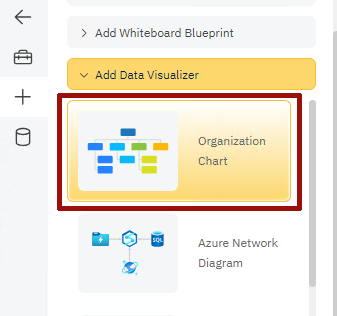
To start, find the **Organization Chart** data visualizer under the **Plus** menu (represented by the **+** icon). Select the **Data Visualizers** category and click on **Organization Chart**.
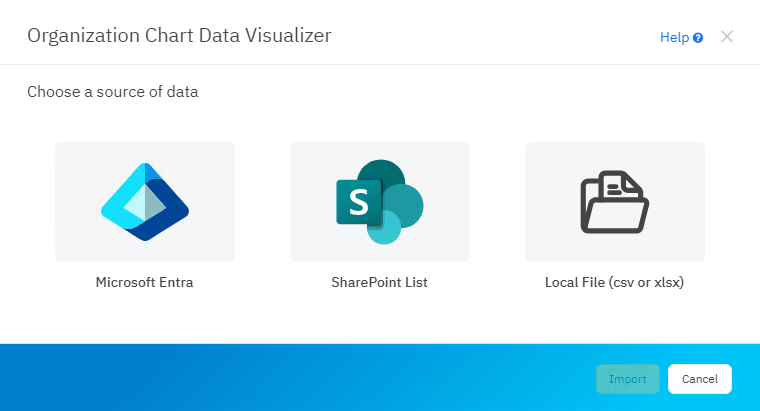
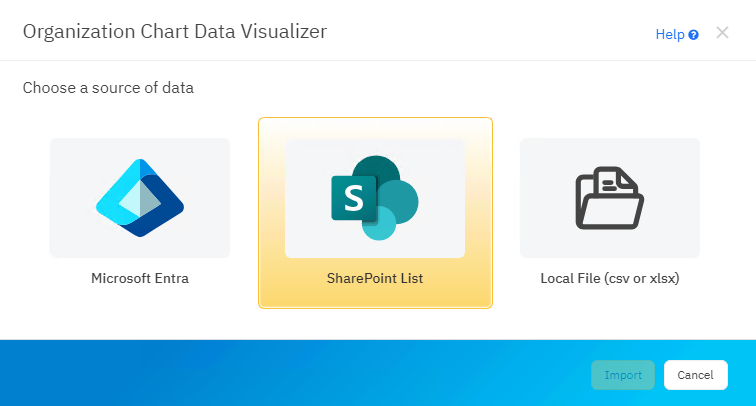
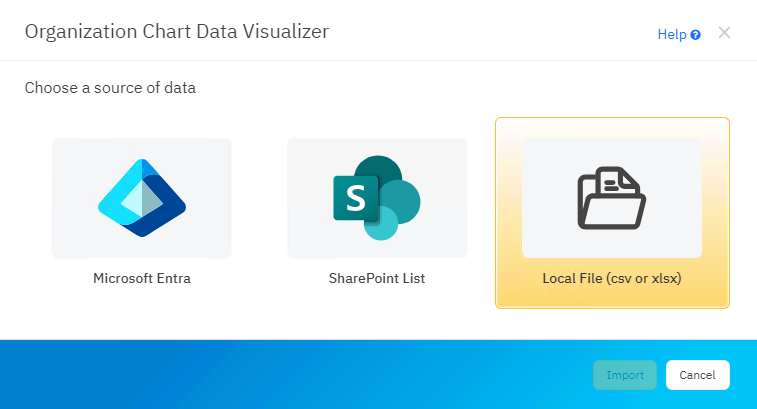
You'll see you have three options: **Microsoft Entra**, **SharePoint**, or importing a **Local File**.
### Microsoft Entra
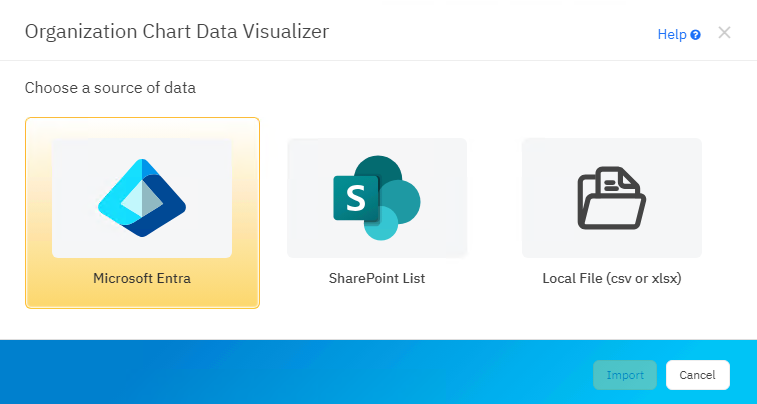
You can generate an organizational chart from your Microsoft directory of employees. Choose Microsoft Entra (formerly Azure Active Directory) from the Org Chart Data Visualizer options and login to your Microsoft account.
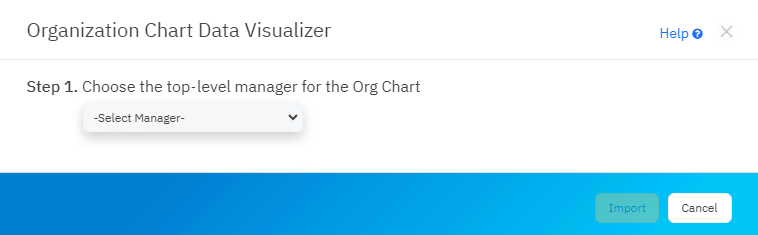
After logging in, you'll be prompted to select the top-level manager for the org chart you want to generate.
Once a manager is selected, you'll be shown a preview of how SmartDraw sees your data: name, title, department, and so on.
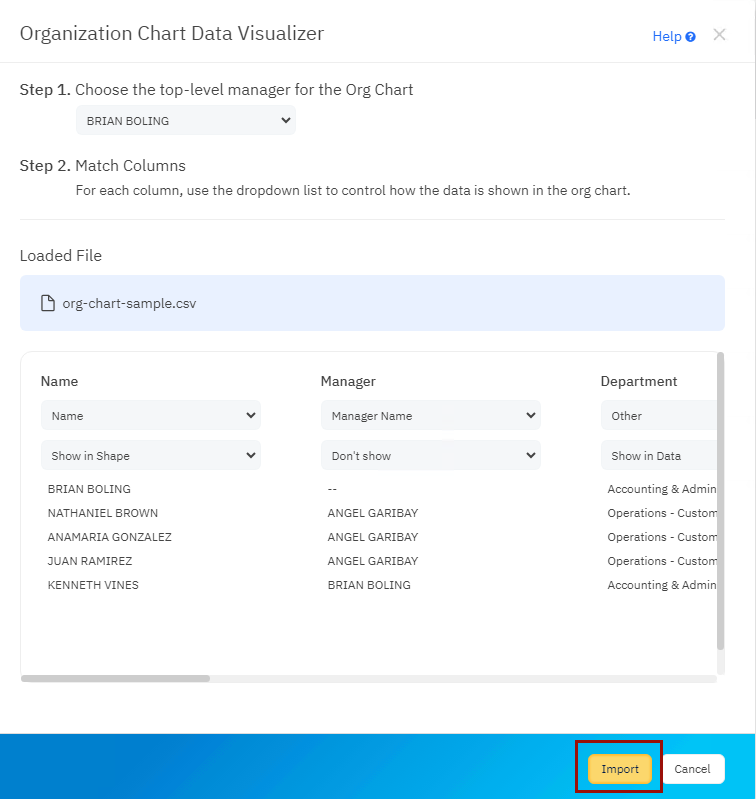
You can choose which pieces of data is included when you generate your chart. If you want to show something inside the shape, make sure you select **Show in Shape** from the drop-down menu in that column. If you want data to be included, but not shown in the shape choose **Show in Data**. This will show that information in a tool-tip. You can also just exclude any data by selecting **Don't show**.
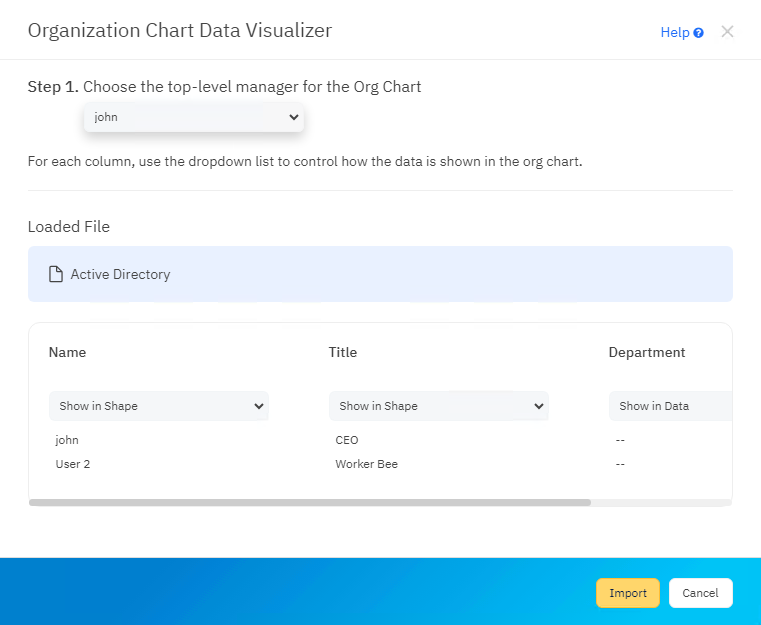
Once you're happy with your selections, click **Import** to generate your chart.
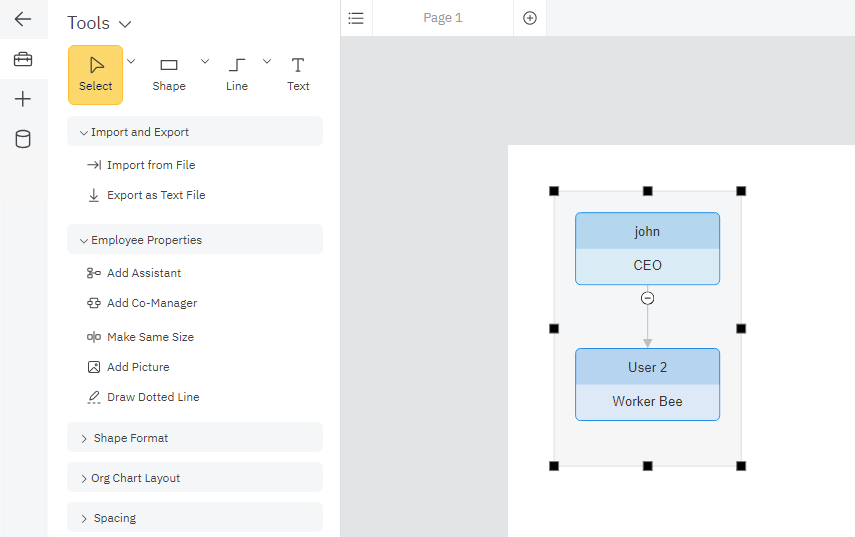
Here's the basic organizational chart this sample account will generate.
### NOTE ABOUT PERMISSIONS:
Running the org chart import is done under the credentials you're logged in with to Entra. If you do not have permission to see some information in Entra, it will fail with an insufficient privileges message. In other words, running SmartDraw to build an org chart does not grant new permissions and only uses what you are already allowed. Please contact your administrator if you run into this problem.
### SharePoint List
To build an organizational chart from your SharePoint account, choose SharePoint List option from the Organizational Chart Data Visualizer. Login to your SharePoint account when prompted.
After logging in, you will be asked to choose a SharePoint site.
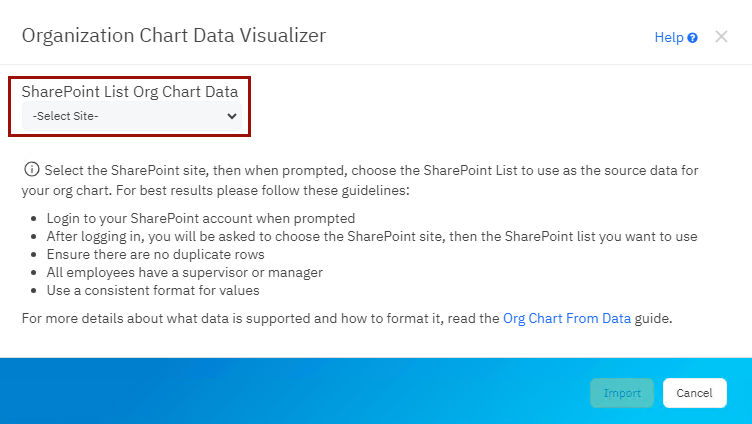
Next, select the SharePoint list you want to use from the drop-down.
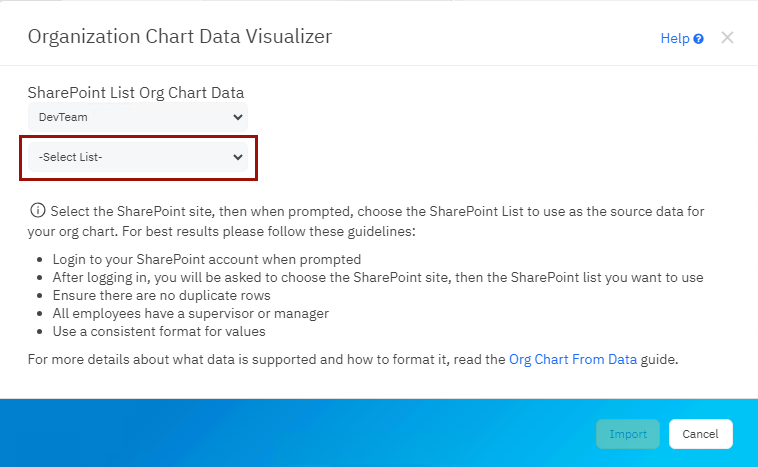
Once the list is loaded, you'll be able to select the top-level manager to use as the starting point for your org chart.
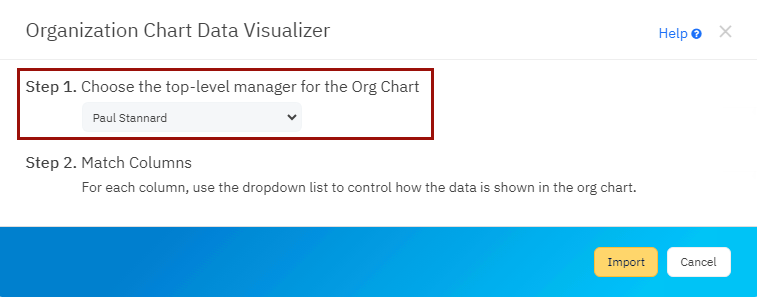
Once a manager is selected, you'll be shown a preview of how SmartDraw sees your data: name, title, department, and so on.
You can choose which pieces of data is included when you generate your chart. If you want to show something inside the shape, make sure you select **Show in Shape** from the drop-down menu in that column. If you want data to be included, but not shown in the shape choose **Show in Data**. This will show that information in a tool-tip. You can also just exclude any data by selecting **Don't show**.
Tips for making sure your data is formatted correctly:
- Ensure there are no duplicate rows
- All employees have a supervisor or manager
- Use a consistent format for values
### Before Importing a Local File, Prepare Your Data
Before you can import your data, the list must be formatted with the fields you want to show for each employee as columns and the values for an employee as rows.
Here are some basic rules for making sure your data is going to be readable:
- Each row must represent a unique employee. No duplicates.
- One of the columns must identify the supervisor of that employee.
- All of the rows must have a supervisor (a person that employee reports to) except for the top position in the org chart.
- Ensure all employees, including the top manager are represented in the data you want visualized.
- Make sure your name formatting is consistent across columns. The formatting of the supervisor's name or identification must match the formatting of the identification for the same person in the employee column. This is easiest if you're using numerical employee IDs. If you're using names, make sure that the names are spelled the same and the order of the first or last name is the same in both columns.
The table can be in CSV, XLS, or XLSX file format. Here is a [template](https://support.smartdraw.com/hubfs/ACME-employee-list-org-chart-withid.csv?hsLang=en-us) you can use to format data.
Note: if you have issues generating a visual, try reducing the complexity of the data you're trying to import. SmartDraw will work best with charts that show less than 200 employees. If your entire company has more employees, consider rendering the org chart for each department separately to keep the visual a manageable size.
### Import Your Data
Once you have your data set up, select **Local File** in the **Organization Chart Data Visualizer** modal.
Find the file on your system and drag and drop it to the dialog.
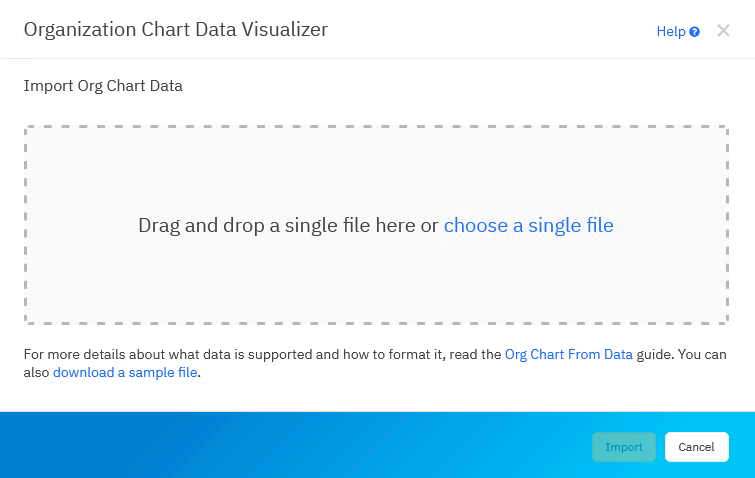
SmartDraw will automatically load and parse your file.
Next, select the top-level manager that will serve as the starting point for your organizational chart.
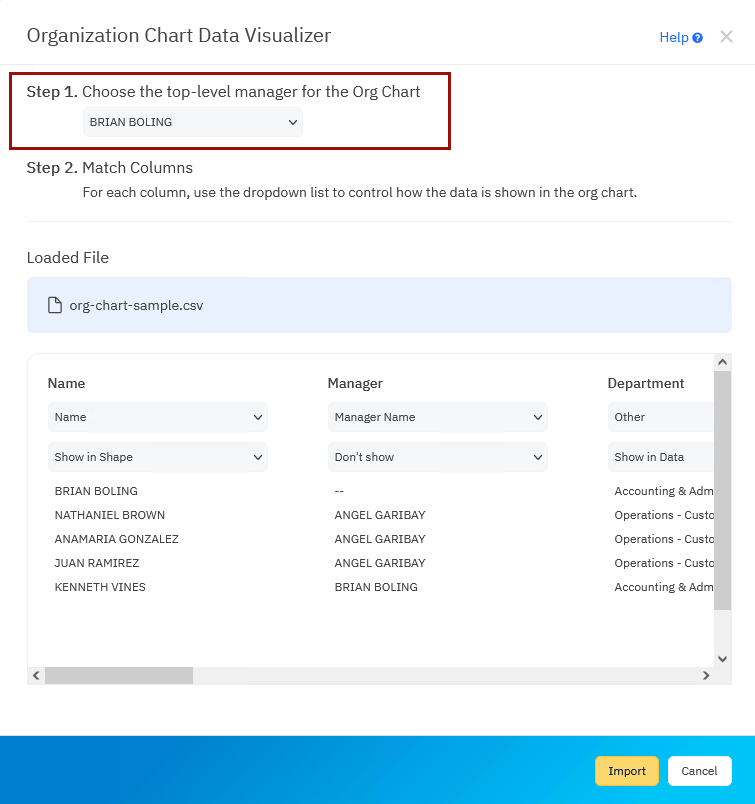
As the final step before importing, make sure your data is labeled correctly and choose whether to include it in your visual.
When SmartDraw parsed your file, it identified matching columns and guessed which columns were the name and title fields. The preview shown in this dialog is how SmartDraw sees your data. If it's off, you can make some changes if necessary.
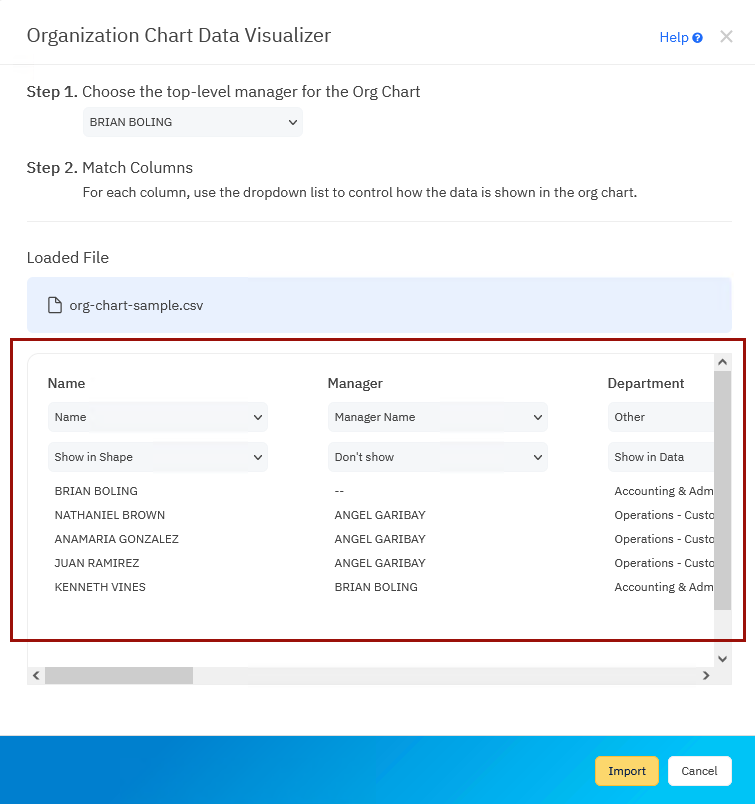
Each row in the table will add a shape to the org chart.
### Specify Special Column Types
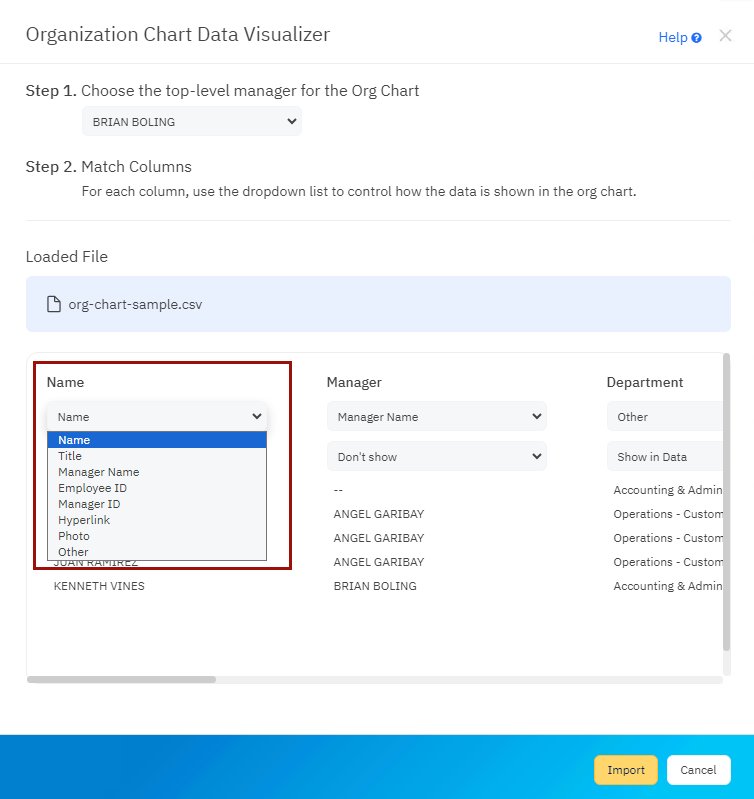
SmartDraw styles and builds your org chart using rules given to each data type. Data identified as *Name* will be shown centered inside a single org chart shape, while anything identified as a *Hyperlink* will trigger a hyperlink icon with a link to be added to the shape, and so forth.
The data type is displayed in the first menu above each column. You can change this type by selecting another option from the drop-down menu.
#### **The Rules for Data Types**
**Name**: Data from this column is set to *Show in Shape* as the first row of text. If you have first and last names in separate columns, you'll have to join them or just choose only one to display as the name in the org chart.
**Title**: This will show up as the second row of text inside the shape.
**Hyperlink**: This will add a hyperlink to the specified URL inside the shape. You use this to add links to employee records, for example.
**Other**: These columns are set to appear in the data layer (*Show in Data*) by default and not inside the shape itself. You can change this using the display menu. Once the org chart is built, you can find this information by hovering over the blue "i" icon in the lower right corner of an org chart shape. Other columns are added to the shape after the *Name* and *Title* in left to right order.
### Choose Display Options
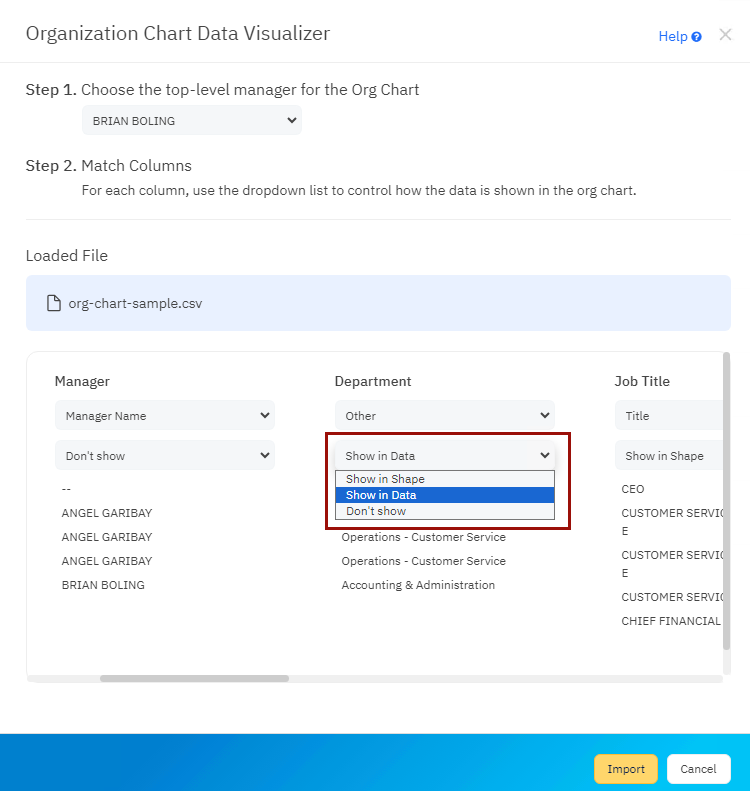
For each column in your data, you have three choices presented in the display menu at the top of each column (this is the second drop-down menu):
1. You can show the value in the shape by choosing "Show in Shape". This might be appropriate for someone's name, title, or telephone number.
2. Move the value to a data layer shown only on hover by choosing "Show in Data". This might be appropriate for data like a hire date or employee ID.
3. Hide this value completely by choosing "Don't show".
If you leave the defaults as they are, two rows, one for *Name* and one for *Title*, will show in each shape. All other data in columns will be moved to the data layer and shown as shape data. You can customize this using the display options listed above.
### Build the Chart
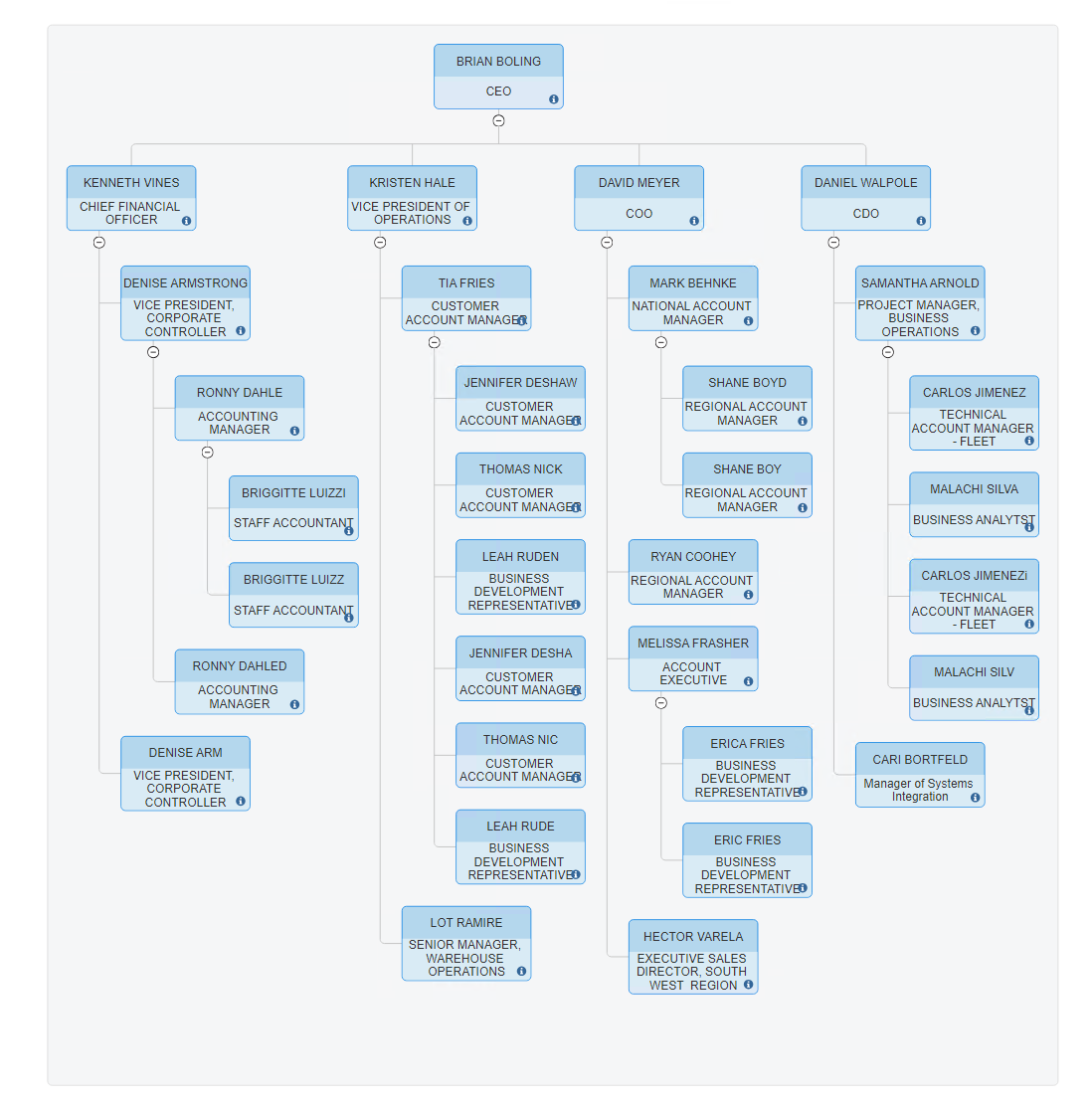
When you're ready, click **Import** to generate your Org Chart automatically.
Once you imported your data, you can edit your org chart diagram like any other SmartDraw diagram.
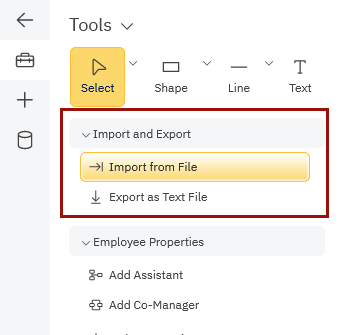
NOTE: You can also import data using the SmartPanel in any organizational chart template. This will bring up the same dialog and choices.
Go to the **Import and Export** control palette in the SmartPanel to the left of your workspace and click on **Import from File**.
[Download a sample CSV to test your organizational chart data import. ](https://support.smartdraw.com/hubfs/ACME-employee-list-org-chart-withid.csv?hsLang=en-us)
- [The Basics](https://support.smartdraw.com/the-basics?hsLang=en-us#main-content)
- [Getting Started](https://support.smartdraw.com/the-basics?hsLang=en-us#getting-started)
- [Selection](https://support.smartdraw.com/the-basics?hsLang=en-us#selection)
- [Moving & Sizing](https://support.smartdraw.com/the-basics?hsLang=en-us#moving-sizing)
- [Text Entry](https://support.smartdraw.com/the-basics?hsLang=en-us#text-entry)
- [File Saving](https://support.smartdraw.com/the-basics?hsLang=en-us#file-saving)
- [How to Draw Anything](https://support.smartdraw.com/how-to-draw-anything?hsLang=en-us#main-content)
- [Getting Started](https://support.smartdraw.com/how-to-draw-anything?hsLang=en-us#getting-started)
- [Popular Diagrams](https://support.smartdraw.com/how-to-draw-anything?hsLang=en-us#popular-diagrams)
- [Other Diagrams](https://support.smartdraw.com/how-to-draw-anything?hsLang=en-us#other-diagrams)
- [FAQ](https://support.smartdraw.com/faq?hsLang=en-us#main-content)
- [Ordering Questions](https://support.smartdraw.com/faq?hsLang=en-us#ordering-questions)
- [Trials](https://support.smartdraw.com/faq?hsLang=en-us#trials)
- [Subscriptions](https://support.smartdraw.com/faq?hsLang=en-us#subscriptions)
- [Printing](https://support.smartdraw.com/faq?hsLang=en-us#printing)
- [My Account](https://support.smartdraw.com/my-account?hsLang=en-us#main-content)
- [All Users](https://support.smartdraw.com/my-account?hsLang=en-us#all-users)
- [Multi-Seat and Enterprise](https://support.smartdraw.com/my-account?hsLang=en-us#multi-seat-and-enterprise)
- [Enterprise](https://support.smartdraw.com/my-account?hsLang=en-us#enterprise)
- [Templates & Documents](https://support.smartdraw.com/templates-documents?hsLang=en-us#main-content)
- [Templates](https://support.smartdraw.com/templates-documents?hsLang=en-us#templates)
- [My Documents](https://support.smartdraw.com/templates-documents?hsLang=en-us#my-documents)
- [File Storage](https://support.smartdraw.com/templates-documents?hsLang=en-us#file-storage)
- [Videos](https://support.smartdraw.com/videos?hsLang=en-us#main-content)
- [Diagramming Basics and Tips](https://support.smartdraw.com/videos?hsLang=en-us#diagramming-basics-and-tips)
- [How to Draw Every Type of Diagram](https://support.smartdraw.com/videos?hsLang=en-us#how-to-draw-every-type-of-diagram)
- [Advanced Diagramming with Data](https://support.smartdraw.com/videos?hsLang=en-us#advanced-diagramming-with-data)
- [Sharing and Integrations](https://support.smartdraw.com/videos?hsLang=en-us#sharing-and-integrations)
- [Managing Your License, Users, and Account](https://support.smartdraw.com/videos?hsLang=en-us#managing-your-license-users-and-account)
- [SmartDraw AI](https://support.smartdraw.com/smartdraw-ai?hsLang=en-us#main-content)
- [AI Diagramming](https://support.smartdraw.com/smartdraw-ai?hsLang=en-us#ai-diagramming)
- [MCP Server](https://support.smartdraw.com/smartdraw-ai?hsLang=en-us#mcp-server)
- [Managing AI Access](https://support.smartdraw.com/smartdraw-ai?hsLang=en-us#managing-ai-access)
- [Collaboration](https://support.smartdraw.com/collaboration?hsLang=en-us#main-content)
- [Collaboration](https://support.smartdraw.com/collaboration?hsLang=en-us#collaboration)
- [Export](https://support.smartdraw.com/collaboration?hsLang=en-us#export)
- [Whiteboarding](https://support.smartdraw.com/collaboration?hsLang=en-us#whiteboarding)
- [Integrations](https://support.smartdraw.com/integrations?hsLang=en-us#main-content)
- [Storage](https://support.smartdraw.com/integrations?hsLang=en-us#storage)
- [Apps](https://support.smartdraw.com/integrations?hsLang=en-us#apps)
- [Visualizers](https://support.smartdraw.com/integrations?hsLang=en-us#visualizers)
- [Diagrams from Data](https://support.smartdraw.com/diagrams-from-data?hsLang=en-us#main-content)
- [Data Visualizers](https://support.smartdraw.com/diagrams-from-data?hsLang=en-us#data-visualizers)
- [Charts, Graphs, and Gauges](https://support.smartdraw.com/diagrams-from-data?hsLang=en-us#charts-graphs-and-gauges)
- [Shape Data](https://support.smartdraw.com/diagrams-from-data?hsLang=en-us#shape-data)
- [Custom Visualization](https://support.smartdraw.com/diagrams-from-data?hsLang=en-us#custom-visualization)
- [Reference](https://support.smartdraw.com/reference?hsLang=en-us#main-content)
- [Symbols](https://support.smartdraw.com/reference?hsLang=en-us#symbols)
- [Connectors](https://support.smartdraw.com/reference?hsLang=en-us#connectors)
- [Lines](https://support.smartdraw.com/reference?hsLang=en-us#lines)
- [Arranging Shapes](https://support.smartdraw.com/reference?hsLang=en-us#arranging-shapes)
- [Colors & Styles](https://support.smartdraw.com/reference?hsLang=en-us#colors-styles)
- [Dimensions](https://support.smartdraw.com/reference?hsLang=en-us#dimensions)
- [Floor Planning Tips](https://support.smartdraw.com/reference?hsLang=en-us#floor-planning-tips)
- [Enhancing Shapes](https://support.smartdraw.com/reference?hsLang=en-us#enhancing-shapes)
- [Workspace](https://support.smartdraw.com/reference?hsLang=en-us#workspace)
- [Layers](https://support.smartdraw.com/reference?hsLang=en-us#layers)
- [Grouping](https://support.smartdraw.com/reference?hsLang=en-us#grouping)
- [Tables](https://support.smartdraw.com/reference?hsLang=en-us#tables)
- [Containers](https://support.smartdraw.com/reference?hsLang=en-us#containers)
- [Printing](https://support.smartdraw.com/printing?hsLang=en-us#main-content)
- [Printing](https://support.smartdraw.com/printing?hsLang=en-us#printing)
[](https://www.smartdraw.com/)
Copyright © 1994-2026 SmartDraw, LLC