---
title: Add a Slack Bot to Configure SmartDraw Slack Notifications
description: Set up a Slack bot and connect it to SmartDraw so users get notified in Slack when they
---
[Skip to content](https://support.smartdraw.com/add-a-slack-bot-to-configure-smartdraw-slack-notifications#main-content)
English - United States
Show submenu for translations
[Submit a Request](https://support.smartdraw.com/kb-tickets/new?hsLang=en-us)

Open main navigation
Close main navigation
- English - United States
Show submenu for translations
- [Submit a Request](https://support.smartdraw.com/kb-tickets/new)
How can we help you?
- There are no suggestions because the search field is empty.
1. [SmartDraw Knowledge Base](https://support.smartdraw.com/?hsLang=en-us)
2. [Integrations](https://support.smartdraw.com/integrations?hsLang=en-us)
3. [Apps](https://support.smartdraw.com/integrations?hsLang=en-us#apps)
# Add a Slack Bot to Configure SmartDraw Slack Notifications
You can notify users about a note or comment using Slack. To set this up, you need someone with administrator privileges to your organization's Slack account to set up a bot and then configure SmartDraw to use this bot. Follow the steps outlined below.
### Create a Bot for Your Slack Instance
1. From a browser, go to [https://api.slack.com/apps/](https://api.slack.com/apps/)
2. Near the top-right of the page, click the **Create New App** button.
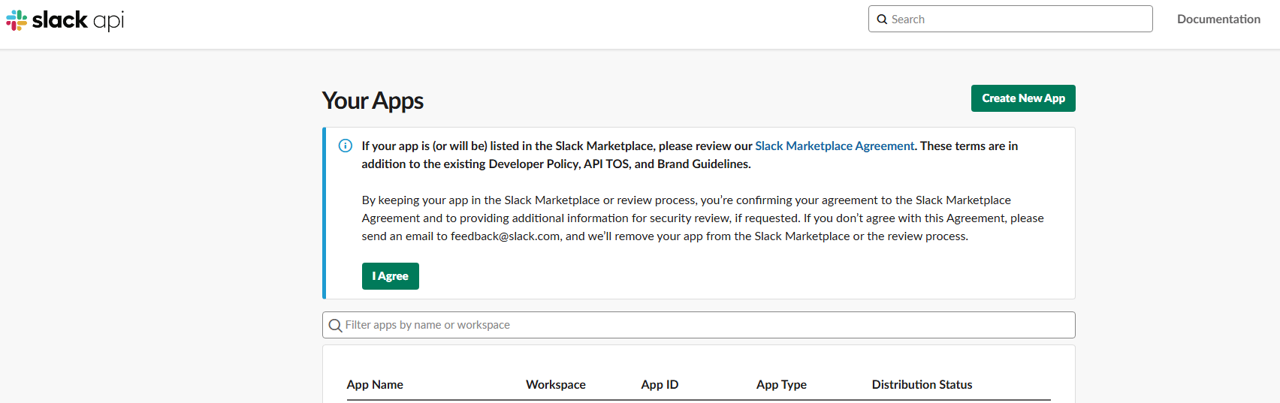
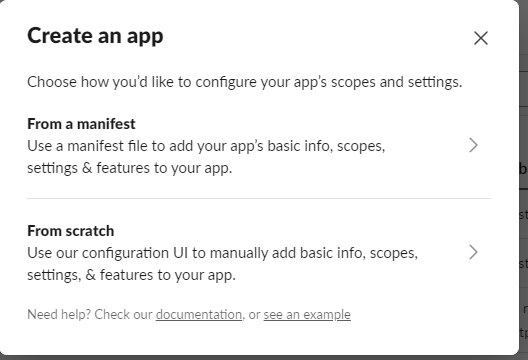
3. In the **Create an app** window, click the **From a manifest** option.
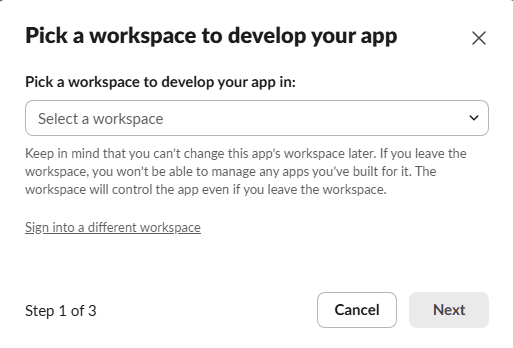
4. In the **Pick a workspace** panel, choose the workspace appropriate for your use of SmartDraw and click **Next**.
5. The next page will prompt you to **Create app from manifest**. Delete all the text in the example manifest it shows. Copy the text below, then paste it into the manifest prompt then click **Next**.
```
{
"display_information": {
"name": "SmartDraw Mentions",
"description": "Allows SmartDraw to notify users about mentions in SmartDraw documents",
"background_color": "#1948d4"
},
"features": {
"bot_user": {
"display_name": "SmartDraw Mentions",
"always_online": false
}
},
"oauth_config": {
"scopes": {
"bot": [
"chat:write",
"im:write",
"users:read.email",
"users:read"
]
}
},
"settings": {
"org_deploy_enabled": false,
"socket_mode_enabled": false,
"token_rotation_enabled": false
}
}
```
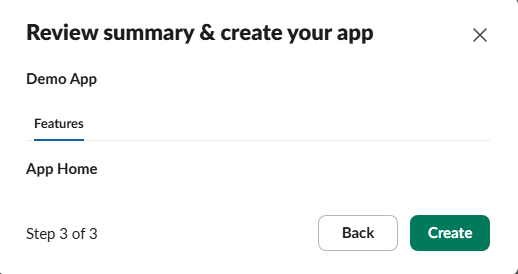
6. When you arrive at the **Review summary & create your app** page, click the **Create** button.
7. On the **Basic Information** page that follows, scroll towards the bottom until you see the **Display Information** section.
Download the SmartDraw icon from [https://www.smartdraw.com/common/img/smartdraw-logo-slack.png](https://www.smartdraw.com/common/img/smartdraw-logo-slack.png)
Then, in the **App icon & Preview**, click the **+ Add App Icon** button to upload the icon.
8. In the left navigation area, find **Features**, click **OAuth & Permissions**.
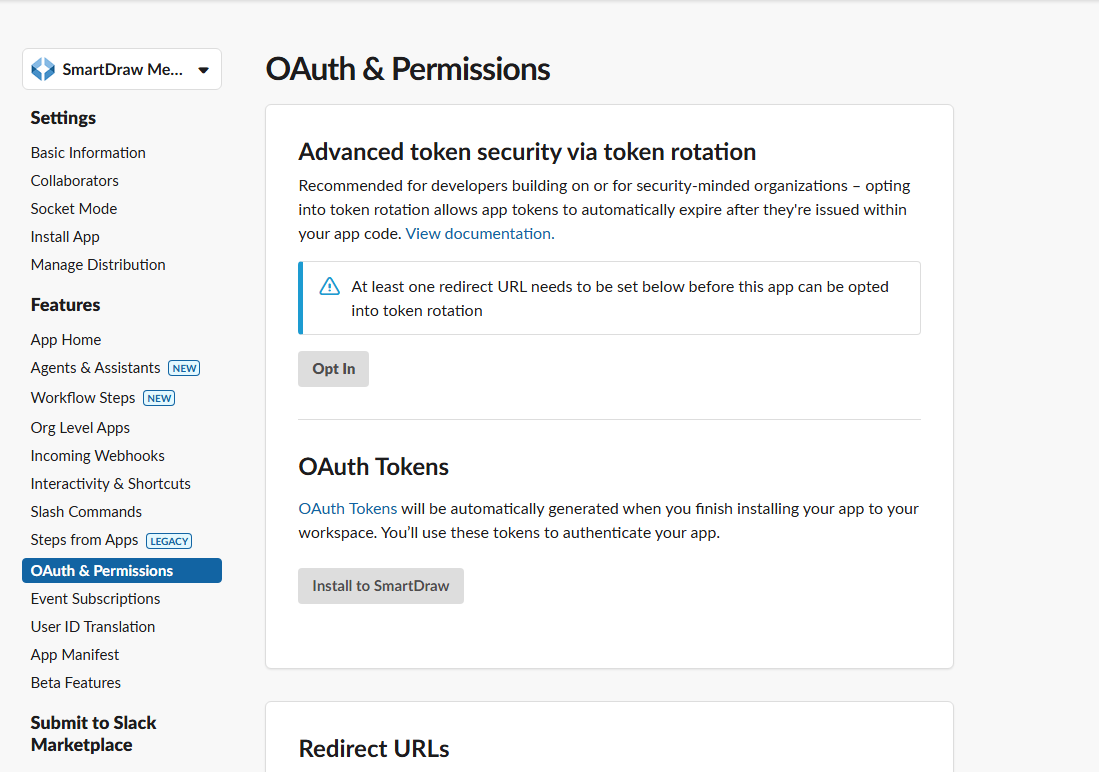
9. In the **OAuth Tokens** section, and click the **Install to** button.
10. When prompted with “**Bot is requesting permission to access the workspace**”, click **Allow**.
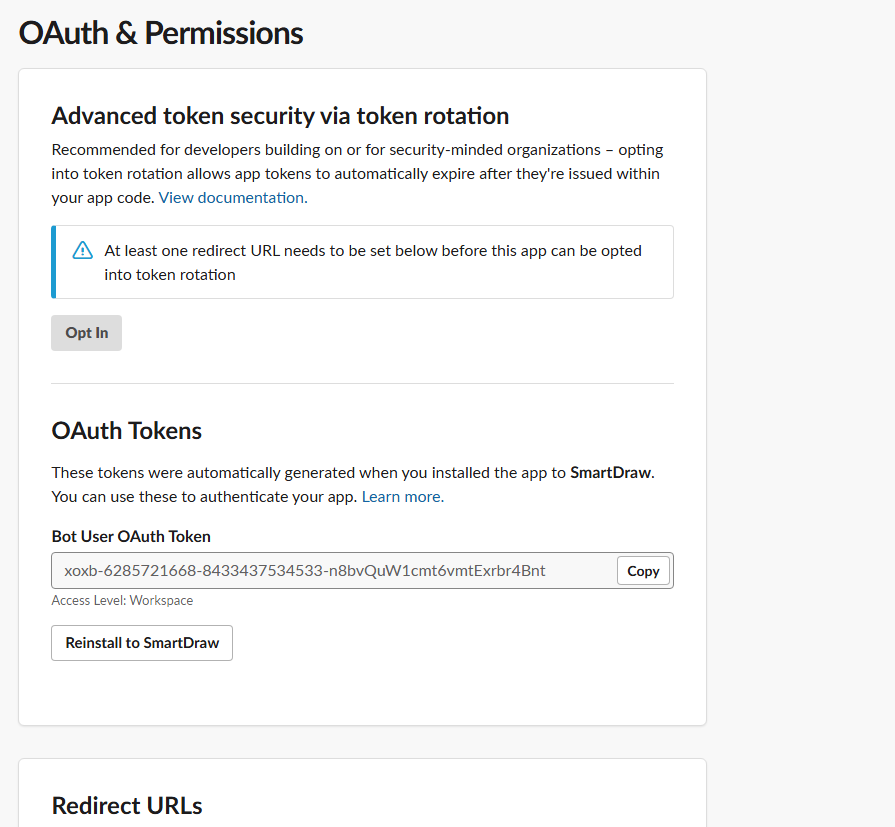
11. When the **OAuth & Permissions** page appears again, find the **OAuth Tokens** section, and copy the text in the **Bot User OAuth Token** section using the **Copy** button. This is the value that you'll need to configure in SmartDraw to allow SmartDraw to send mentions into Slack.
### Configure SmartDraw to use the Slack Bot
Now that your bot has been added to Slack, the bot’s OAuth Token must be made known to SmartDraw. To accomplish this:
1. Open the SmartDraw application.
2. At the bottom left of the app, click **My Account**.
3. In the left-side navigation area, click **Integrations**.
4. Scroll until you reach the section **Slack**. Click the **Connect** button.
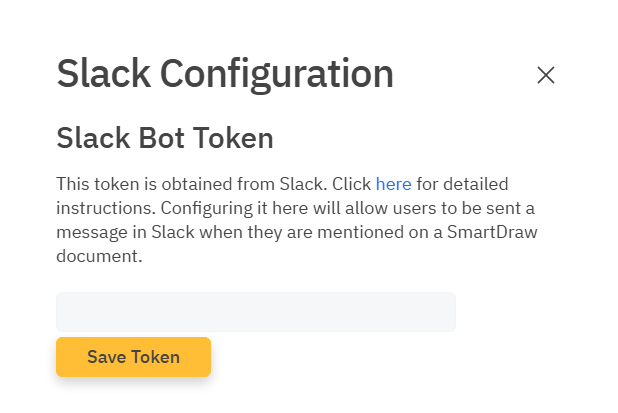
5. Paste the token you copied in the previous section, then click the **Save Token** button.
Your Slack Bot has now been configured to allow SmartDraw to send mentions to users in Slack when they are not editing the document at the time of the mention.
[Read this article about tagging collaborators using mentions in SmartDraw.](https://support.smartdraw.com/mentions-and-notifications?hsLang=en-us)
- [The Basics](https://support.smartdraw.com/the-basics?hsLang=en-us#main-content)
- [Getting Started](https://support.smartdraw.com/the-basics?hsLang=en-us#getting-started)
- [Selection](https://support.smartdraw.com/the-basics?hsLang=en-us#selection)
- [Moving & Sizing](https://support.smartdraw.com/the-basics?hsLang=en-us#moving-sizing)
- [Text Entry](https://support.smartdraw.com/the-basics?hsLang=en-us#text-entry)
- [File Saving](https://support.smartdraw.com/the-basics?hsLang=en-us#file-saving)
- [How to Draw Anything](https://support.smartdraw.com/how-to-draw-anything?hsLang=en-us#main-content)
- [Getting Started](https://support.smartdraw.com/how-to-draw-anything?hsLang=en-us#getting-started)
- [Popular Diagrams](https://support.smartdraw.com/how-to-draw-anything?hsLang=en-us#popular-diagrams)
- [Other Diagrams](https://support.smartdraw.com/how-to-draw-anything?hsLang=en-us#other-diagrams)
- [FAQ](https://support.smartdraw.com/faq?hsLang=en-us#main-content)
- [Ordering Questions](https://support.smartdraw.com/faq?hsLang=en-us#ordering-questions)
- [Trials](https://support.smartdraw.com/faq?hsLang=en-us#trials)
- [Subscriptions](https://support.smartdraw.com/faq?hsLang=en-us#subscriptions)
- [Printing](https://support.smartdraw.com/faq?hsLang=en-us#printing)
- [My Account](https://support.smartdraw.com/my-account?hsLang=en-us#main-content)
- [All Users](https://support.smartdraw.com/my-account?hsLang=en-us#all-users)
- [Multi-Seat and Enterprise](https://support.smartdraw.com/my-account?hsLang=en-us#multi-seat-and-enterprise)
- [Enterprise](https://support.smartdraw.com/my-account?hsLang=en-us#enterprise)
- [Templates & Documents](https://support.smartdraw.com/templates-documents?hsLang=en-us#main-content)
- [Templates](https://support.smartdraw.com/templates-documents?hsLang=en-us#templates)
- [My Documents](https://support.smartdraw.com/templates-documents?hsLang=en-us#my-documents)
- [File Storage](https://support.smartdraw.com/templates-documents?hsLang=en-us#file-storage)
- [Videos](https://support.smartdraw.com/videos?hsLang=en-us#main-content)
- [Diagramming Basics and Tips](https://support.smartdraw.com/videos?hsLang=en-us#diagramming-basics-and-tips)
- [How to Draw Every Type of Diagram](https://support.smartdraw.com/videos?hsLang=en-us#how-to-draw-every-type-of-diagram)
- [Advanced Diagramming with Data](https://support.smartdraw.com/videos?hsLang=en-us#advanced-diagramming-with-data)
- [Sharing and Integrations](https://support.smartdraw.com/videos?hsLang=en-us#sharing-and-integrations)
- [Managing Your License, Users, and Account](https://support.smartdraw.com/videos?hsLang=en-us#managing-your-license-users-and-account)
- [SmartDraw AI](https://support.smartdraw.com/smartdraw-ai?hsLang=en-us#main-content)
- [AI Diagramming](https://support.smartdraw.com/smartdraw-ai?hsLang=en-us#ai-diagramming)
- [MCP Server](https://support.smartdraw.com/smartdraw-ai?hsLang=en-us#mcp-server)
- [Managing AI Access](https://support.smartdraw.com/smartdraw-ai?hsLang=en-us#managing-ai-access)
- [Collaboration](https://support.smartdraw.com/collaboration?hsLang=en-us#main-content)
- [Collaboration](https://support.smartdraw.com/collaboration?hsLang=en-us#collaboration)
- [Export](https://support.smartdraw.com/collaboration?hsLang=en-us#export)
- [Whiteboarding](https://support.smartdraw.com/collaboration?hsLang=en-us#whiteboarding)
- [Integrations](https://support.smartdraw.com/integrations?hsLang=en-us#main-content)
- [Storage](https://support.smartdraw.com/integrations?hsLang=en-us#storage)
- [Apps](https://support.smartdraw.com/integrations?hsLang=en-us#apps)
- [Visualizers](https://support.smartdraw.com/integrations?hsLang=en-us#visualizers)
- [Diagrams from Data](https://support.smartdraw.com/diagrams-from-data?hsLang=en-us#main-content)
- [Data Visualizers](https://support.smartdraw.com/diagrams-from-data?hsLang=en-us#data-visualizers)
- [Charts, Graphs, and Gauges](https://support.smartdraw.com/diagrams-from-data?hsLang=en-us#charts-graphs-and-gauges)
- [Shape Data](https://support.smartdraw.com/diagrams-from-data?hsLang=en-us#shape-data)
- [Custom Visualization](https://support.smartdraw.com/diagrams-from-data?hsLang=en-us#custom-visualization)
- [Reference](https://support.smartdraw.com/reference?hsLang=en-us#main-content)
- [Symbols](https://support.smartdraw.com/reference?hsLang=en-us#symbols)
- [Connectors](https://support.smartdraw.com/reference?hsLang=en-us#connectors)
- [Lines](https://support.smartdraw.com/reference?hsLang=en-us#lines)
- [Arranging Shapes](https://support.smartdraw.com/reference?hsLang=en-us#arranging-shapes)
- [Colors & Styles](https://support.smartdraw.com/reference?hsLang=en-us#colors-styles)
- [Dimensions](https://support.smartdraw.com/reference?hsLang=en-us#dimensions)
- [Floor Planning Tips](https://support.smartdraw.com/reference?hsLang=en-us#floor-planning-tips)
- [Enhancing Shapes](https://support.smartdraw.com/reference?hsLang=en-us#enhancing-shapes)
- [Workspace](https://support.smartdraw.com/reference?hsLang=en-us#workspace)
- [Layers](https://support.smartdraw.com/reference?hsLang=en-us#layers)
- [Grouping](https://support.smartdraw.com/reference?hsLang=en-us#grouping)
- [Tables](https://support.smartdraw.com/reference?hsLang=en-us#tables)
- [Containers](https://support.smartdraw.com/reference?hsLang=en-us#containers)
- [Printing](https://support.smartdraw.com/printing?hsLang=en-us#main-content)
- [Printing](https://support.smartdraw.com/printing?hsLang=en-us#printing)
[](https://www.smartdraw.com/)
Copyright © 1994-2026 SmartDraw, LLC